
Welcome to your weekly roundup of FG Funnels updates through the week of May 21st, 2026. There’s a lot packed into this week’s release. From smarter conversations to Voice AI upgrades, blog improvements, new workflow integrations, and a bunch of quality-of-life fixes — all designed to save you time and give your clients a better experience.
If you have any questions about these updates, email us at [email protected] or reach out through live chat inside the app — we’re always happy to help.
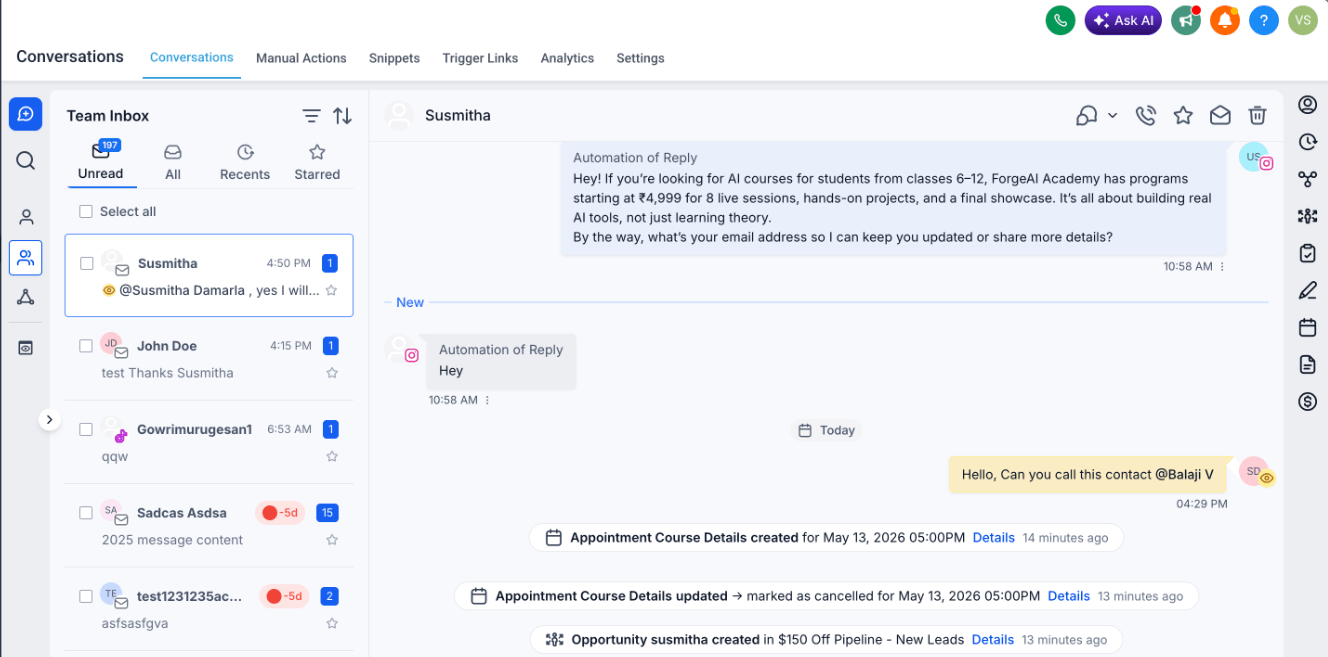
No more scrolling through a long conversation thread trying to find where you left off. FGF now drops a “New” divider right where your unread messages begin, and automatically scrolls you there the moment you open the conversation.
The indicator sticks around until you reply or manually mark the thread as read — even if you navigate away or refresh the page. It’s a small change that makes a big difference when you’re managing a high volume of messages.
Note: The “New” indicator only applies to messages received after April 23, 2026.
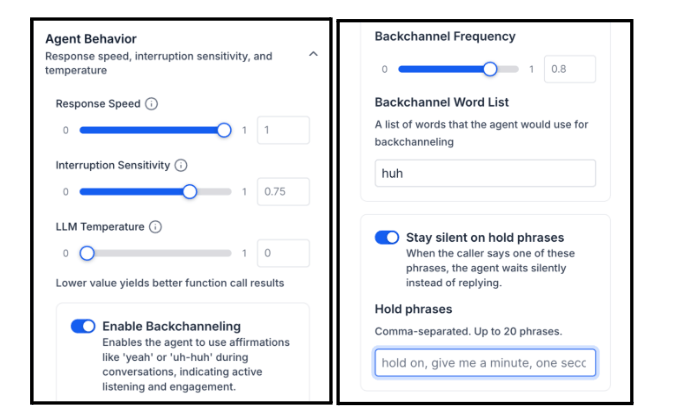
Your Voice AI agents can now be configured to stay quiet when a caller needs a moment to think, look something up, or grab a pen. A new No-Response Configuration lets you define phrases like “hold on,” “give me a sec,” or “let me check” — and when the agent hears them, it waits instead of jumping in.
This makes conversations feel more natural and less rushed. You can toggle it on or off per agent, add up to 20 custom phrases in any language, and the agent is smart enough to recognize similar intent (not just exact matches).
How to configure:
A few tips: sensible defaults are pre-loaded when you first enable it, so setup is fast. And keep your list focused — 5 to 10 well-chosen phrases work better than a long, overlapping one.
Pinterest creators, this one’s for you. You can now publish a single pin to up to 25 boards per Pinterest account in one go — no more duplicating posts board by board.
Select your boards from a multi-select dropdown, and FGF automatically fans out the pin into individual posts per board. Each board gets its own published pin with independent analytics, so failures are isolated and nothing else is affected if one board runs into an issue.
This works across all publishing flows — instant, scheduled, recurring, approval workflows, category queue, and CSV bulk upload.
How to Use:


You can now create native Facebook-style text posts with colorful backgrounds directly from the Social Planner composer — no need to hop into Facebook to do it manually.
A Text Background option appears when Facebook is selected. Browse background presets, see a live preview as you select, and publish or schedule from right inside FGF. The system automatically disables the background option if you add media, keeping everything clean and valid.
How to Use:


Three useful upgrades landed in the Blog Editor this week.
Image Captions: You can now add captions directly below images inside the editor. Captions stay attached to the image, support multiple lines, and resize responsively. It’s a clean way to add context or attribution without any workarounds.
Smarter Keyword Addition: When scheduling a blog post, you can now paste a comma-separated list of keywords all at once — like seo, marketing, content strategy, growth — and the system automatically converts them into individual keyword chips. Copy a list from ChatGPT, Google Docs, or any SEO tool and paste it right in. No more adding keywords one at a time.
Enhanced Image Actions: The Add Image flow now includes a dropdown with options to open the image in a full-size preview modal, link it to a custom URL, or keep it non-clickable. Images also now maintain proportional aspect ratios automatically, with alignment controls and a replace image option built in.
How to Use:


Adding and removing contact tags now has a confirmation step built in. Instead of instantly applying changes (and potentially triggering workflows by accident), you’ll now see an Apply button to confirm your selections and a Cancel button to back out.
It’s a small but important safeguard, especially for anyone managing automations tied to tag changes.
How it works:
Coming soon: tag categories, tag colors, and category/color visibility directly inside the dropdown.

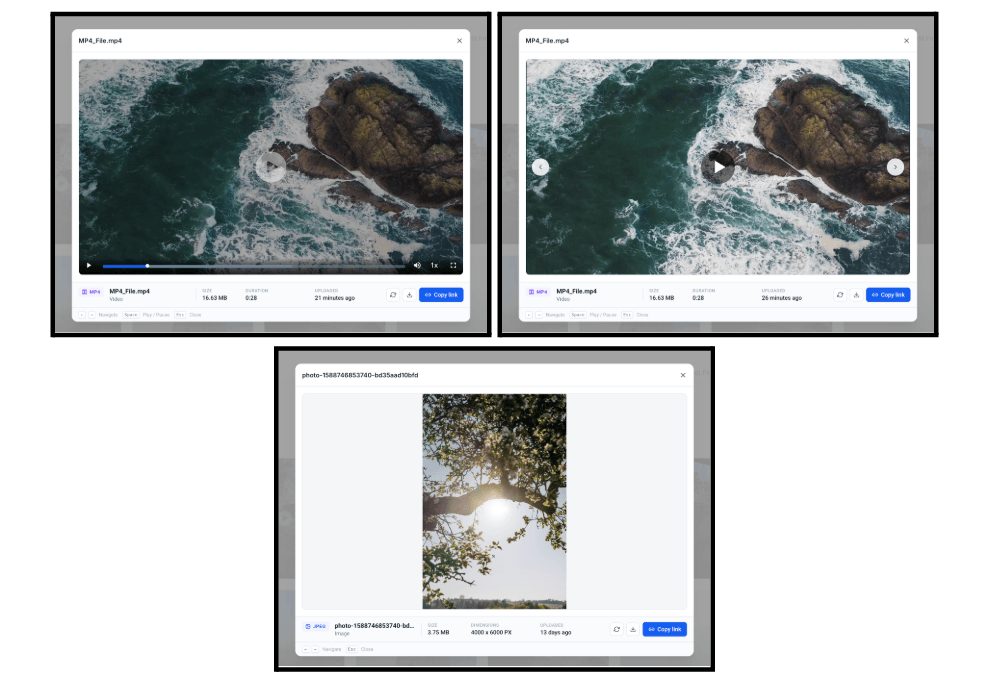
Reviewing a folder of images or videos just got a lot less tedious. You can now use left/right arrow buttons (or your keyboard arrows) to move between files in the preview modal — no more closing and reopening each one.
Press Esc to close, and videos stay paused when you navigate into them (no surprise audio).
The AI Agent action now supports searching your native knowledge base at runtime. Instead of copying your FAQs, pricing, and service details into a static prompt (which bloats the context window and produces worse results), the agent fetches exactly what it needs — when it needs it.
This keeps token usage lean, reduces cost, and delivers more accurate, grounded responses. Your business knowledge stays in one place and the agent taps into it intelligently.
How to Set It Up:


The AI Agent action can now write to custom values directly — collapsing what used to be large If/Else trees into a single agent step.
If you’ve ever built out 10–15 branches with 6–7 actions each just to update a custom value based on the day of the week or a pipeline stage, this replaces all of that. The agent evaluates context and sets the right value in one step. Less maintenance, fewer actions, faster execution.
Common configurations:

Cal.com is now directly integrated into the FGF Workflow Builder. You can trigger workflows from booking lifecycle events and take action on Cal.com bookings — all without webhooks or third-party tools.
The integration covers booking creation, rescheduling, cancellations, no-shows, and more. Common use cases include auto-creating CRM contacts from new bookings, sending no-show recovery messages, running cancellation retention sequences, and programmatically creating bookings from form submissions.

Linear is now integrated into Workflows with 12 triggers and 13 actions — covering Linear’s full issue lifecycle, project planning, customer requests, and initiative tracking.
Use cases include routing customer bug reports into Linear issues, notifying customers when their reported issue ships, syncing CRM data with Linear customers, and piping project updates into AI-summarized digests.
HubSpot is now available as a Workflow integration with one trigger and five actions: New Contact Created, plus Create Contact, Find Contact, Get Contact by ID, Search Contact by Email, and Create Association.
Common use cases include form-to-contact flows with deduplication, two-way contact sync between HubSpot and FGF, and lifecycle-stage-based nurture routing.
All five actions are premium and consume premium action credits. The integration works on the free HubSpot CRM plan.

You can now connect your Google Drive and import documents directly into your FGF Knowledge Base — no downloading and re-uploading required. Supported file types include PDFs, Google Docs, DOC, and DOCX files.
Imported files can be manually re-synced anytime to pull the latest version from Drive. Google Drive sources work alongside websites, FAQs, and other Knowledge Base sources within a single retrieval system — making it much faster to turn existing documentation into AI-ready knowledge.
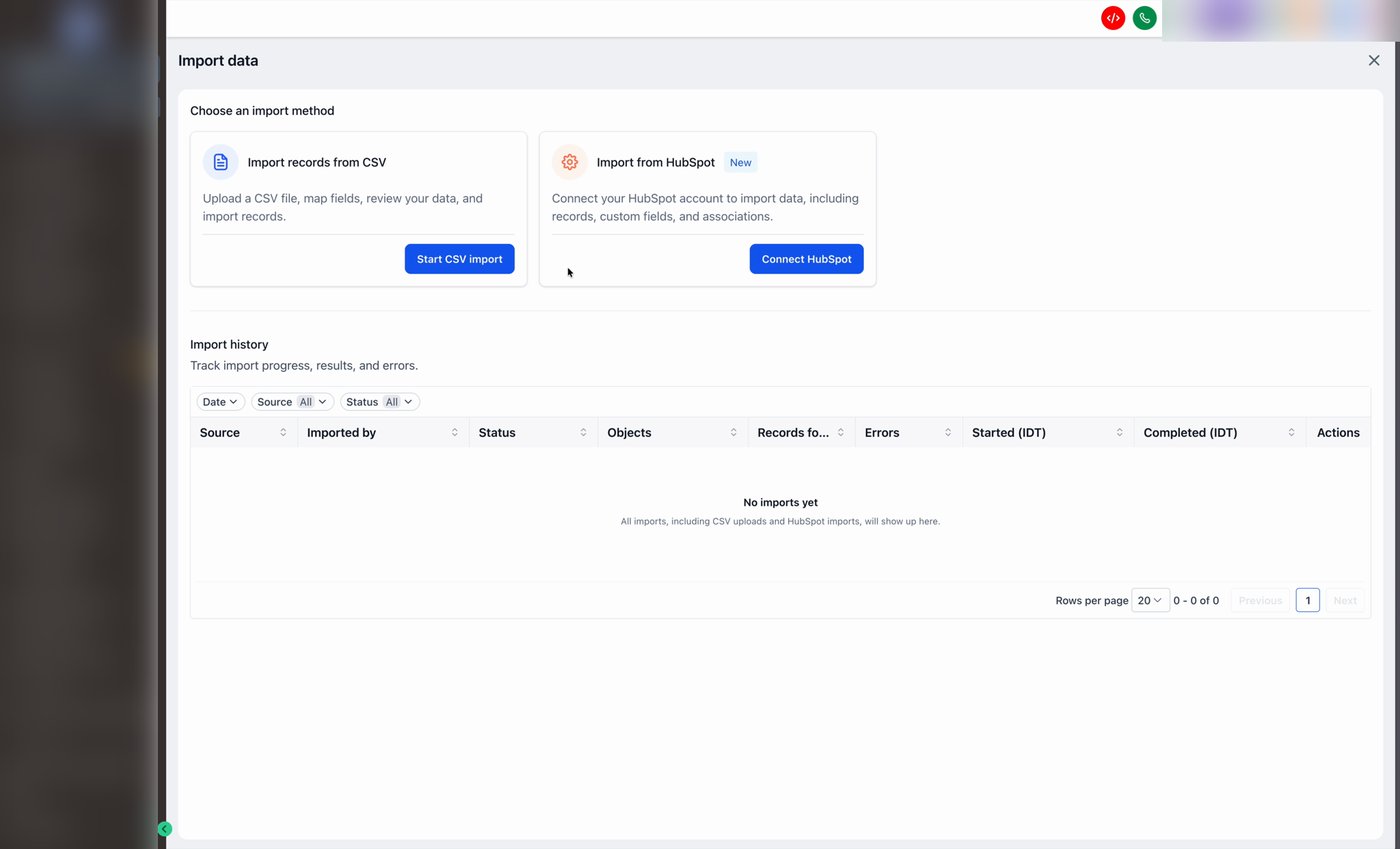
The HubSpot Importer is now live in beta for a select group of users. It walks you through migrating core HubSpot CRM data into FGF — contacts, opportunities (deals), custom fields, pipelines, stages, and folder organization — through a guided 4-step flow.
After the import, you get a detailed success/error report with object view, record view, status filters, and a CSV download option.
How to use:
Beta scope currently includes Contacts, Opportunities, Custom Fields, Custom Folders, Pipelines, and Stages. Companies, Tickets, Tasks, and other objects are coming in a future release.
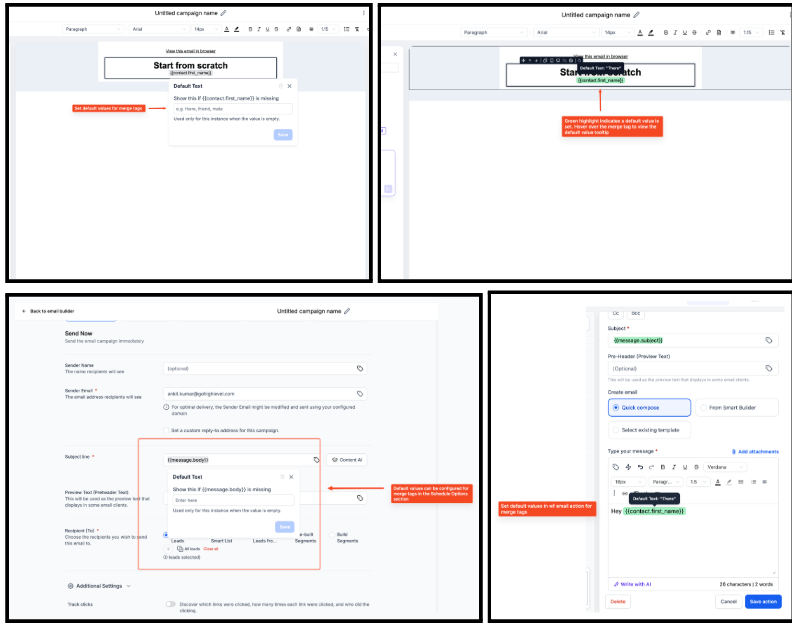
Personalized emails that rely on contact data — like first names or company names — can now fall back to a default value when that field is empty, instead of displaying a blank space.
For example, Hi {{contact.first_name}} with a default of there becomes Hi there when the first name field is missing. Default values are configured per custom value usage inside the email editor and work across workflow emails, campaign emails, bulk actions, and templates.
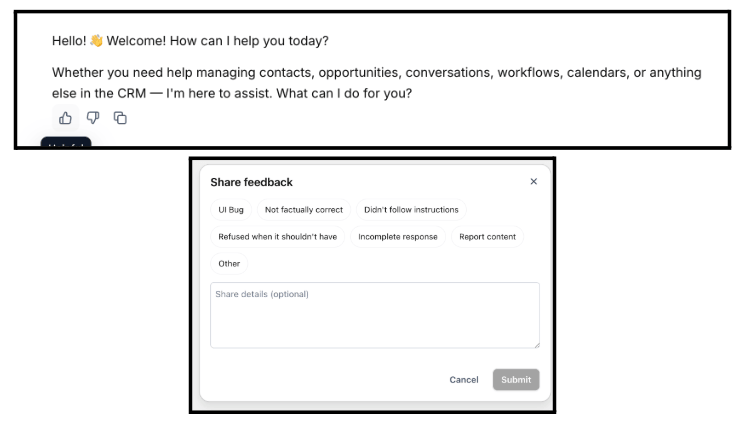
Ask AI now supports thumbs up / thumbs down feedback on individual responses. Negative feedback includes structured reasons and an optional comment field.
Available on new conversations started after this release.
You can now schedule Ask AI to run automatically — on a recurring cadence or at a specific future time — without keeping a session open. Set a prompt to run hourly, daily, on weekdays, weekly, on a custom cron schedule, or as a one-time task.
Daily contact summaries, weekly pipeline reports, end-of-day appointment recaps — all of it can now run on its own while you focus on other things.
How to Use:
From the form:
From chat: Say something like “Run a summary of new contacts every weekday at 9 AM” and it’s saved automatically.
From voice mode: Speak your schedule request — the AI confirms the next run time out loud.
Managing tasks:
Ask AI now has full control over the Courses experience. You can generate complete course structures from a topic, create rich HTML-formatted lesson content, build quizzes and assessments, manage drip schedules, lock or unlock lessons, publish or unpublish content, set up instructor profiles, configure custom headers/footers, and create offers — all through chat.
Ask AI will prompt for confirmation before any high-risk actions, and delete operations are disabled to prevent accidental loss of content.
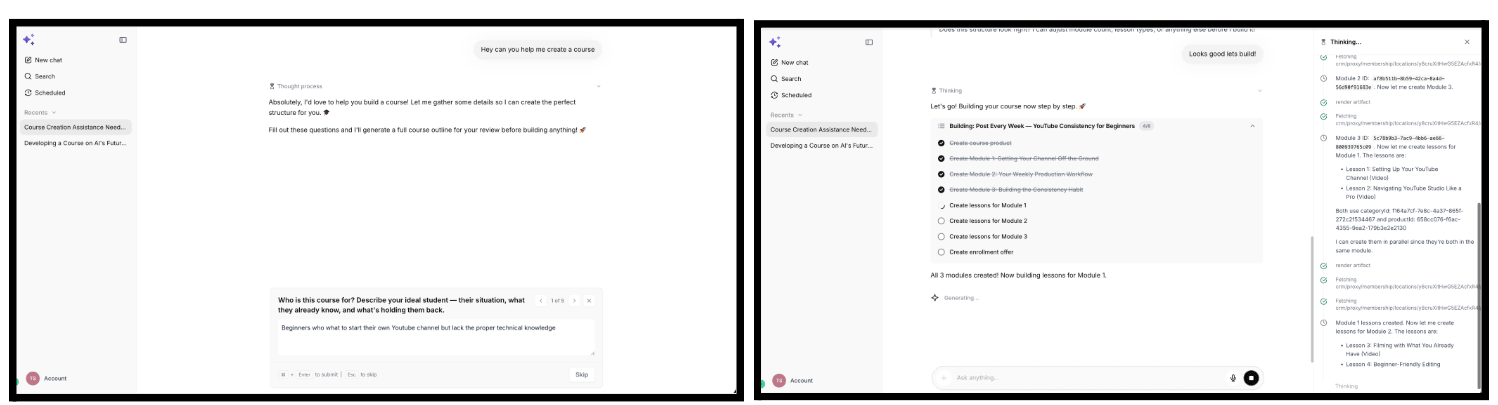
Ask AI can now generate complete blog drafts from a simple prompt or topic. Generated content includes title suggestions, structured headings, SEO-friendly formatting, and long-form paragraphs — ready to edit and publish.
You can provide URLs or images as reference, generate content in multiple languages, and let Ask AI pull in web context to keep topics relevant and current.
How to Use:
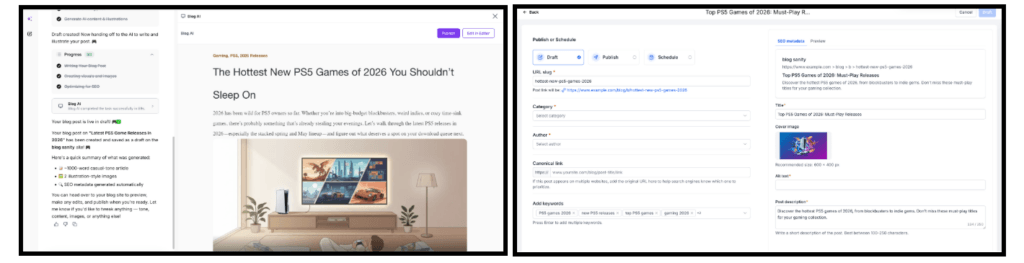
You can now connect multiple pages per platform across all 52 supported reputation integrations, with no cap on the number of pages. That means multiple Facebook pages, multiple Yelp listings, multiple Google Business profiles — all managed from one place.
Each connected page shows its link, connection status, review count, and last sync details. Manage, monitor, or remove any connection from the centralized integration view.
How It Works:

What’s new?
We’ve added keyboard shortcut support to the Product Details Page for smoother image navigation when Open Lightbox zoom is enabled.
Customers can now:
The light box also auto-focuses when opened, so shortcuts work immediately without needing an extra click. Arrow keys will no longer scroll the page behind the popup.
How to Use It?
FGF Notifications