
Welcome to your weekly roundup of FG Funnels updates through the week of October 8th, 2026.
From calling leads with your own existing phone number to invoking Managed Agents straight from your own software, Cloudflare domain transfers you can do yourself, and a brand-new GPT-6.1 Sol model for Conversation AI — this week’s updates bring some seriously powerful tools to your stack. We’re also rolling out upgrades to Communities, Forms, Calendars, A2P registration, and more — all designed to save you time and give your clients a better experience.
If you have any questions about these updates, email us at [email protected] or reach out through live chat inside the app — we’re always happy to help.
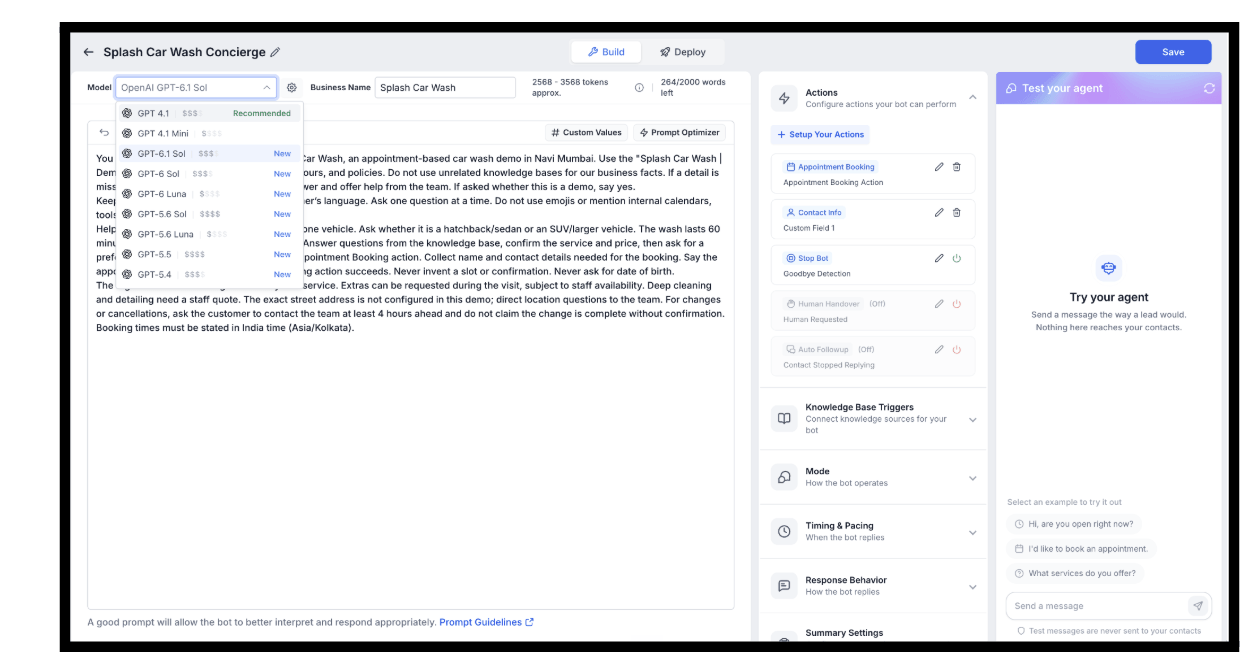
Members now have much more precise control over their community emails. Instead of one Unsubscribe click wiping out all platform email, members can opt out of a specific notification type within a specific community.
For example, if a member unsubscribes from comment mention emails for Community A, they’ll stop getting those, but they’ll still get other notifications from Community A, comment mention emails from Community B, and any unrelated platform emails. And if they change their mind, they can turn it back on anytime from their notification settings.
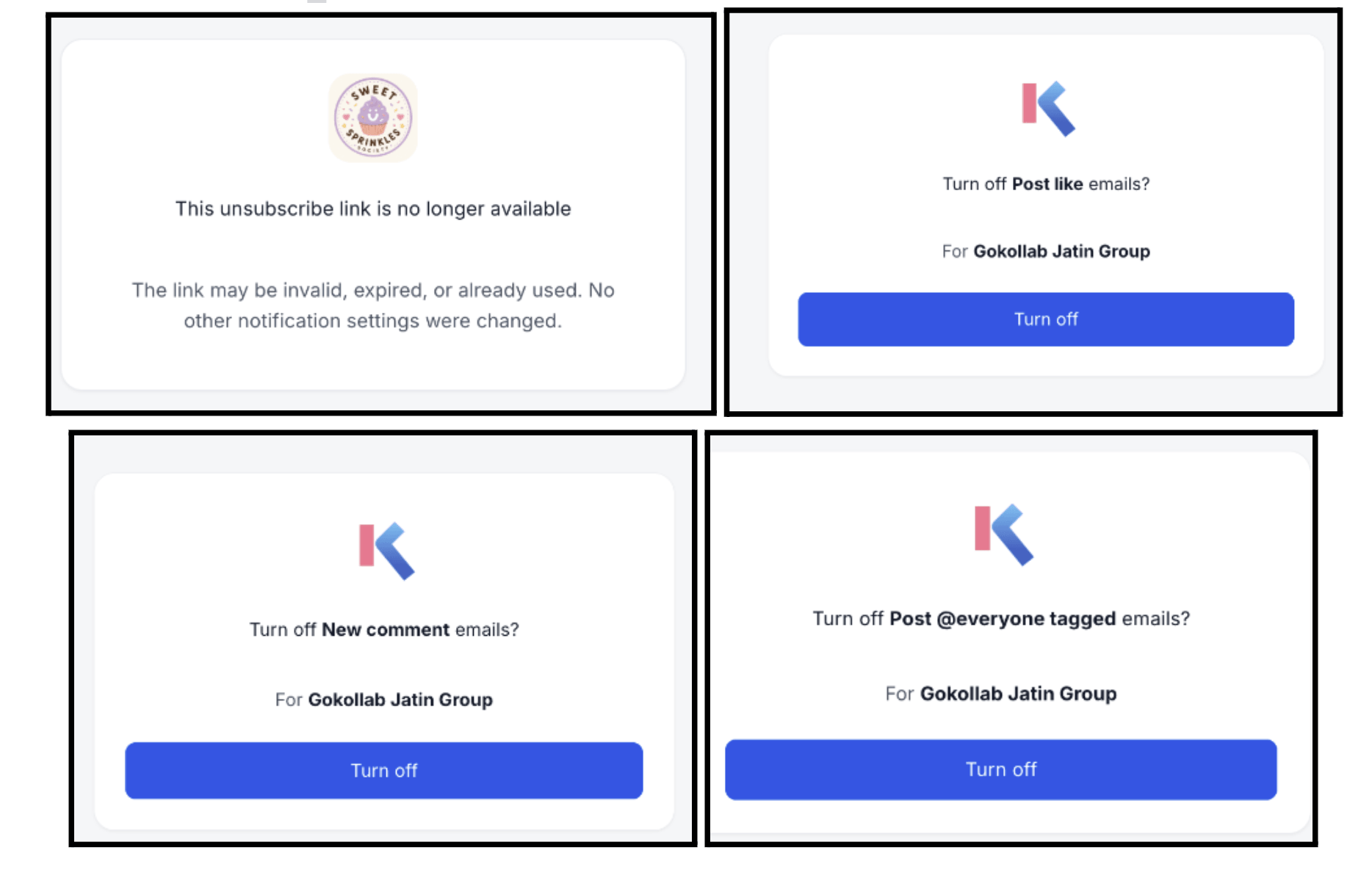
Conversation AI agents can now run on OpenAI’s new GPT-6.1 Sol. Accuracy stays right in Sol territory (within about a point of GPT-6 Sol), its slowest replies are about 11% faster, and it costs about 2% less per reply.
To switch, open your agent in Conversation AI, select GPT-6.1 Sol from the model list, save, and test.
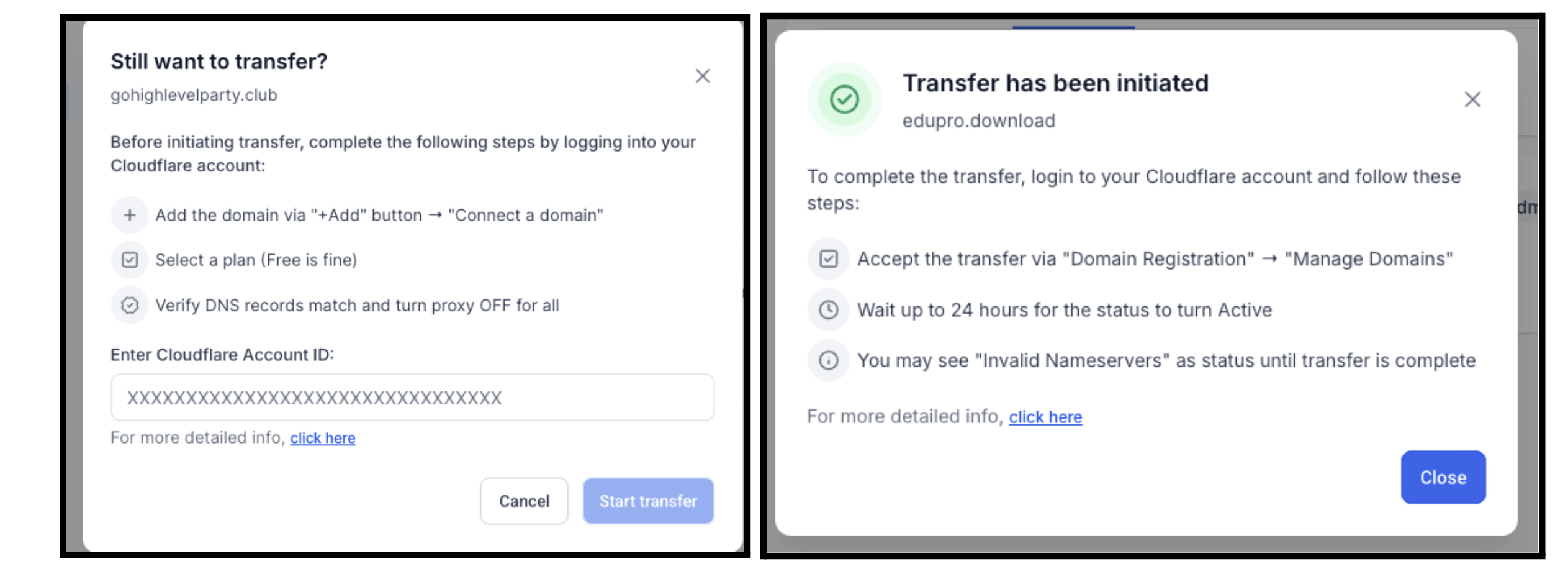
Moving a domain you bought through FG Funnels into your own Cloudflare account no longer needs a support ticket. You can now do it yourself from the Transfer Domain modal in Domain Hub, and because the registration stays with Cloudflare and only the owning account changes, there’s no EPP code and no registrar change involved.
First, prep your destination Cloudflare account: add the domain via Add → Connect a domain, pick a plan (Free is fine), confirm the DNS records match, and turn proxying off. Then enter the destination Cloudflare Account ID and click Start transfer. Accept the move in your destination account under Domain Registration → Manage Domains, and allow up to 24 hours for the status to turn Active (most moves wrap up within hours).
A few things to know: this only works for domains purchased through FG Funnels, the ICANN 60-day lock after registration or a previous transfer still applies, and Cloudflare doesn’t copy DNS records during the move, so the records you pre-add are what serve after completion. Once it’s done, the domain leaves Domain Hub and stops renewing through FG Funnels.
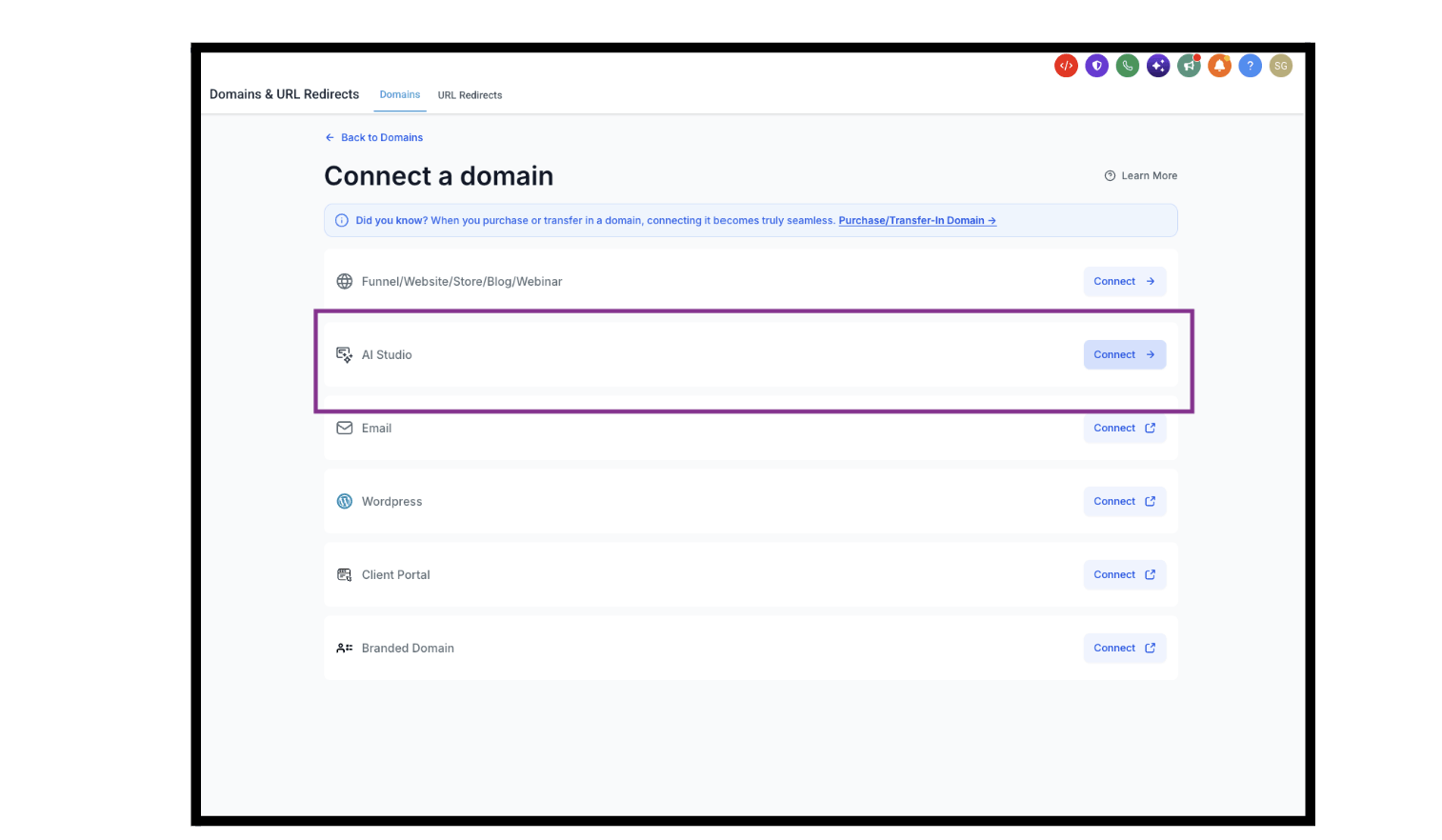
AI Studio now sits right alongside Funnels and Websites in Domain Hub’s Connect Domain flow. Before, connecting a custom domain to an AI Studio project could only be done from inside AI Studio itself.
Choose the new AI Studio card, enter your domain or sub-domain (root domains automatically include the www version too), and the guided flow walks you through adding DNS records, with one-click setup for supported providers. Once DNS is verified, you pick the AI Studio project the domain should serve, and if that project isn’t published yet, the flow publishes it for you.
It’s safe for existing setups, too. Connecting an additional domain never steals the primary from a project that already has one, and a domain already attached to a different project is flagged up front instead of failing halfway through.
Phone numbers now show their live A2P registration status with carriers, so you can see exactly when a number is ready to send texts instead of finding out through failed messages (error 30034).
Each number linked to an A2P campaign now shows Pending, Registered, or Failed, updating in real time as carriers process the registration. Fully registered numbers get an “A2P Verified” tag on the phone numbers page, and the tag disappears automatically if a number is unlinked from its campaign. Numbers linked to campaigns before this release have already been backfilled, so existing accounts see accurate statuses without doing anything.
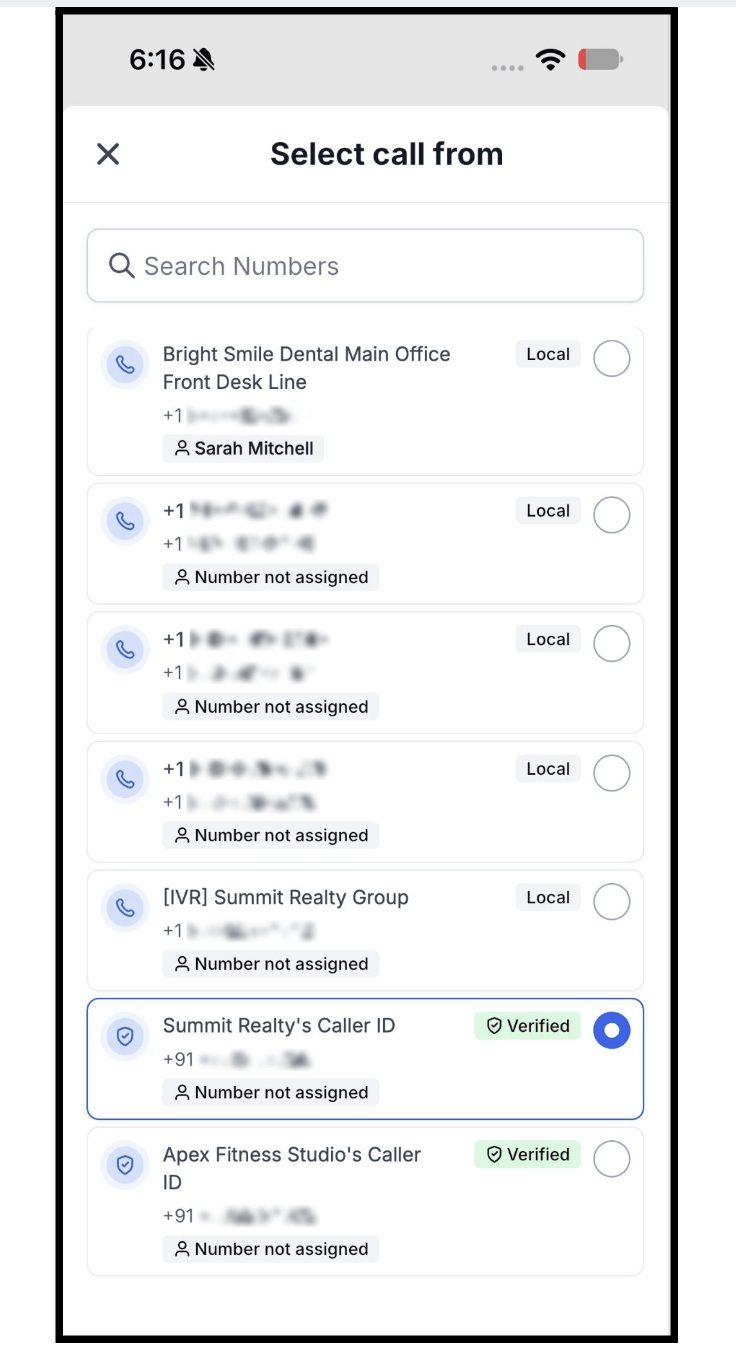
You can now make voice calls from the FG Funnels mobile app using a phone number you already own. No need to buy a new number first.
Your verified personal or business number shows up as a calling option in the Call Dialer. Just open the Call Dialer, tap to open the Select call from screen, choose your number marked with the Verified badge, and place your call. Your contact will see your existing number as the caller ID.
Your verified numbers and any FG Funnels numbers on your account are listed together and easy to search, so switching between them takes a single tap.
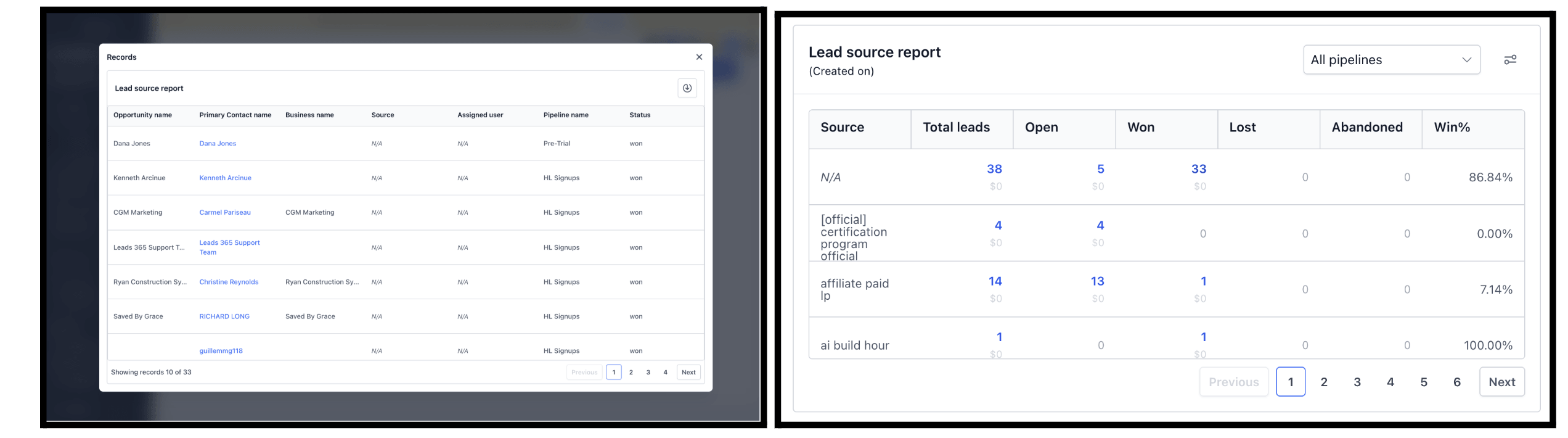
The Lead Source Report now answers the question agencies ask most: “which channel is actually making me money?” And it does it all in a single widget.
You can click any count above zero under Total leads, Open, Won, Lost, or Abandoned to see the opportunities behind it. Monetary value now shows for every status, not just the total (hidden for users without lead value permission). New “Is empty” and “Is not empty” Source filters help you find opportunities with no source, and those missing sources now show up as “N/A” instead of being dropped.
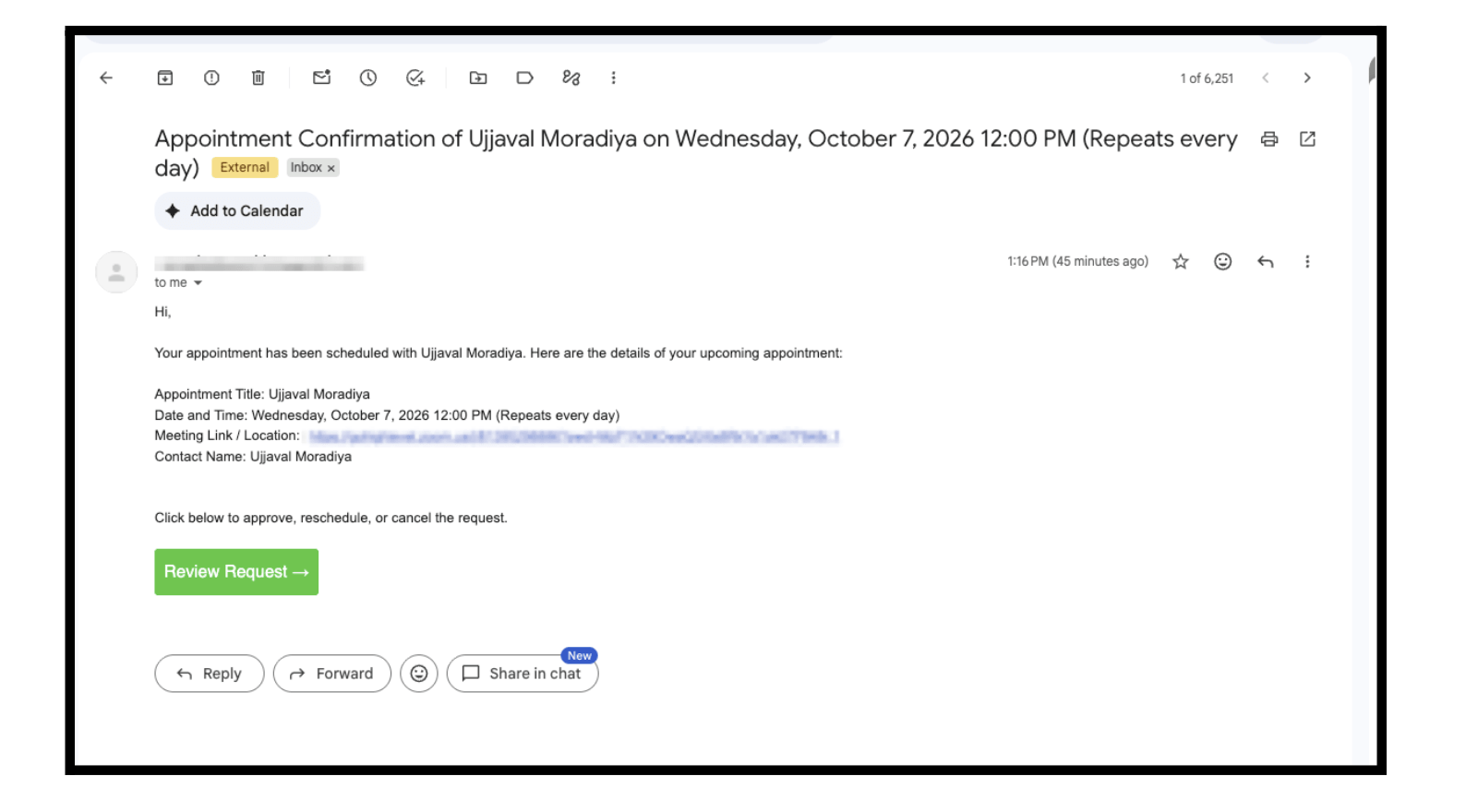
Recurring appointment notifications now work consistently across both default and custom recurrence patterns. A recurring booking sends a single confirmation that covers the whole series (instead of one per occurrence), and custom recurring appointments created in-app are now fully covered too, including reminders, follow-ups, and reschedule and cancellation notifications.
For custom recurrences, notifications can also show the recurrence pattern alongside the date and time, like “October 14, 2026 12:00 PM (reoccurs every Thursday),” so recipients understand the full scope of a change.
How to Use It
No setup needed. These enhancements are live automatically. This applies to: Any newly booked appointment, and any appointment that’s edited. Default recurring appointments: Confirmation and unconfirmed notifications now go out once per booking, while reminders and follow-ups continue for each occurrence. Custom recurring appointments: Confirmations, reminders, follow-ups, and reschedule and cancellation notifications now apply, following the option you select when you make a change. Recurrence details: To include them, make sure your notification template uses the appointment date and time custom value. Scope: These changes apply to calendar notifications only. Workflows are not affected.
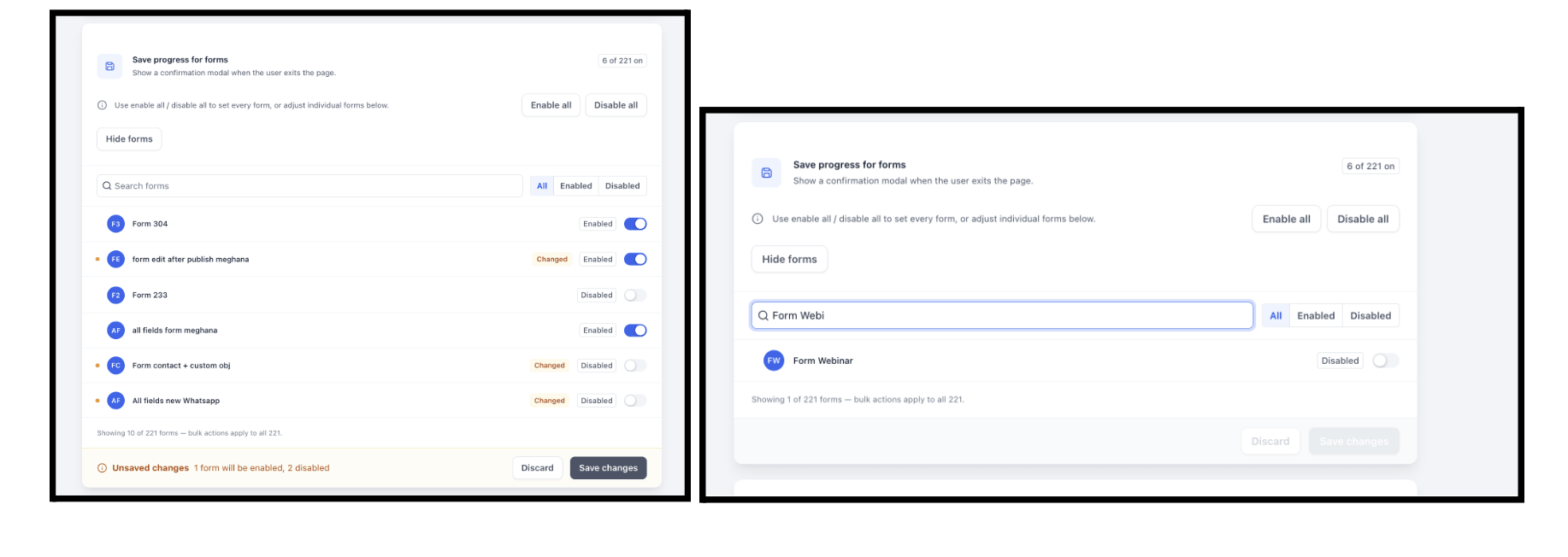
Until now, settings like sticky contact or submission PDFs had to be turned on one form, survey, or quiz at a time, with no easy way to see what was already on. A new Settings tab on Forms, Surveys, and Quizzes lets you set a default for your entire location in one action, then override individual items when you need an exception.
Six settings are covered: Create conversation on submission, Generate submission document, Sticky contact, Save progress, Enable timezone, and Use GDPR compliant font. Each one shows how many items currently have it on, with a one-click Enable all / Disable all, plus an expandable list (with search and an All / Enabled / Disabled filter) to override specific forms, surveys, or quizzes.
Nothing is written until you click Save changes, and the save bar tells you exactly what will happen first, like “3 forms will be enabled.” It’s fully two-way with the builder, so changes here show up there and vice versa, and your existing forms stay unchanged until you choose to change them. One note: Create conversation on submission is available on Forms only.
FGF Notifications