
Welcome to your weekly roundup of updates through 11/13/25. This week’s release focuses on smoother scheduling, smarter AI, better community tools, and more control over Voice AI and workflows. From Services (v2) now living inside Snapshots to a new embedded Voice AI chat widget and noise cancellation on calls, these updates are all about speed, clarity, and flexibility. If you have any questions regarding these updates, email us at [email protected] or reach out to us via live chat inside the app.
Services (v2) can now be included in Snapshots, making it easier to copy service setups across multiple sub-accounts. This saves onboarding time and ensures consistent service offerings across clients.
You can now include the following assets when creating or loading a Snapshot:

Comment Management inside Social Planner now works for Instagram, in addition to Facebook. You can respond to comments, manage threads, and filter conversations without leaving FG Funnels.
What’s New
How to Use
Go to Marketing → Social Planner → Comments
Click on any published Instagram post.
Select the Comments tab to view and reply.
Use the dropdown filter to toggle between Latest or Top comments.
Reply and manage threaded comments inside the unified inbox.
Comment Management now supports Facebook and Instagram, with more platforms on the way.
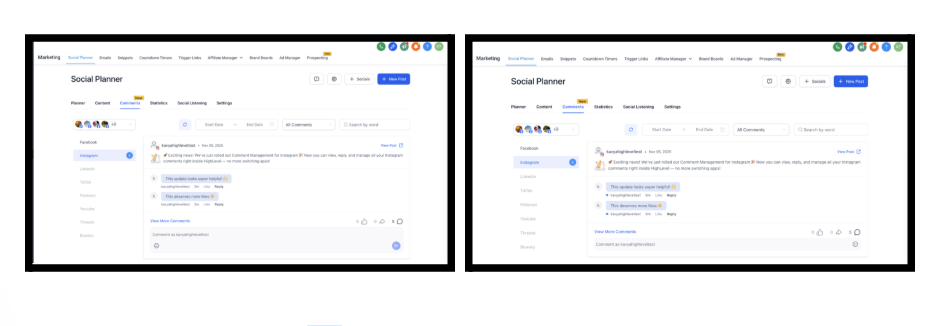
Image generation inside Funnel AI is now significantly faster and more consistent. Whether you’re updating visuals or generating fresh images for your funnels, requests complete in seconds and keep your creative flow moving.
Key Improvements
You can now create on-brand visuals faster without waiting on slow rendering.
Funnel AI page generation has been reworked to be faster, more reliable, and less expensive. Typical pages with 8–10 sections now generate in less than half the time.
What’s New
You can now build more funnels in less time, while handling more traffic at the same cost.
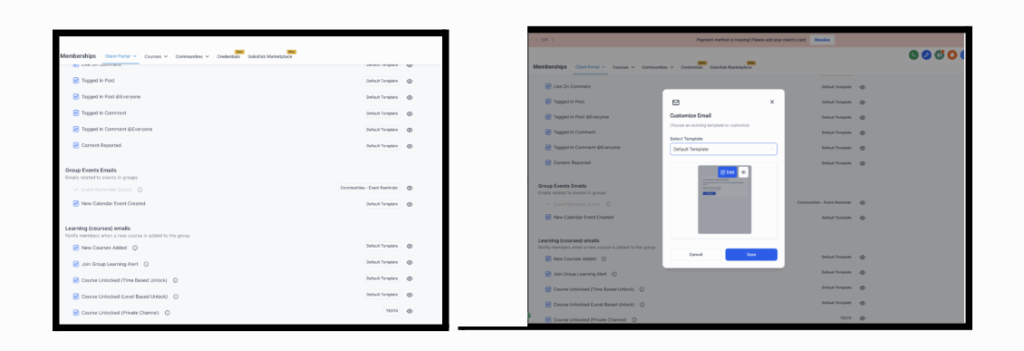
You can now customize Communities event reminder emails so they match your brand voice and layout. Alongside this, a series of fixes improves the overall Gokollab and Communities experience.
What’s New
Enhancements and Fixes
These updates give you more control over your community communication and a smoother experience for members.
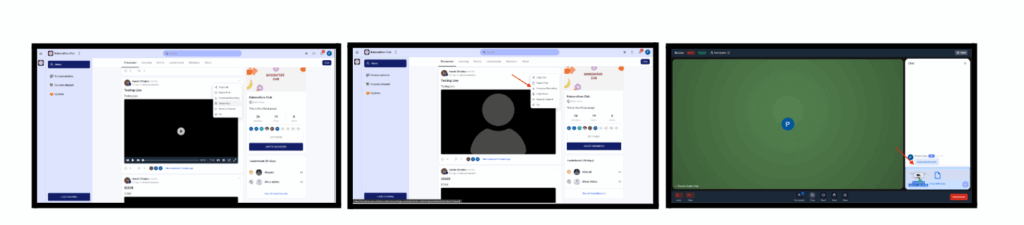
Go Live in Communities is now fully supported on mobile, with higher-quality video and a more engaging viewing experience.
What’s New
These changes make live sessions feel more natural, polished, and accessible across devices.
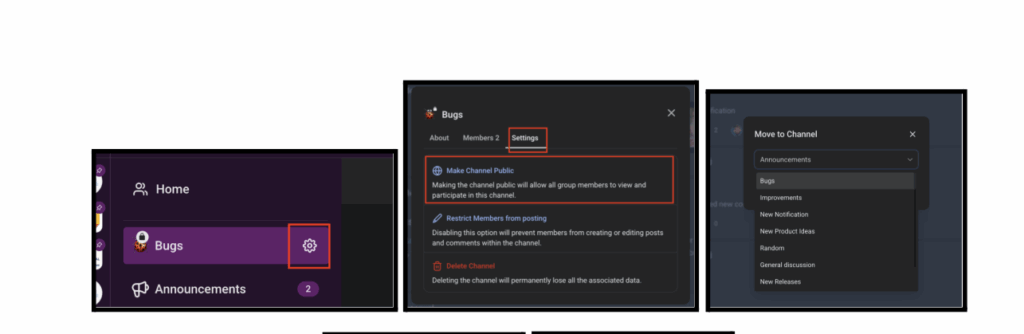
Admins now have more control over visibility and post placement inside Communities.
What’s New
Bug Fixes
Undo/Redo in the Page Builder has been rebuilt to track changes more accurately, including inside popups and global settings.
What’s New
This makes editing more predictable and stable, especially in complex pages.
Voice AI Chat Widgets can now be embedded inline within your page content instead of only floating in the corner. This creates a more integrated, on-page experience.
What’s New
How to use it
Go to Sites > Chat Widget > Open an existing or create a new Voice AI chat widget > go to Style tab.
Under Widget Placement, select Embedded/Inline.
Customize avatar, theme, and button text (under Chat Window) as per your specifications.
Click Get Code > Copy the inline embed snippet.
Paste the snippet inside any webpage section where you want the Voice AI widget to appear.
This gives you more control over where and how Voice AI shows up in your funnels and sites.

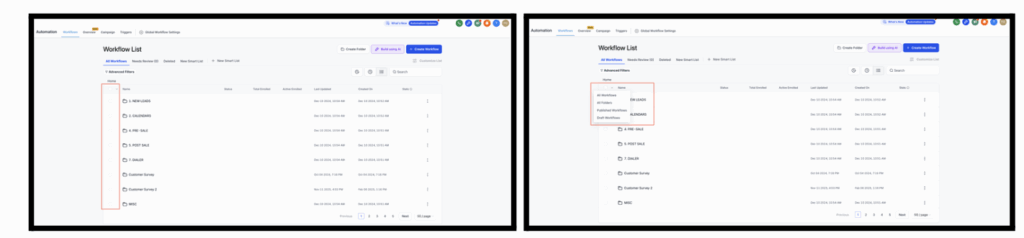
Managing multiple workflows at once is now much easier thanks to new bulk operations in the list view.
What’s New
How It Works
Use checkboxes to select one or more workflows/folders.
The “Select All” option lets you select every visible workflow on the page (by default the workflows will be selected not folders).
A toolbar will appear showing how many workflows are selected and which actions you can perform.
Confirmation pop-ups will show the number of workflows affected and any action.
You want to select all Workflows or Folders, no issues – Just click on the down arrow near select all and choose from the 4 options availab
Available on All Workflows and smart lists, this feature dramatically cuts down time spent on repeated workflow maintenance.
Two new settings make Voice AI calls clearer and more human: Noise Cancellation and Backchanneling.
Noise Cancellation
Backchanneling
How to enable
You can turn this on from Labs under “Voice AI – Noise Cancellation & Backchanneling. Watch the Demo
These options help Voice AI sound more natural while keeping conversations easy to understand.

FGF Notifications