Welcome to your weekly roundup of FG Funnels updates through the week of April 2nd, 2026.
This week’s release is packed with powerful upgrades across AI Builder, Site Analytics, Communities, Calendars, and Workflows. You’ll also see improvements to CRM usability, insights, and new tools to help you scale faster with less friction.
If you have any questions about these updates, email us at [email protected] or reach out through live chat inside the app—we’re always happy to help.
Integrations
Google Business Profile Connection Enhancements
We’ve improved the Google Business Profile (GBP) connection experience to make it easier to find and manage business pages—especially for users handling multiple locations.
What’s new:
- Clearer messaging when no GBP pages are found
- Expanded search options including Store Code, Postal Code, and Locality
How to use it:
- Navigate to Google Business Profile integration
- Use the search dropdown to select your preferred search field
- Enter the search value to filter pages
- If no pages are found, follow the guidance shown to connect the correct account


Forms, Surveys & Quizzes
Brand Board Colors in Builder
You can now access your Brand Board colors directly from the color picker, making it easier to stay consistent across forms, surveys, and quizzes.
What’s new:
- Brand Colors, Default Colors, and Global Custom Colors now available in the picker
- Apply saved brand colors to buttons, inputs, labels, and more
- Add new custom colors directly from the builder
- Color previews automatically reflect your selected brand colors
How to access:
- Open the Form Builder and select any element with color settings, like a button.
- Under the style settings, click a color field such as Button Background to open the color picker.
- From there, you’ll see Brand Colors, Global Custom Colors, and Default Colors.
- To add a new custom brand color, click Manage from the color picker to open Brand Settings.

Media Picker & Media Storage Integration
Forms, surveys, and quizzes now use the centralized Media Picker for a more consistent and efficient experience.
What’s new:
- Browse and reuse existing assets from Media Storage
- Upload new media directly from the picker
- Consistent media behavior across builders
Where it’s integrated:
- Image Upload Element
- Rich Text Editors
- Quiz Result Builder
- QR Codes
How it works:
- All uploads now go through Media Picker.
- Users can browse, upload, and reuse media from Media Storage.
Contacts
Custom Fields Page UI Upgrade
The Custom Fields experience has been redesigned to be cleaner, faster, and easier to use—without changing any functionality.
What’s new:
- Object-based switching (Contacts, Opportunities, etc.)
- Live preview of fields
- New icons for searchable/unique fields
- Column sorting for easier organization

Workflows
AI Builder Now Enabled by Default
AI Builder is now enabled by default for all accoutns and has received major upgrades in speed, accuracy, and reliability.
Highlights:
- 2x faster workflow creation
- 10x faster template generation
- Improved action/trigger selection accuracy
- Post-generation To-Do list for missing inputs
- Voice dictation for workflow creation
- Conversational editing for If/Else and Wait steps

AI Builder Reliability Improvements
We’ve dramatically reduced workflow generation errors:
- 100% elimination of conditional generation errors
- 10x reduction in node generation failures
This means a more stable and production-ready AI workflow experience.
Marketplace
AI-Powered Review Summary Insights
Marketplace apps now include AI-generated summaries of user reviews.
You’ll see:
- Overall sentiment summary
- Recommendation percentage
- Top pros and cons
This helps users evaluate apps faster without reading every review.

Site Analytics
Enhanced Funnel Analytics with Time-on-Page Insights
You can now track deeper engagement metrics across funnels, websites, and webinars.
What’s new:
- Average time on page
- Total sessions
- Step-level drill-down
- Persistent filters across views
This makes it easier to identify drop-offs and optimize performance.
Opportunities
Advanced Filters Revamp & Date Operators
Opportunity filtering has been redesigned for better usability and flexibility.
What’s new:
- Cleaner UI with grouped fields
- New date operators (in the next, in the last, more than, less than)
- Nested filter logic
- Stage filter added
How to Use:
- Enable feature from Settings > Labs
- Open Advanced Filters in Opportunities
- Browse fields using the new grouped sections
- Select a field (e.g., Follow Up Date or Stage)
- Choose from the expanded operator options
- Apply relative or absolute date condition
- Combine multiple filters using AND nested filters
- Use the same logic while creating Smart Tags for automation

Communities
Skool Importer Enhancements & Smarter Navigation
We’ve improved how Skool communities are imported and how users navigate communities.
What’s new:
- Import multiple Skool groups into one group
- Accurate chronological post and comment ordering
- Smarter landing (users go to relevant or recent group)
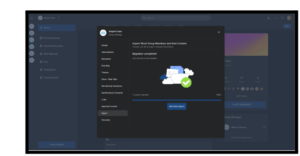
Leave Groups Anytime — Now Fully Self-Serve
Members can now leave a community on their own, without needing admin assistance making community management more seamless and user-friendly. Once a member leaves, they immediately lose access to the community
- This includes all associated courses, events, and paid content
- Their membership is fully removed
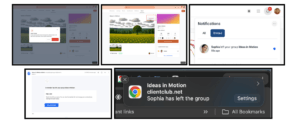
Admin notifications
Admins stay informed with real-time alerts whenever someone leaves:
- Email notification
- In-app notification
- Push notification
Calendars
Services (v2) – Global Booking Settings for Pricing & Coupons
You can now control how pricing and coupons appear on booking pages.
How to use:
- Go to Calendars
- Click Services
- Open Global Settings
- Navigate to Payment Settings
- Configure: Toggle Enable Coupon Codes and/or Select Price Display Format
- Click Save Changes

Services (v2) – Date-Based Booking Window
You can now define fixed booking windows using start and end dates.
How to use:
- Go to Services → Global Settings → Service Settings
- Under Booking Window, choose Date-based
- Select your Start Date and End Date
- Save changes

Services Calendar Support in Conversation AI
Users can now book service appointments directly through chat using Conversation AI across all supported channels – SMS, Live Chat, Facebook, Instagram, and WhatsApp. Instead of filling out forms, users can simply describe what they want in natural language, and the AI agent handles the booking. This brings a conversational-first approach to services booking.
How it works
Conversation AI now fully integrates with Services Calendar configurations, supporting:
- Multiple services
- Location and Staff selection
- Add-ons and Variations
The AI understands user messages (even across multiple turns), maps them to the correct setup, and creates accurate bookings.
Users can also control:
- Which services AI manages
- Custom booking instructions
How to use it
- Create services in Calendar Settings.
- Enable the feature for conversation AI from the Labs (Name: Service Calendar Support in Conversation AI).
- Enable Appointment booking in Prompt-based bots and select the services you want the agent to handle.
- Start a conversation on any supported channel.
Enhanced Sync for Appointments
Appointments now automatically sync after reconnection or calendar changes.
This prevents missed bookings and removes manual resync steps.
Social Planner
TikTok Comment Management
We’ve expanded Comment Management capabilities to now include TikTok:
- Reply to Comments: Respond directly to TikTok post comments inside Social Planner
- Unified Inbox: Manage TikTok alongside Facebook, Instagram, and LinkedIn comments
- Threaded Replies (1 Level): Reply to comments while maintaining context
- Fast Engagement: Streamline responses across high-volume TikTok posts
How to Use:
- Navigate to Marketing → Social Planner → Comment Management
- Open the Comments tab
- Reply to comments directly from the unified inbox

LC Phone
Incoming Calls from Private Numbers
You can now allow calls from private or anonymous numbers instead of blocking them.
This helps capture more potential leads.

Mobile Payments
Payments Tab Inside Contacts & Opportunities
Users can now access a dedicated Payments tab directly inside Contacts and Opportunities on the mobile app. Create invoices/estimates, charge customers, manage cards on file, and review payment activity — all without leaving the record you’re working on.
What’s new
- Payments tab inside Contacts. A new Payments tab on the Contact detail screen to view and manage everything tied to that contact.
- Quick actions (Contacts): Charge Now (POS), New Invoice, New Estimate, Manage Cards on File — right from the contact.
- More customer context (Contacts): See Customer Lifetime Value and Customer Start Date up front.
- Payments tab inside Opportunities. A new Payments tab on the Opportunity detail screen to track activity linked to the opportunity.
- Quick actions (Opportunities): Create a New Invoice or New Estimate directly from the opportunity.
- Easy filtering: Use filter chips to switch between payment types (e.g., Transactions / Invoices / Estimates / Subscriptions where applicable).
How to use this feature:
From a Contact
- Open a Contact → tap the Payments tab.
- Tap Actions → choose Charge Now, New Invoice, New Estimate, or Manage Cards on File.
- Use the filter chips to browse Transactions / Invoices / Estimates / Subscriptions.
From an Opportunity
- Open an Opportunity → tap the Payments tab.
- Tap New Invoice or New Estimate (auto-linked to the opportunity).
- Review linked payment activity and statuses right inside the tab.

Manage Cards on File for a Contact
You can now securely save and manage customer cards directly from a contact’s Payments section.
What’s New?
- Save cards directly from contacts: Add and store a customer’s card within their contact profile for future transactions.
- Remove cards easily: Manage stored cards by removing them with a simple swipe action when they are no longer needed.
How to use this feature:
Add a card on file
- Open the mobile app and navigate to the Contacts section.
- Select a Contact.
- Go to the Transactions tab.
- Tap the floating action button (+).
- Select Manage Cards on File.
- Enter the card details and save the card to the contact.
Use a saved card for payment
- When creating a transaction, invoice, estimate, or in-person charge linked to the contact, the saved cards will appear as available payment methods.
Remove a saved card
- Open Manage Cards on File for the contact.
- Swipe left on the card you want to remove.
- Tap Remove.
- Confirm the action when prompted.

Brand Boards
Design Kit Creation via Website URL in Brand Boards
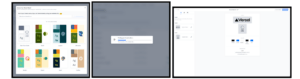
Users can now simply paste their website URL to automatically import brand elements. The system intelligently extracts colors, fonts, and logo styles from the website. This option is added alongside the existing manual and preset-based creation flows.
This enhancement enables users to instantly create a Design Kit without starting from scratch.
How to Use:
- Go to Marketing → Brand Board.
- Under Design Kit tab click on “+Add Design Kit”
- Enter your website/landing page URL and Click on “Import Brand Kit”
- The Design Kit would be ready automatically.
Desktop App
Linux Support
The FG Funnels and LeadConnector desktop apps now support Linux, expanding accessibility across more operating systems.
Conversations
SLA Performance Dashboard
You can now track SLA performance across messages, users, and channels.
How to Activate:
Go to Conversations → Analytics → SLA Performance and select a time range.

Actions Platform
Agent Studio Release
Agent Studio can now take direct CRM actions like sending messages, tagging contacts, and creating records.
This enables true agent-driven automation inside your CRM.
AI Studio
Now Available in Labs
AI Studio is now available for all users in Labs.
You can:
- Build apps with natural language
- Generate UI and logic instantly
- Clone websites from URLs
- Preview and deploy projects quickly
Ask AI
UI Revamp
Ask AI now has a cleaner interface, improved chat experience, and persistent conversations via URL.
Redesigned Chat Interface : The conversation view has been rebuilt with cleaner message bubbles, improved markdown rendering, and collapsible cards for a more polished chat experience.
New Welcome Screen: When you open Ask AI, you’ll now see a welcome header with suggested prompts to help you get started quickly.
Revamped Composer (Input Box): The message input area has been redesigned with a new layout, updated send button, and an action bar for easier interaction.
Updated Sidebar: The session sidebar has a new header, footer, and empty state design, making it easier to navigate between conversations.
Visual Refresh: New icons, styling improvements, and a shadow effect on the input box give the whole experience a more modern, clean feel.
Chat State Persistence (Functional Change) : The conversation ID is now included in the URL slug, so your chat state is preserved when you navigate away and come back. This means you won’t lose your place in a conversation anymore.
Agent Studio
Copy & Paste in Graph Builder
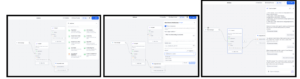
You can now copy, paste, and duplicate nodes in Agent Studio.
This makes building and editing agents much faster.
Opportunities
Pipeline Navigation & Stage Colors
You can now:
- Create and edit pipelines directly from dropdown
- Add color styling to pipeline stages
Workflows
Fathom Actions & Triggers in Workflows
We’ve introduced Fathom actions and triggers in Workflows. This allows users to turn meeting summaries into automated workflows such as follow-ups, task creation, and internal notifications without manual effort.
Triggers :
New Recording
Trigger workflows when a new meeting recording is available in Fathom.
What it does:
- Fires when a meeting recording is created and processed
- Provides metadata such as recording ID, meeting details, transcript, and more
Actions:
List Recordings
Retrieve a list of available Fathom recordings for the connected account.
What it does:
- Fetch recordings based on the connected user
- Allows selection of recordings summary and other fields for downstream actions
Fetch Transcript
Retrieve the transcript for a selected recording.
What it does:
- Provides full meeting transcript
- Enables use of transcript data in AI and other workflow steps
Fetch Summary
Retrieve the AI-generated summary for a selected recording.
What it does:
- Provides concise meeting summaries
- Can be used for task extraction, notifications, and follow-ups
Integration Setup
Connect Fathom to start using triggers and actions in workflows.
How to use:
- Go to Workflow Builder and search for Fathom
- Select any Fathom trigger or action
- Click Connect Now and sign in using your Fathom account
- Alternative:
- Go to Settings → Integrations
- Find Fathom and connect your account