


Welcome to your weekly round-up for updates through the week of September 24th, 2026
This week’s update is packed — smarter tablet layouts, easier media editing, a big Marketplace redesign, community moderation tools, and a wave of Ask AI and Managed Agents upgrades. Let’s dig in.
If you have any questions regarding these updates, please email us at [email protected] or in live chat inside of the app.
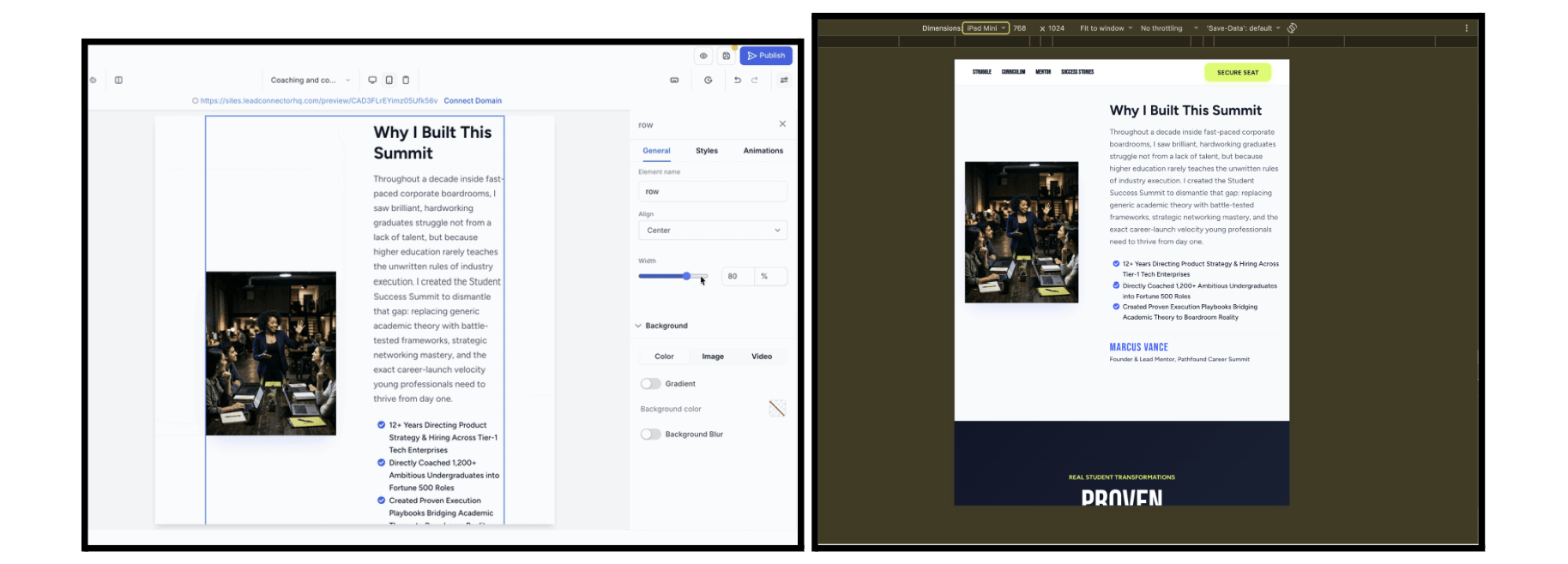
Tablet layouts just got their own room to breathe. You can now set row and column widths for tablet separately from desktop, so tweaking one doesn’t quietly mess up the other.
Tablet layouts inherit your desktop widths automatically until you customize them, and resizing columns on tablet is as easy as dragging the handle. Everything you set is saved and sticks around when you reload the builder.
Mobile stays exactly the way it’s always worked: full-width rows and stacked columns, no changes needed there.
Why it matters: dialing in your tablet experience no longer means gambling with your desktop layout.
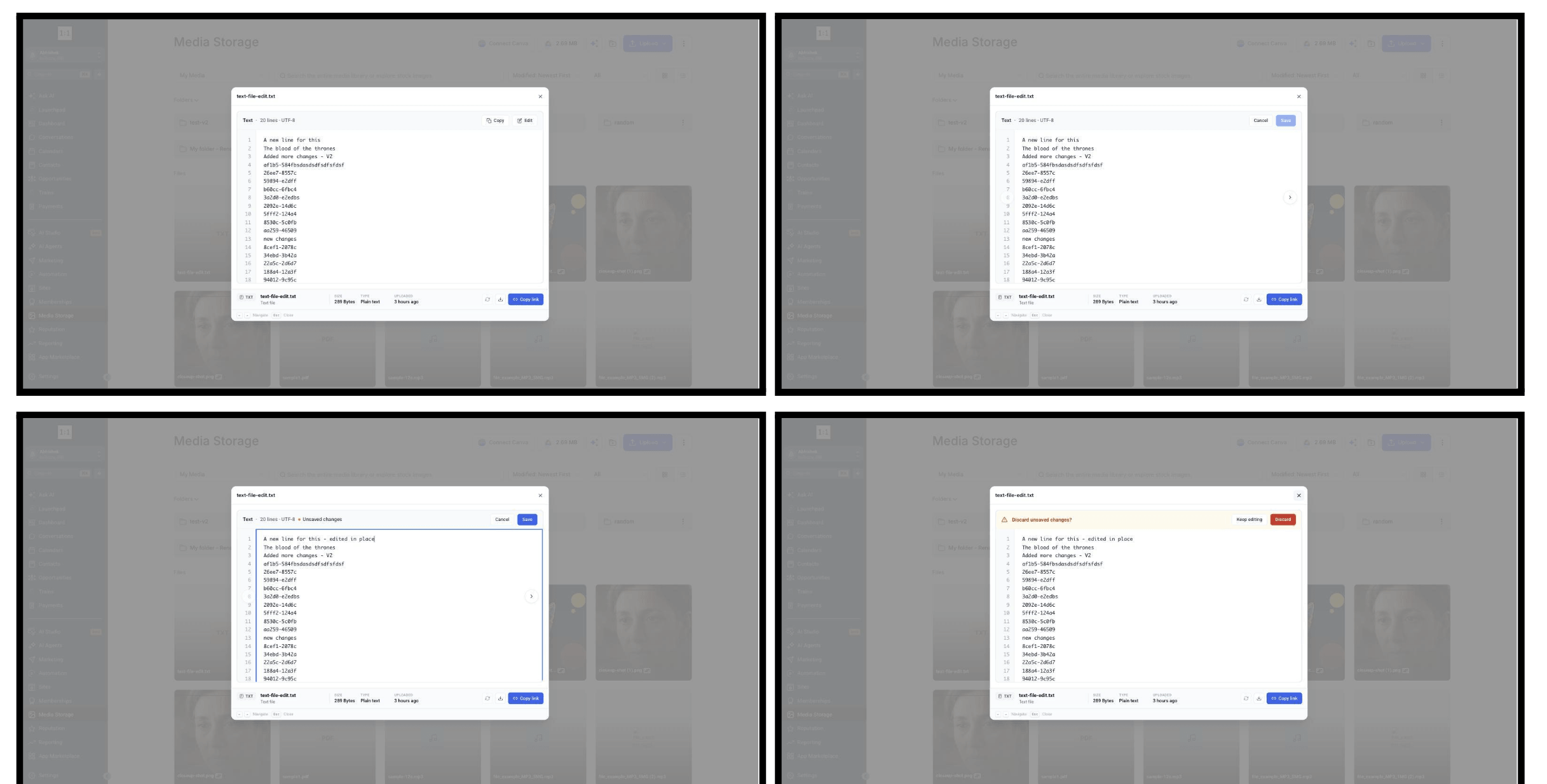
The download-edit-reupload loop for CSS, JSON, and other text files is over. You can now edit supported text files right inside Media Storage, and the file keeps its exact same name and public URL, so nothing that links to it breaks.
How to Use It?
Open Media Storage and click a supported text file to preview it. Click Edit in the preview toolbar. Make your changes — Save stays disabled until something actually changes. Click Save. The preview refreshes with what was saved.
Supported today: .txt, .css, .json, .sql, .rtf
A few things worth knowing: if you don’t click Edit, nothing changes about how previews work today. Saving updates the existing file instead of creating a duplicate with a new URL, and if you try to close or navigate away with unsaved changes, you’ll be asked to confirm first. Files over 5MB will still save, but stop being previewable, and you’ll get a warning before that happens.
Why it matters: no more duplicate files, no more broken links, and no more downloading a file just to fix one line of CSS.
You can now mark a Managed Agent’s reply as helpful or off-base right in the conversation, with a thumbs up or thumbs down.
A thumbs up means the reply was accurate and ready to use. A thumbs down gets you a quick follow-up so you can say what went wrong, wrong information, missed context, a step it shouldn’t have taken, plus an optional note. Once you’ve rated a reply, that rating sticks, so you’ll never be asked to score the same answer twice.
Why it matters: every rating is a real example that helps improve the agent, instead of guesswork about what’s working and what isn’t.
Managed Agents can now be called straight from a Workflow. When a workflow hits the Invoke Managed Agent action, it hands off the contact and context to your agent, which does its thing using its instructions, tools, and CRM access, then the workflow picks back up with the agent’s response.
To set it up, add the Invoked from a workflow trigger to your agent in Agent Studio and publish it, then add the Invoke Managed Agent action inside your workflow, select the agent, and write your instruction. Save and publish, and the agent runs automatically whenever a contact reaches that step.
Why it matters: you get the predictability of Workflows and the reasoning of Managed Agents working together in one flow.
Your AI agent can now reply to comments on your Facebook Page posts automatically, in its own voice, using its instructions and knowledge base. It handles replies-to-replies too, so a real back-and-forth can happen.
To set it up, open your agent in Managed Agents, add the Facebook comment trigger, and pick your connected Page. You can narrow it down to specific posts, filter by keyword, or limit it to first-level comments only. Save and publish when you’re ready.
Replies post publicly in the comment thread (not as Messenger DMs), and you’ll need a Facebook Page already connected to the sub-account.
Why it matters: comments get a fast, on-brand reply without anyone having to sit and monitor the post.
Figuring out whether a Marketplace app is right for you just got a lot easier. The app detail page has been rebuilt around a clear, structured journey: Overview, Pricing, Permissions, and Reviews, all in one place instead of scattered around.
Pricing now clearly breaks down monthly vs. yearly plans, free trials, account pricing, and usage-based charges. Permissions are grouped by capability with clear read/write access, so you know exactly what an app can touch before you install it. Reviews, ratings, screenshots, and videos are all easier to browse, and you can jump to Similar Apps or other apps from the same developer right from the page.

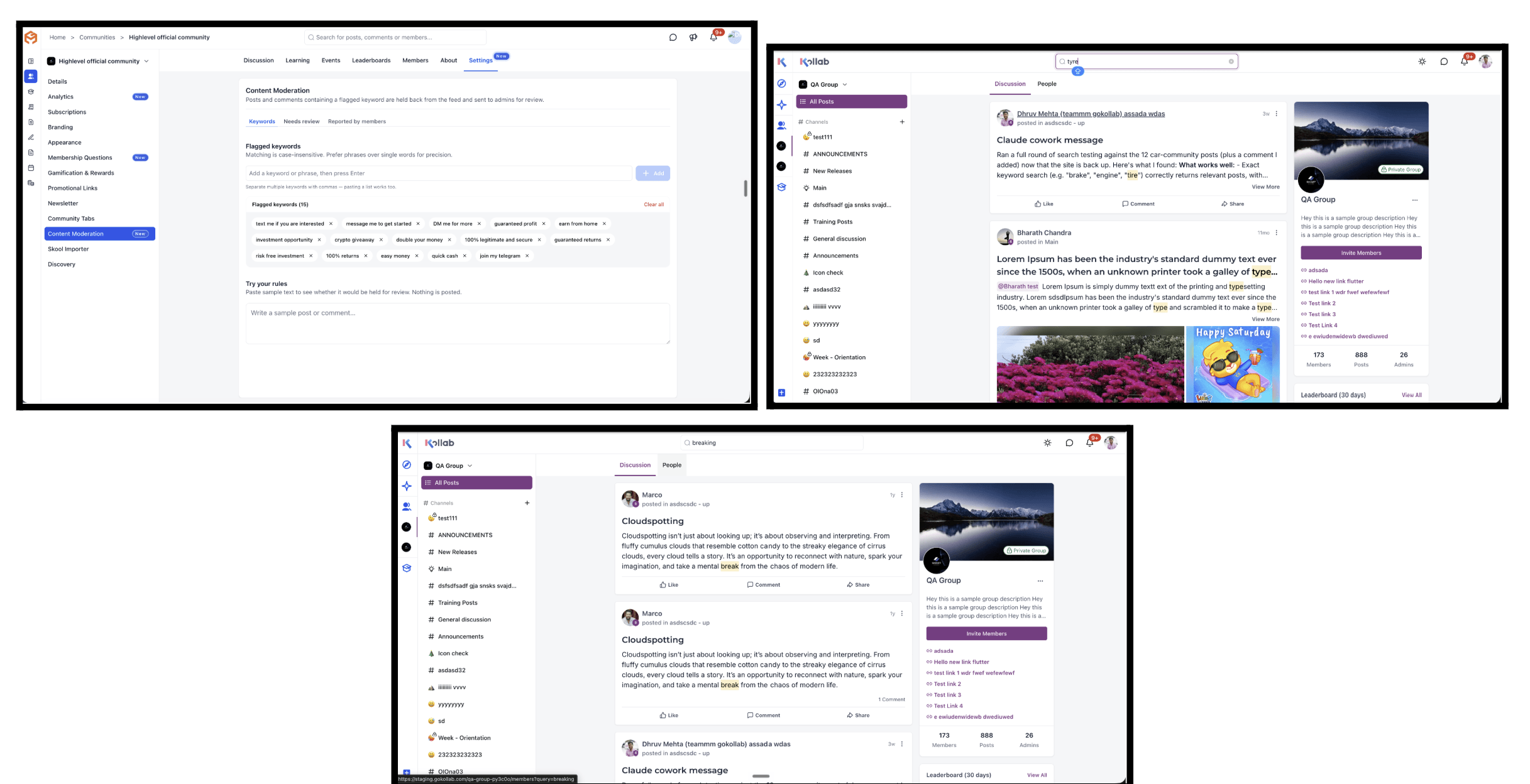
Community admins finally get an automatic first line of defense against spam and rule-breaking posts. Set the keywords, phrases, or domains you don’t want, and any matching post or comment gets held for review before it ever goes live.
Flagged content shows up on a reviewer screen with exactly what triggered the flag, so you can approve or remove it in one click. The author still sees their own post with a clear “Held for review” status, but it stays invisible to everyone else until an admin gives it the green light. Admins get instant email, in-app, and push alerts the moment something’s flagged, and admin/owner content is never held up.
As a bonus, post and comment search got smarter too: it now handles typos, different phrasing, synonyms, and non-English or accented text, and results rank by relevance instead of just newest-first.
Why it matters: growing communities can’t be moderated post by post forever. This gives admins a scalable way to enforce their guidelines from day one, and it’s the foundation for AI-powered spam detection coming next.
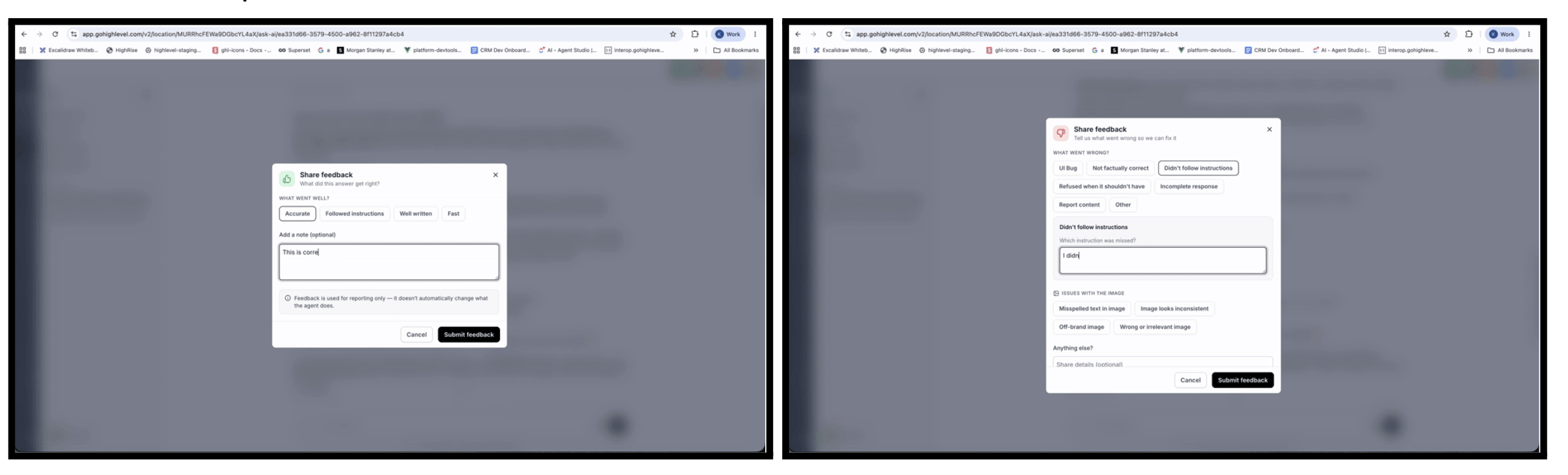
Rating an Ask AI reply is now faster and a lot more useful. Thumbs up or thumbs down still sit right on the answer, but now both come with a quick follow-up so you can say what worked or what didn’t, without leaving the chat.
A thumbs down gets you a short list of what went wrong, wrong information, missed context, a step it shouldn’t have taken, plus an optional note. Once you’ve rated a reply, that rating sticks so you won’t be asked to score it again. It works the same whether you’re rating from the agency view or a sub-account.
Why it matters: every rating is a concrete example tied to an actual reply, which makes it a lot easier to see where Ask AI needs to improve.
Two solid upgrades landed for Video Testimonials: a new workflow trigger, and more control over what actually shows up on your widgets.
You can now kick off a Workflow the moment a new video testimonial comes in, whether that’s notifying your team, sending a thank-you to the reviewer, creating a task, or branching based on the collector or marketing consent. Testimonial details like reviewer name, email, phone, and the video link are all available as custom values inside your workflow actions.
On the publishing side, you can choose to auto-publish new testimonials to your widget (the default) or require manual approval first. The Responses page also makes it easy to spot new submissions, see what’s currently live on your widget, and show or hide individual testimonials without touching the widget settings.

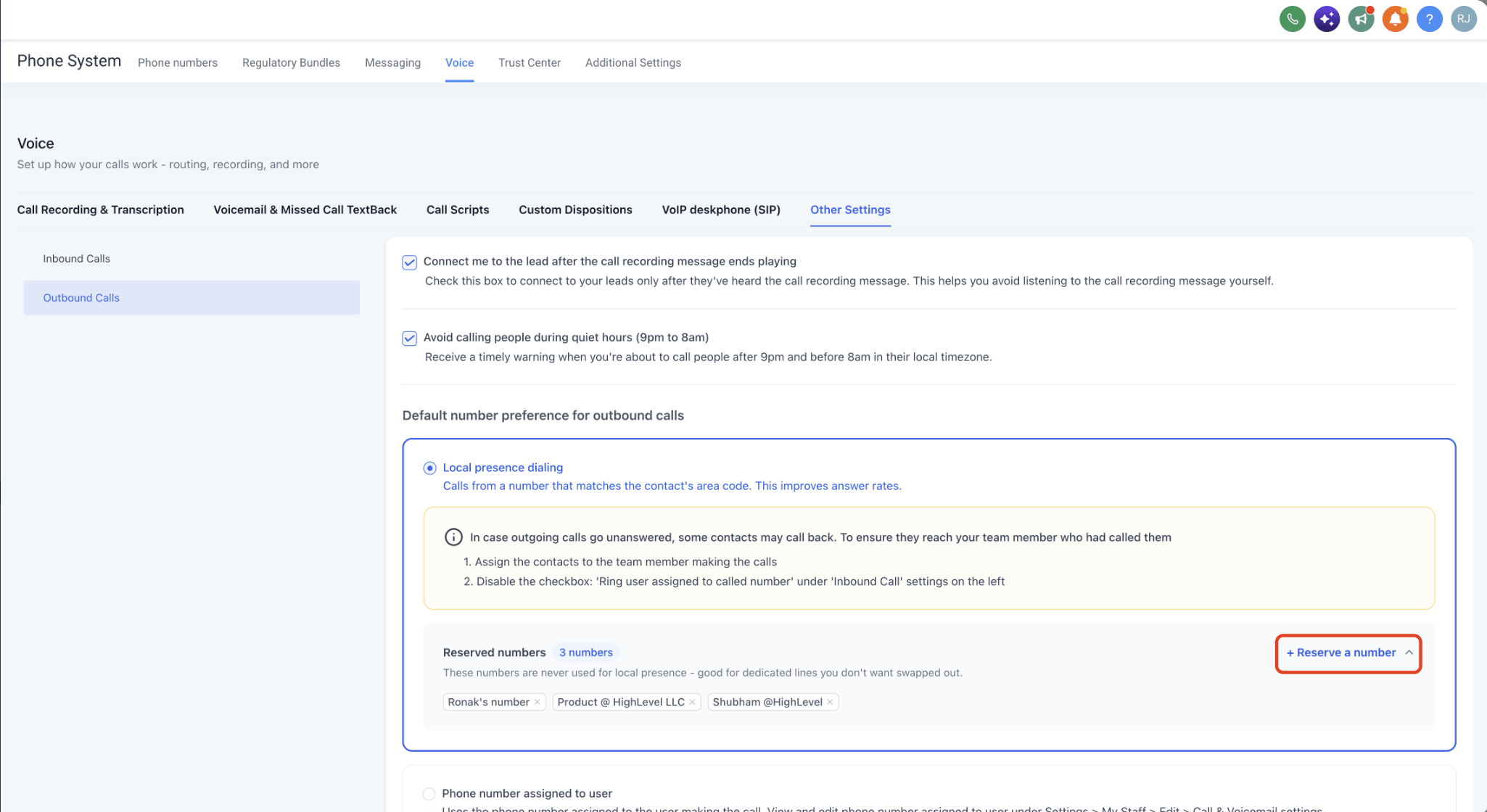
Local presence dialing, which automatically picks the best local caller ID for your outbound calls, just got a serious rebuild. Expect higher pickup rates and a lot more control.
Location-based matching now covers the US, Canada, UK, and Australia using real postal code distance calculations instead of static lookup tables. Contacts will also see the exact same number from you on every repeat call, which builds familiarity and helps your caller ID stay in good standing. It works the same way across the web dialer, mobile app, and desk phones, and you can reserve up to 50 numbers per sub-account to keep your main office lines from being auto-selected.
If a local match isn’t available, calls are never delayed, they instantly fall back to your account default.
Rating a Content AI generation, text or image, now works the same fast, useful way as Ask AI’s feedback. Thumbs up or thumbs down sit right on the result, with a quick follow-up so you can say what worked or what missed the mark, without leaving the editor.
A thumbs down gets you options like not aligned with the prompt, too generic, wrong tone, or factual error, plus a note if you want to add more. Once rated, that feedback sticks to the piece, so you won’t be asked to score it twice.
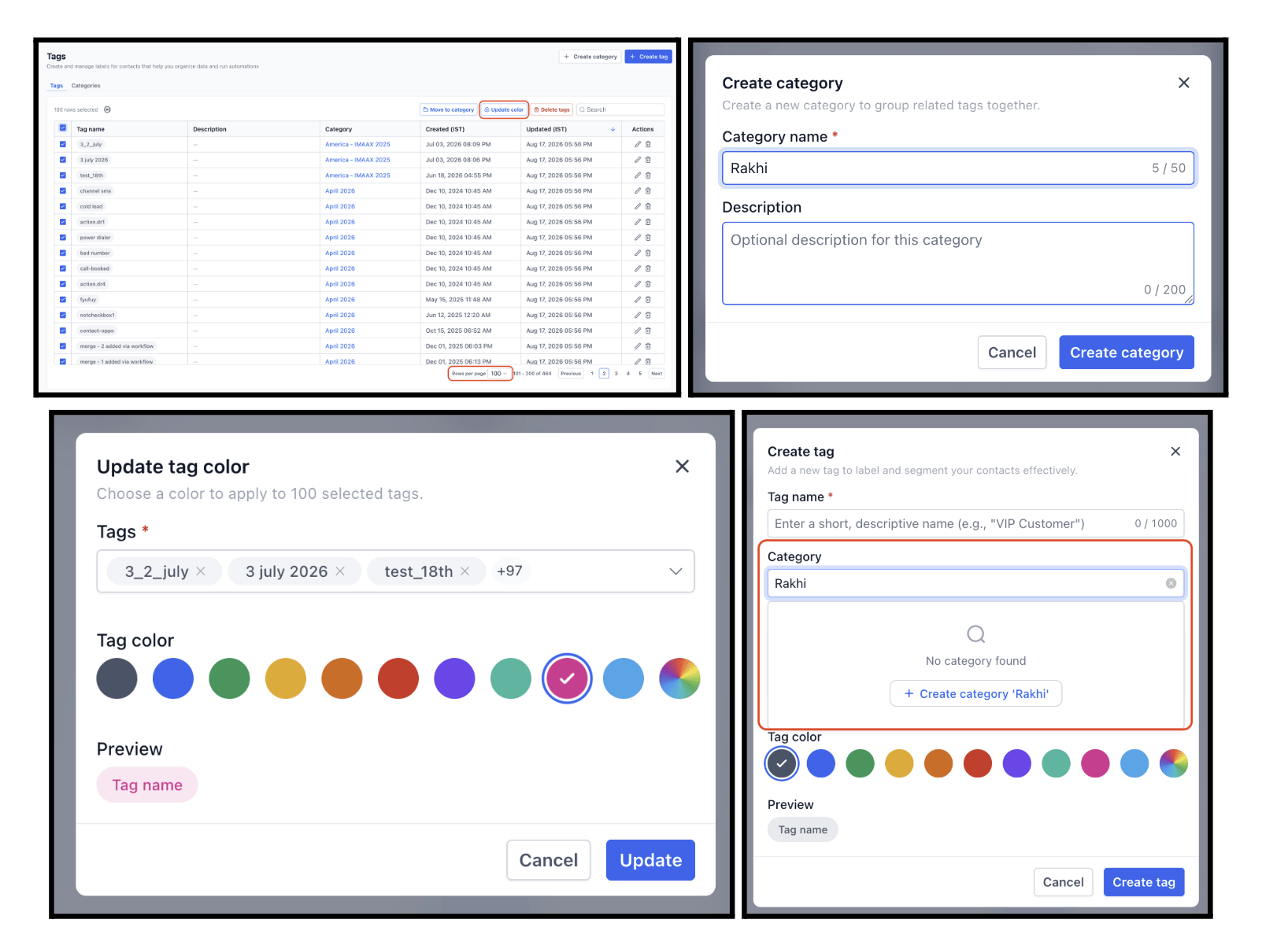
Managing a big tag library just got faster. You can now select up to 100 tags at once and apply a new color to all of them in a single action, instead of updating each one by hand.
Assigning categories got smoother too. If the category you need doesn’t exist yet, you can create it right from the category selector without leaving your current flow.
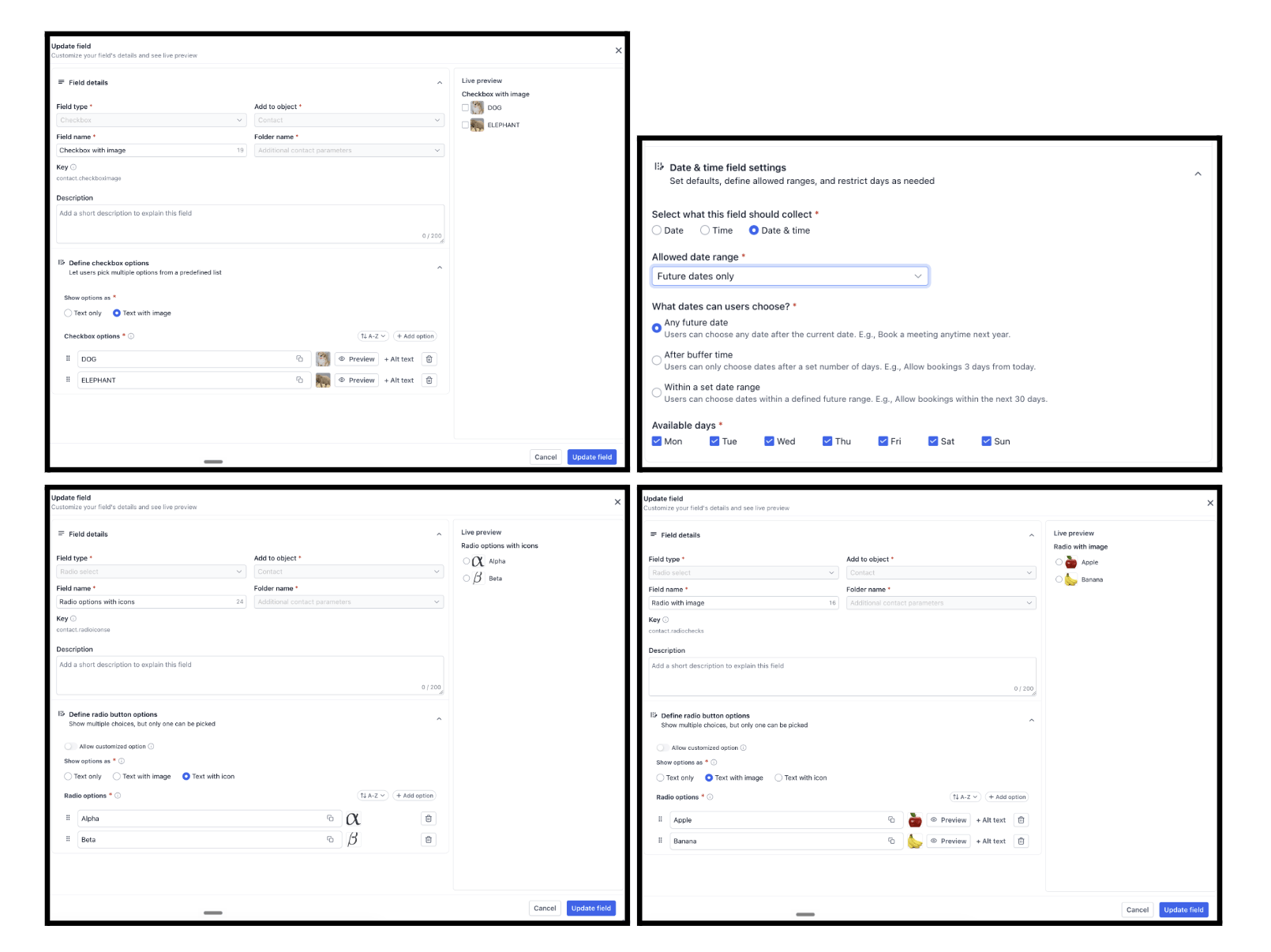
Custom fields just got a lot more flexible, with six new field types to capture richer, more structured data.
You can now create URL fields with domain controls (allow, restrict, or block specific domains), flexible date and time fields (date-only, time-only, or both, with restrictions like future dates only), and rich text fields with formatting like bold, headings, and lists. There’s also a Users field to associate one or more team members with a record, and you can now add images to checkbox and radio button options to make choices easier to recognize at a glance.
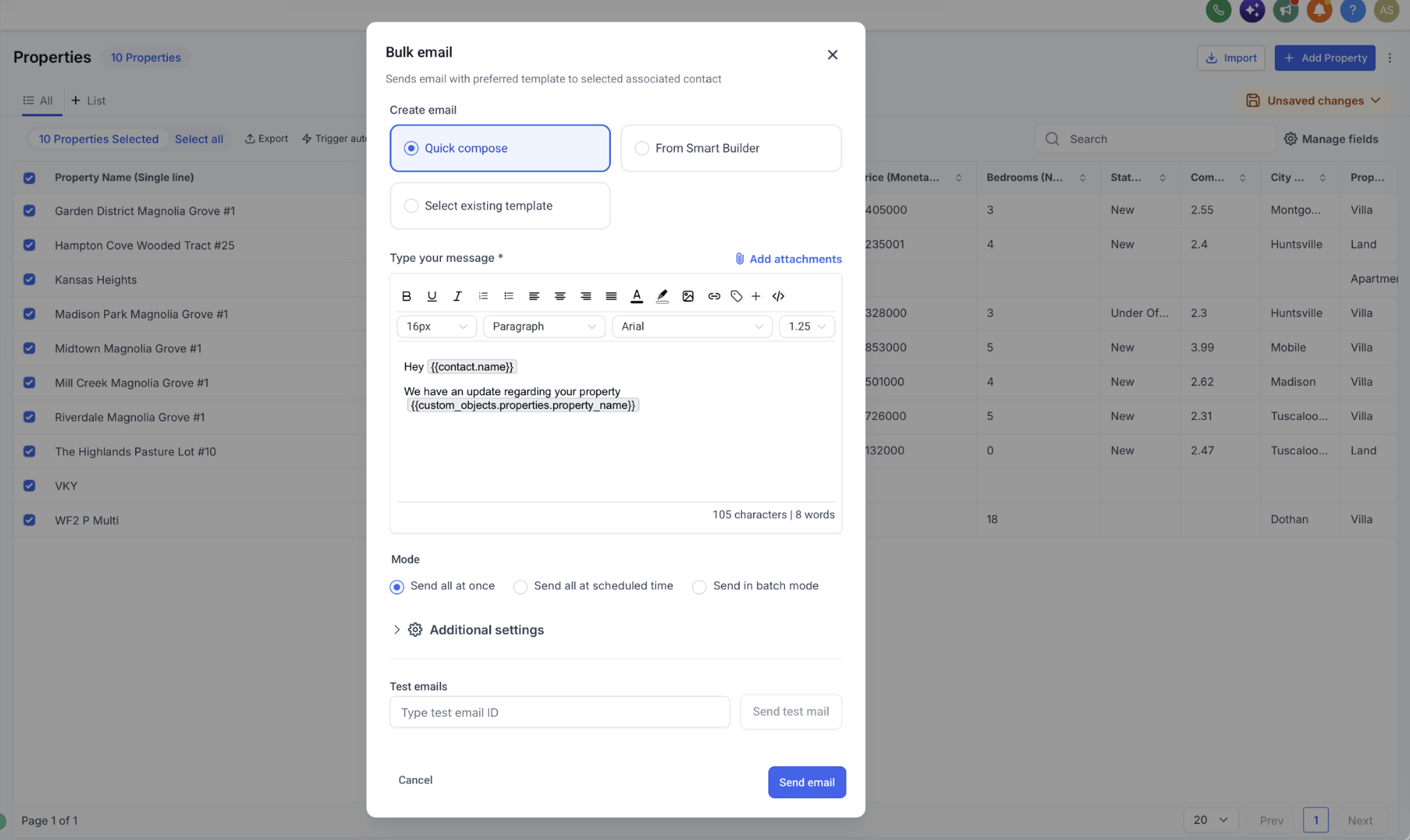
You can now send bulk emails to associated contacts directly from your Companies and Custom Object lists, no need to rebuild the audience over in Contacts.
Select your Companies, Properties, Policies, Pets, or other Custom Object records, choose which associated contacts should get the email (most recent, earliest, or all associated contacts), and send using the same email experience you already know: Quick compose, Smart Builder, templates, attachments, test emails, scheduling, and batch mode. You can even use Company or Custom Object fields as merge fields to personalize the message.
How to Use
Open Companies or a supported Custom Object Select the records you want to email from Click Send email Confirm the selected source records For Custom Objects, select the required Association label(s) Choose whether to email the most recently associated contact, earliest associated contact, or all associated contacts Compose the email and use Company or Custom Object merge fields where needed Choose to send immediately, schedule the send, or use batch mode Send the email and track results from Bulk Actions
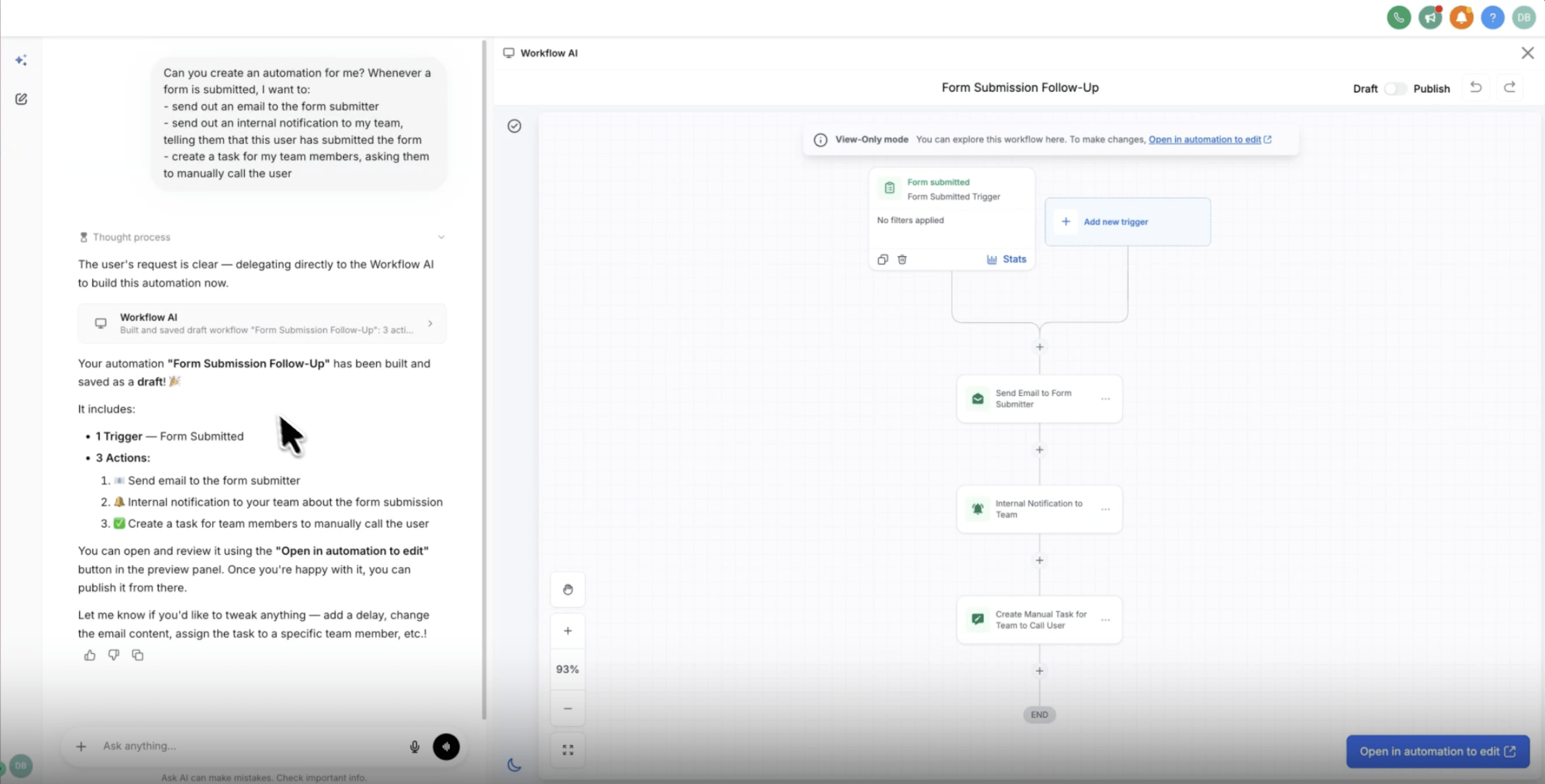
You can now build and edit full workflows without ever opening the builder, just describe what you want to Ask AI and it builds it for you. And since Ask AI runs on WhatsApp, you can create workflows straight from there too.
The generated workflow renders live right in the Ask AI panel, and you can click any trigger or action to check its configuration. Ask the agent to change anything and it updates the workflow in place. When you’re happy with it, one click takes you into the workflow builder to test and publish.
How to Use
Open Ask AI and start a new chat. Describe the workflow you want to create. Review the generated workflow in the panel. Click any trigger or action to check its configuration. Ask the AI to make changes until it matches your requirement. Click the CTA to open the workflow in the workflow builder. Run a final test, then publish from the builder.
Manual editing and publishing still happen in the workflow builder itself.
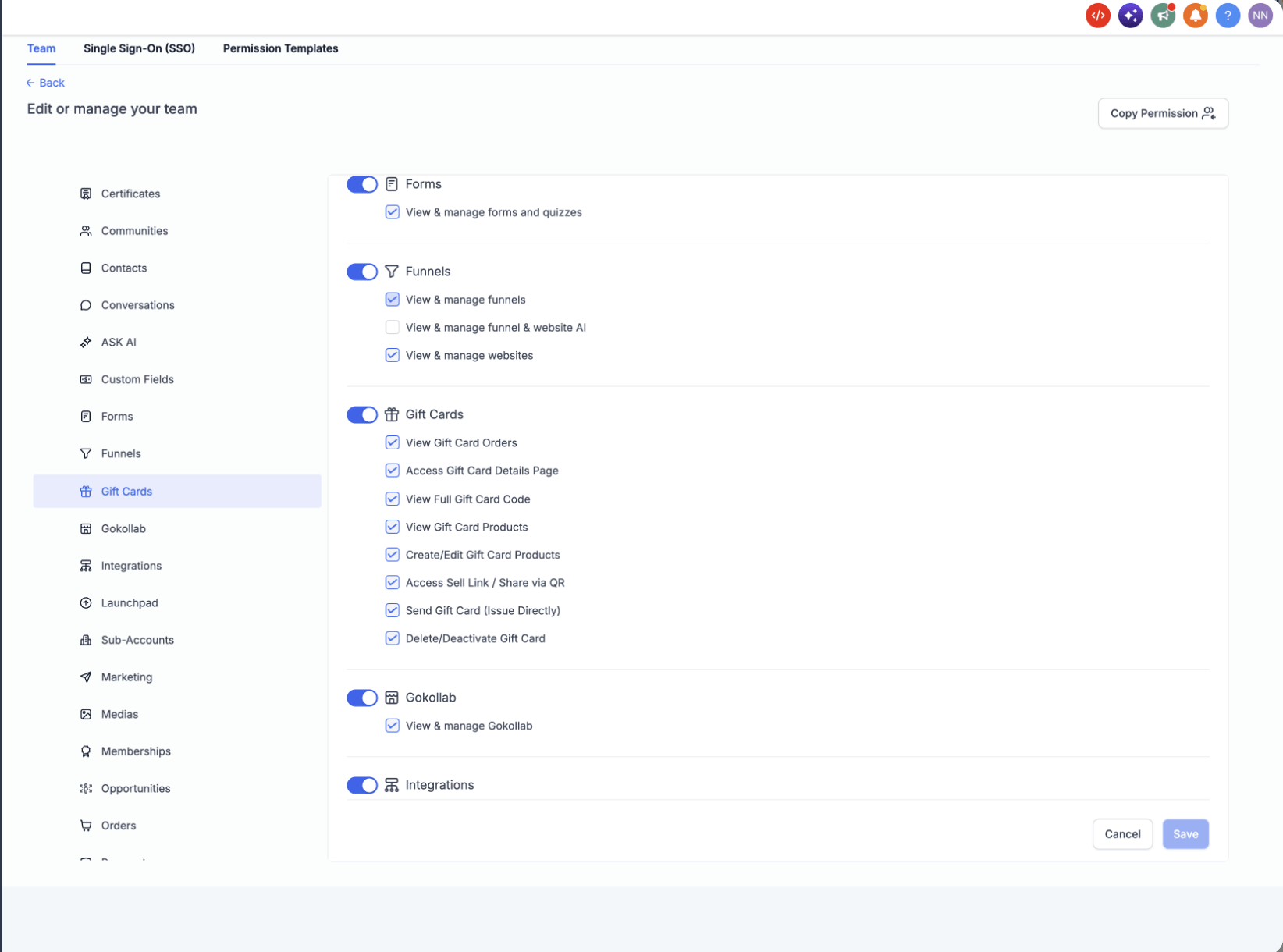
Not every team member needs the same level of access to Gift Cards. You can now assign granular permissions based on what each person’s role actually requires, protecting balances, customer info, and sensitive actions like issuing or deactivating cards.
Permissions cover things like viewing Gift Card orders and products, creating or editing products, sending Gift Cards, revealing the full Gift Card code, and deleting or deactivating products. A support team member, for example, can be given access to view orders without being able to send cards or reveal the full code.
You’ll find these settings under Settings → My Staff → select a staff member → Roles & Permissions → Gift Cards. Admins keep full access by default, while everyone else gets only what they need.
Why it matters: Gift Card balances and sensitive actions stay protected, without slowing down the team members who just need to look something up.
Create a Contact, and the right Company now gets found (or created) and linked automatically, no manual setup, no workflow required.
FG Funnels uses a Contact’s business email domain to figure out which Company they belong to. If that Company already exists, the Contact gets linked to it. If it doesn’t, a new Company gets created with its domain, name, and logo filled in automatically. Existing Company records are always matched and reused first, so this works with the data you already have instead of creating a parallel mess beside it.
Common free email providers are excluded automatically, and you can add your own exclusion list for internal or partner domains that shouldn’t trigger this. It’s currently behind Labs, and you can choose to run it against your existing Companies and Contacts too, not just new ones going forward.
Why it matters: cleaner Company data, fewer duplicates, and one less thing you have to manually piece together every time a new Contact comes in.
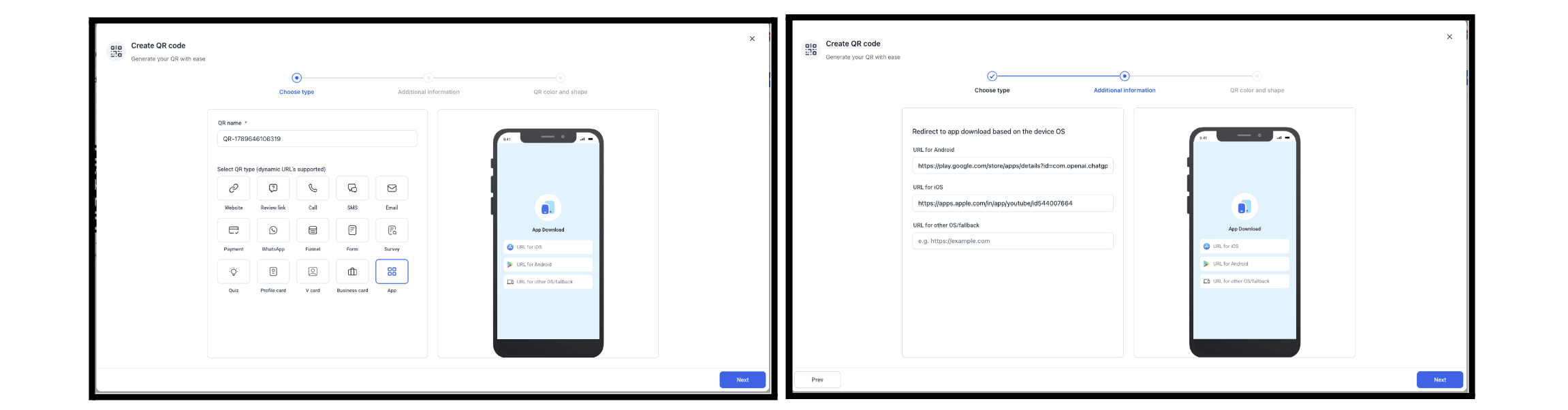
Promoting a mobile app used to mean juggling separate QR codes for iOS and Android, or sending people to a landing page full of download options. Now one QR code can handle the whole thing.
When creating a QR Code, just select the new App type and add your App Store URL, Play Store URL, and an optional fallback URL for other devices. When someone scans it, their device gets detected automatically and they’re routed to the right place: iOS to the App Store, Android to Google Play, anything else to your fallback link.
How to Use It
Go to QR Codes → Create QR Code → Select “App” and add your App Store, Play Store, and optional fallback URLs. The existing QR Code design and customization experience remains unchanged.
Why it matters: one QR code across all your campaigns, print materials, and websites, instead of managing several.
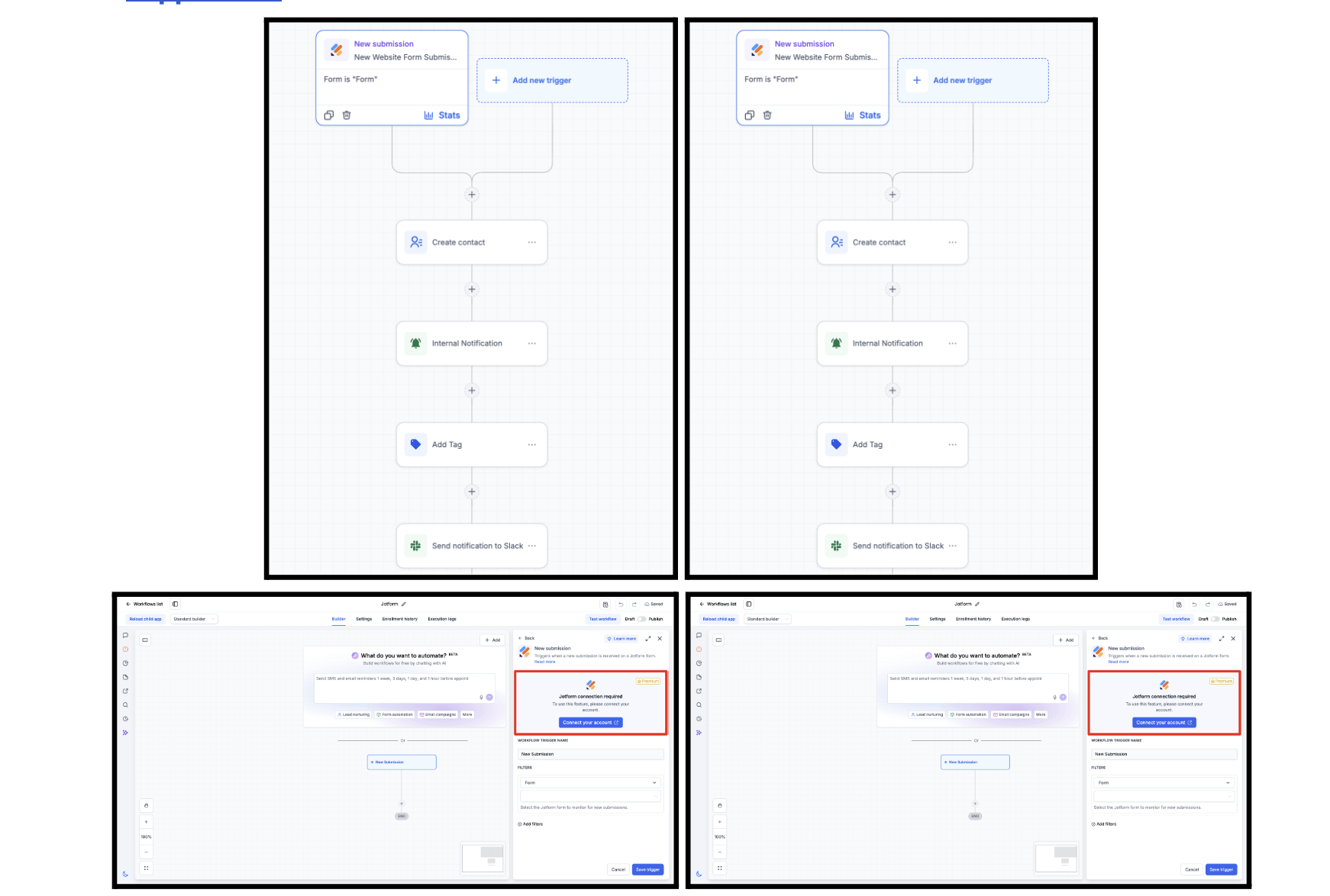
Jotform is now connected directly to Workflows. You can kick off a workflow the moment a form is submitted or a document is signed, and create new Jotform submissions right from a workflow, keeping your form data and CRM data in sync without manual imports.
On the trigger side, New Submission fires instantly (powered by webhooks) whenever someone submits a Jotform form, and New Signed Document fires once a signed e-signature document is completed (checked every 5 minutes). On the action side, Create Submission lets you add a new submission to any connected form, with your workflow data mapped into 15 standard field types.
To connect, just search for Jotform actions or triggers inside Workflows and follow the prompt to add your API key, or connect anytime through Settings → Integrations → Jotform.
Why it matters: leads and signed contracts can kick off follow-up, onboarding, or CRM updates automatically instead of waiting on someone to notice and enter them by hand.
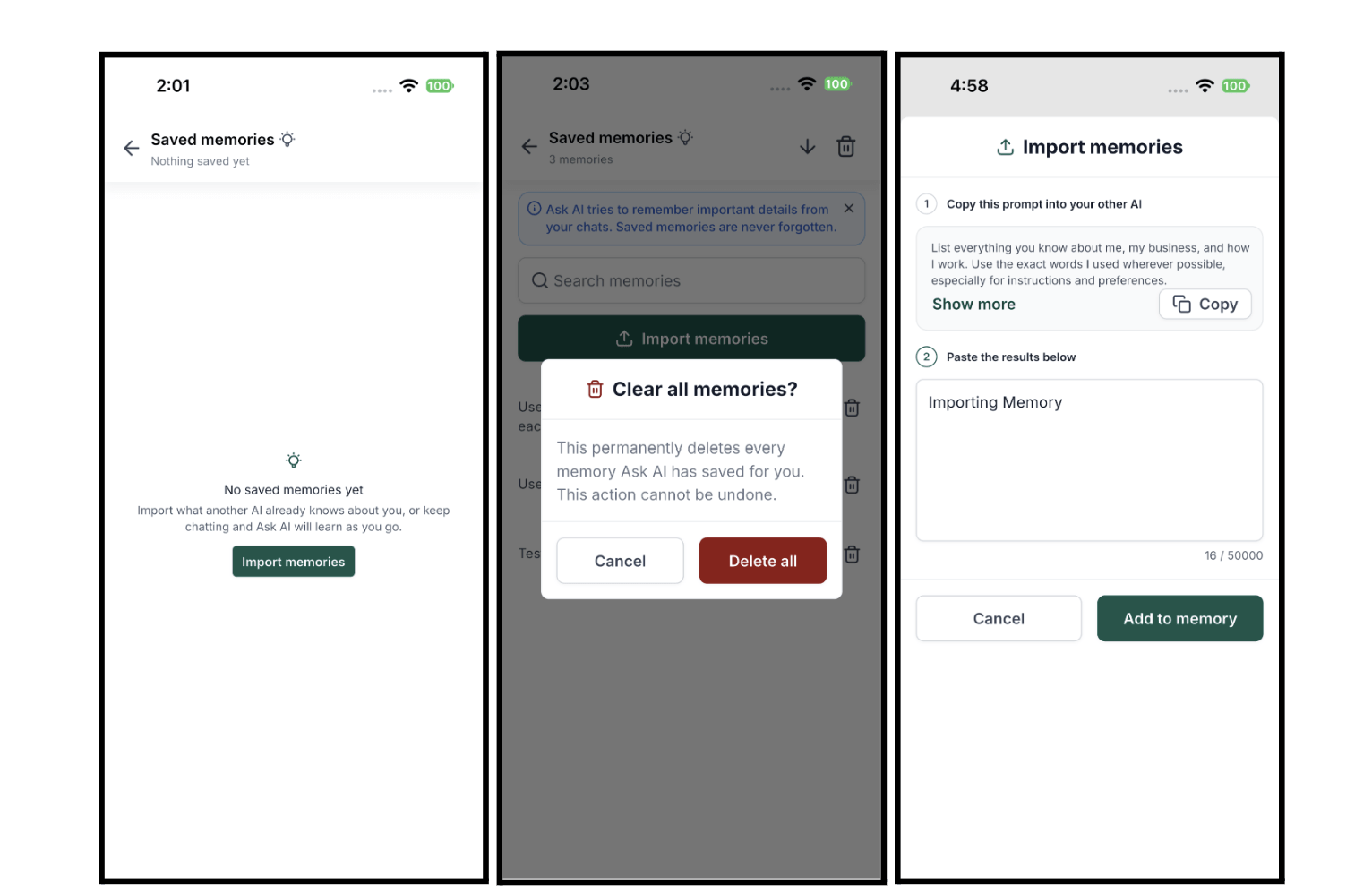
You can now see exactly what Ask AI has learned about you on mobile, search it, correct what’s wrong, or wipe it entirely. You can even bulk-import everything another AI assistant already knows about you, so Ask AI starts off already knowing your business.
The new Saved Memories screen shows everything Ask AI remembers in one list, with a live count and full text for each entry. A two-step importer lets you copy a ready-made export prompt, run it in another assistant like ChatGPT or Claude, and paste the reply back in, Ask AI parses it and saves each line as a memory. You can search your memories, delete individual ones, or clear everything in the current sub-account. Memories are scoped per sub-account, so what Ask AI knows about one client never bleeds into another.
To get started, open Ask AI in the mobile app, tap Chat history, then the memory icon in the header. From there you can review, search, tidy up, or import your history.
Why it matters: no more re-explaining your business from scratch, you control exactly what Ask AI remembers, and the more accurate that memory is, the shorter your prompts need to be.
A React project that needs server-rendered pages, server functions, or secrets can now be upgraded right from Project Settings, without putting your published site or its domains at risk.
Confirming the migration creates a second project in the same sub-account with your pages copied over as a draft. Your live site and domain stay exactly where they are on the original project the whole time. Once the migration finishes, that new project becomes a normal SSR project you can review, test, and eventually publish on your own timeline.
Why it matters: you get server rendering, a real backend, and secrets when you need them, without a risky rebuild or cutover.
AI Studio is now live out of Labs for every location. As part of the rollout, sub-account user and admin permissions for AI Studio are now off by default, access is only kept for users who already had it enabled in Labs.
If people on your sub-accounts still need access, you’ll see a banner on the Home screen where you can grant it to everyone or pick specific people, setup usually finishes in just a few minutes.
FGF Notifications