


Welcome to your weekly roundup of FG Funnels updates through the week of October 1st, 2026.
From GPT-6 Sol and Luna landing in Workflows and Conversation AI to Funnel AI going fully live for every agency, a completely revamped Voice AI Flow Builder, and one-tap reschedule links right from mobile — this week’s updates bring some seriously powerful tools to your stack. We’re also rolling out upgrades to Managed Agents, Domains, Media Storage, Dashboards, and more — all designed to save you time and give your clients a better experience.
If you have any questions about these updates, email us at [email protected] or reach out through live chat inside the app — we’re always happy to help.
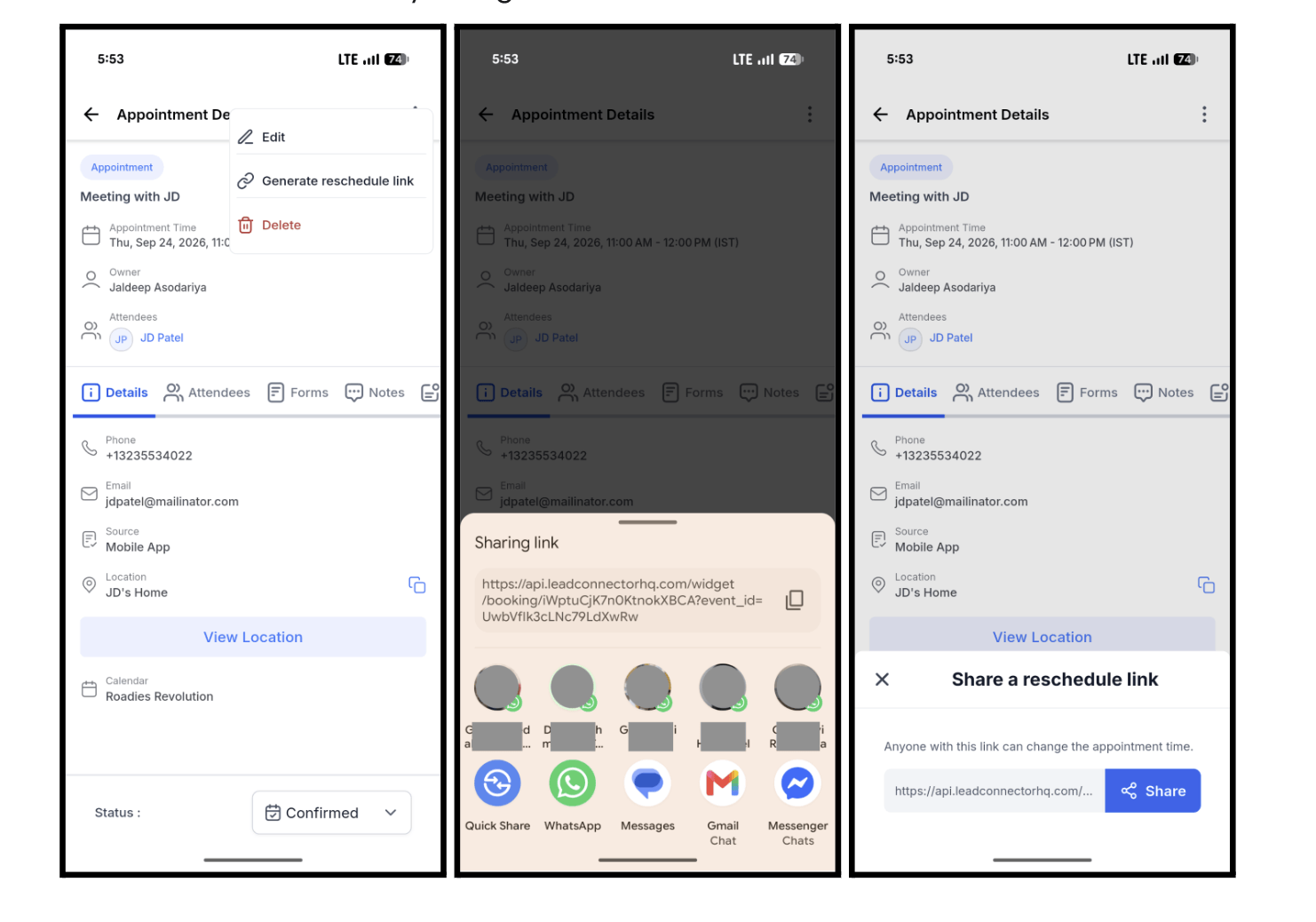
No more asking a customer to dig through their inbox to find a reschedule link. Open any appointment on mobile, tap Generate reschedule link, and share it straight into whatever channel you’re already talking on, for both Meetings and Service bookings.
How to Get Started
Open the appointment: From Contacts, Conversations, Appointments, or Opportunities, tap an appointment to open the Appointment View screen. Open the actions menu: Tap the 3-dots icon in the header. Tap “Generate reschedule link”: The Share a reschedule link sheet opens with the link already displayed. Tap Share: The link is copied to your clipboard and your phone’s share sheet opens. Pick a channel: Choose SMS, WhatsApp, email, or any other app and send it.
The link appears instantly, with no loading spinner, and it respects your white-label domain so what you share carries your branding. It works the same whether the appointment came from Contacts, Conversations, Appointments, or Opportunities, and it’s available even on cancelled or no-show appointments, handy for a customer who wants to rebook.
Why it matters: you can solve a reschedule request while the customer is still on the phone, instead of resending a notification and waiting.
OpenAI’s newest models, GPT-6 Sol and GPT-6 Luna, are now available inside the AI Agent action and the GPT action in Workflows, and they’re a real step up from the GPT-5.6 models they replace.
GPT-6 Sol is the go-to for complex work: multi-step agent tasks, business workflows across apps, and reasoning-heavy decisions. GPT-6 Luna is built for fast, high-volume work like classification, summaries, tagging, and quick replies. Both are roughly twice as accurate as their predecessors, and both cost half as much.
How to Use
Add or open an AI Agent action or a GPT action in your workflow. Open the Model dropdown. Select GPT-6 Sol for complex tasks or GPT-6 Luna for fast, high-volume tasks. Save and publish your workflow.
When a domain can’t connect because of a DNS or product conflict, you now get a clear, specific message telling you exactly what to fix, instead of a vague error. The same messaging now shows up identically in Funnels/Websites and AI Studio, and it’s fully translated across every supported language.
For example, instead of a generic failure, you’ll see something like “Remove A records at your DNS provider, then try again,” often with a direct link to fix it. Nothing needs to be configured, it just works automatically.
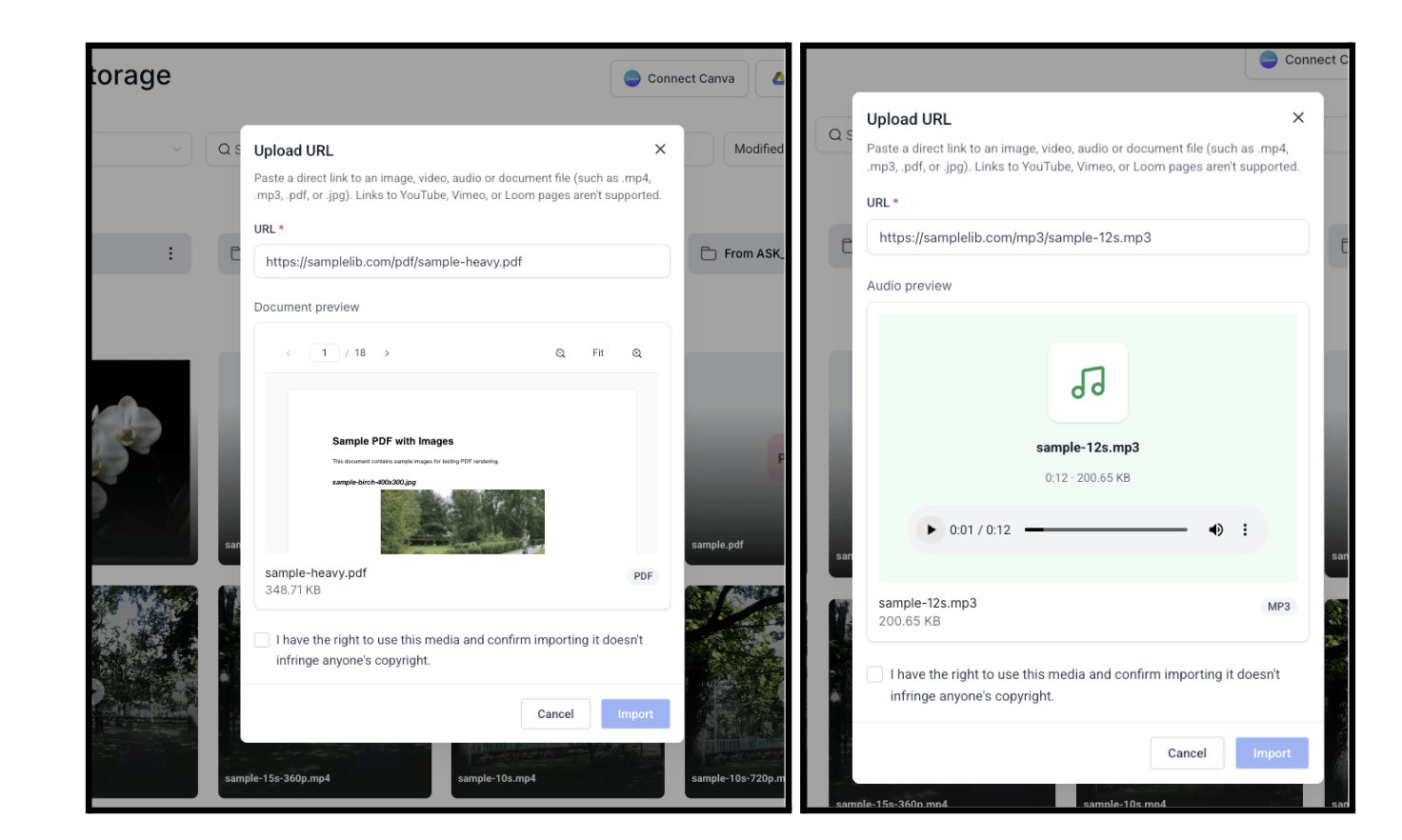
Media Storage’s Upload from URL now accepts audio files (MP3, WAV, M4A, AAC, OGG, FLAC) and documents (PDF, DOC, DOCX, XLS, XLSX, PPT, PPTX, TXT, CSV), not just images and video.
How to Use It?
Go to Media Storage → Upload → Upload URL Paste a direct link to an audio or document file Preview it inline — play the audio or flip through the PDF pages; a green tick on the URL field confirms the file was fetched successfully Confirm the copyright checkbox and hit Import — the file lands in your library like any other upload
A couple of things to know: PPT/PPTX and legacy DOC files import fine but show a “preview not available” card, that’s normal. Links to YouTube, Vimeo, Loom, or Google Drive pages aren’t supported, only direct file URLs work.
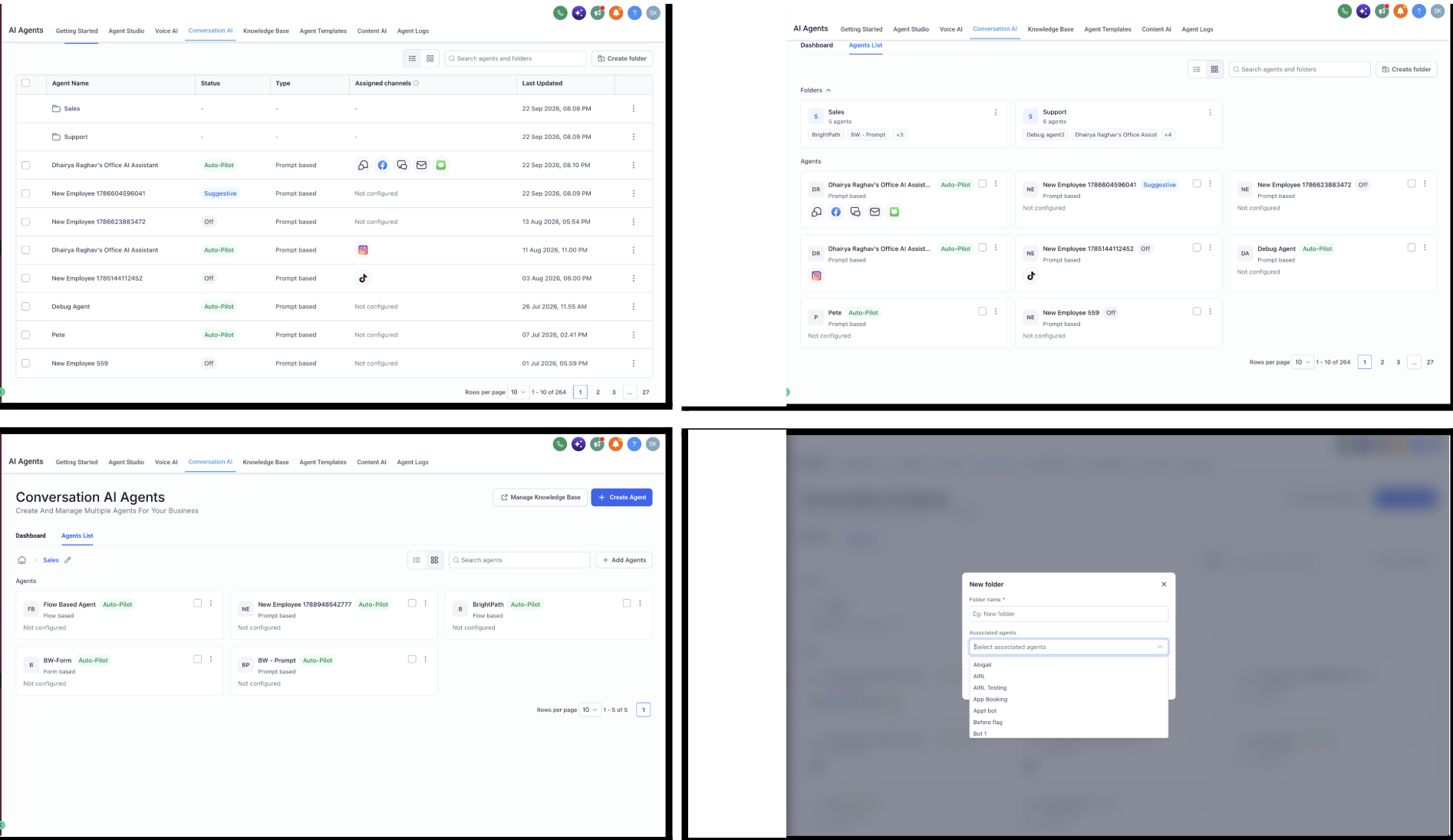
Keeping track of dozens of AI agents in one flat list gets messy fast. You can now organize agents into folders (like “Sales,” “Support,” or “After Hours”), browse them in a new grid view, and see at a glance which channels each one is live on.
How to use
Go to Conversation AI → Agents List. Click New folder, name it, and pick the agents that belong in it. Use the row menu on any agent to move it to a folder. Toggle between Table and Grid view from the top of the list.
Why it matters: you can scale to dozens of agents without losing track of what each one does or where it’s live.
Conversation AI agents can now run on GPT-6 Sol and GPT-6 Luna. Sol scores higher than GPT-5.6 Sol, replies about 20% faster, and costs half as much. Luna matches GPT-5.6 Luna’s intelligence at less than half the cost.
To switch, open your agent in Conversation AI, select GPT-6 Sol or GPT-6 Luna from the model list, save, and test.
Why it matters: better accuracy or lower cost, whichever your agent needs more, without any extra setup.
Suggestive mode now proposes both the reply and the actions that go with it, booking an appointment, updating a contact, handing over to a teammate, so you can review everything and send it all in one click.
How to Use It?
Set your AI Employee to Suggestive mode. On an inbound message, open the AI Suggested Reply card – the proposed actions are listed beneath the draft. Untick anything you don’t want, edit the reply, then hit Send & run.
One message can produce up to five proposed actions at once, each individually approvable, and if one fails you can fix and retry just that action without resending the reply.
Why it matters: you get the same actions Autopilot would take, but with a chance to review and approve each one first.
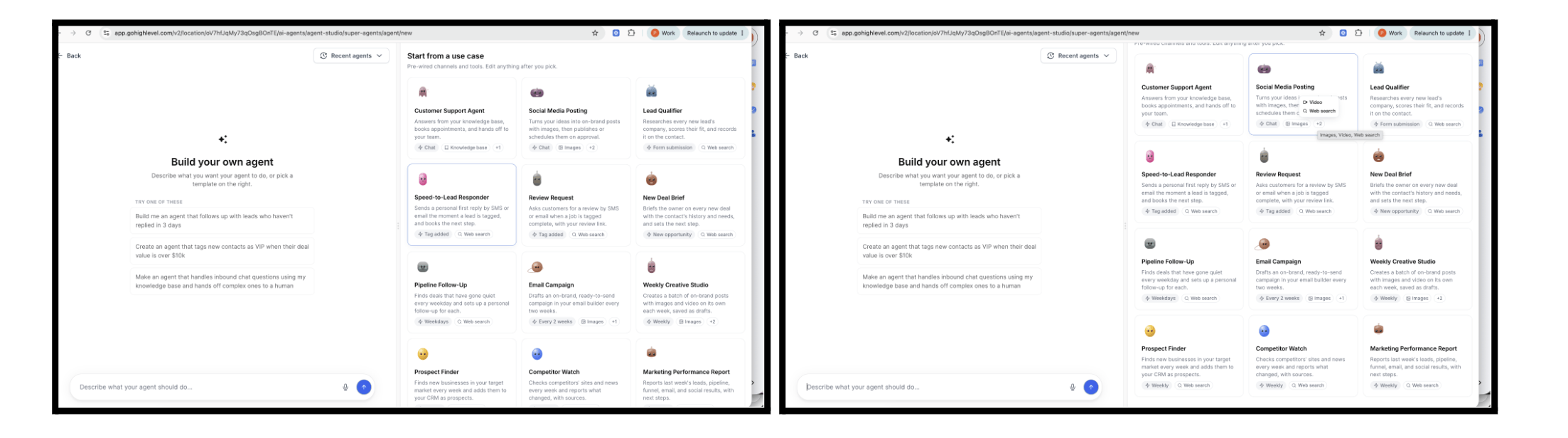
The Managed Agents template library just got a serious upgrade: 12 ready-to-run templates for sales, marketing, and support, many of which run on their own from a trigger or a schedule.
Templates include things like a Customer Support Agent that answers from your knowledge base and books appointments, a Speed-to-Lead Responder that replies within minutes of a new lead, a Review Request agent that asks for feedback when a job’s done, and a Weekly Creative Studio that batches out on-brand social content. Every template works end to end with your contacts, pipelines, calendars, email builder, and Social Planner, and results are always saved back into your CRM.
How to use
Go to AI Agents → Agent Studio and create a new Managed Agent. Pick a template under “Start from a use case”. Fill in the Settings section of the agent’s instructions, for example your ideal customer, review link, or report email. For trigger-based templates, choose the form, tag, pipeline, or start date, then click Publish. Chat with any template agent to try it before it goes live.
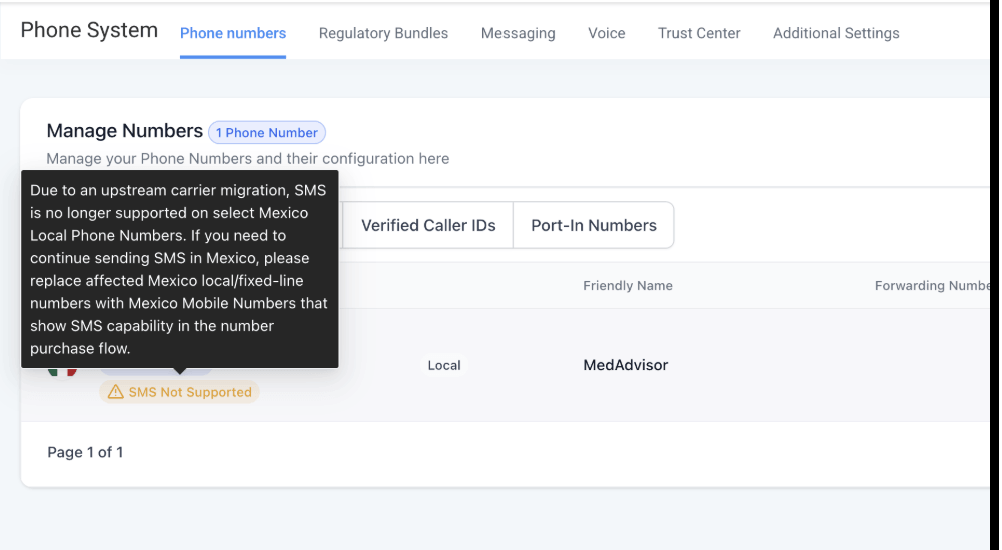
Due to a carrier migration outside our control, SMS is no longer supported on Mexico local phone numbers. To make that clear, an “SMS unavailable” status pill now shows up right in the Phone Numbers table for any affected number.
How to Use?
Go to Settings → Phone Numbers → Manage Numbers → Phone Numbers tab. If you have a Mexico local number, you’ll see the SMS unavailable pill, plus a tooltip with more context. Voice (and WhatsApp, where applicable) continues to work as normal on the number. No setup is required — the pill appears automatically for affected numbers.
You can now delete options from Dropdown, Multi-select, Radio, and Checkbox fields on Custom Objects and Companies, the same capability Contacts and Opportunities already had.
How to Use
Go to Settings → Custom Fields Open a Custom Object or Company field Delete the required option Review the affected-record count, if applicable Confirm deletion
If an option is already in use, existing records keep their value even after the option is removed from future selection, and you’ll see how many records are affected before you confirm.
Why it matters: you can clean up outdated field options without breaking historical data, filters, or workflows.
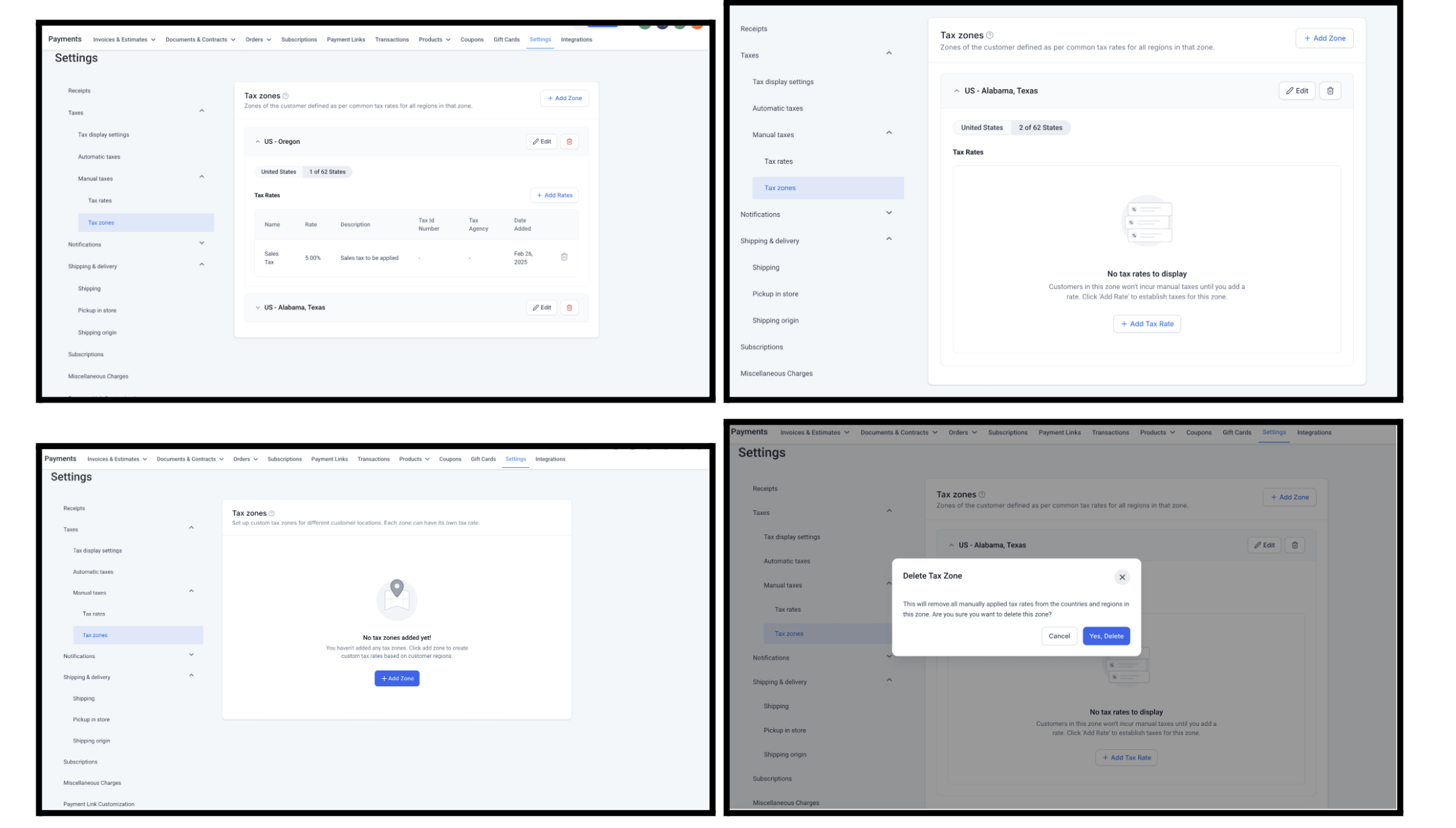
Businesses can now create Tax Zones under Manual Taxes to group countries and states together and apply user-defined tax rates by region, giving you a lot more control if you sell across multiple tax jurisdictions.
Each zone can hold up to 10 tax rates, and a country or state can only belong to one zone at a time, so there’s no risk of overlapping configurations. Automatic Taxes still take priority whenever they’re available; manual tax rates and zones apply only when Automatic Taxes are off or unavailable for that combination.
You’ll find this under Payments → Settings → Taxes → Manual Taxes, where you can create rates, build zones, and assign countries or states to each one.
Why it matters: regional tax setups get a lot easier to configure and maintain, especially if you sell in multiple countries or states with different rules.
Conversation attachments are getting stronger access controls to better protect sensitive customer files. Attachments will no longer rely on directly accessible links, applications accessing them outside of FG Funnels will need the right permission and authenticated access.
This starts with email conversation attachments, with other channels planned for later phases. Existing attachment links will keep working until November 30, 2026, giving developers time to update. For most users, there’s no change to the day-to-day experience, this mainly affects marketplace developers and apps that access email attachments outside the platform.
You can also build funnels and websites straight from Ask AI now. Just describe what you need, like “build a lead-gen funnel for my dental practice,” and Funnel AI creates it while you watch, right inside the conversation.
If your request is too vague, Ask AI will ask for your business type and goal first, then show you a short plan to approve before anything gets built. A live preview shows generation progress, and once it’s done, Edit in Builder opens the finished page in the funnel builder on your own domain, fully editable, with publishing, domains, tracking, and workflows all working like any other funnel.
Moving an agent to GPT Live, GPT Realtime, or Gemini? Your existing prompt was probably built for an older pipeline and carries instructions those models don’t need anymore. Hit “Validate prompt” in the builder and it’ll clean up unnecessary formatting, restructure buried rules into clear steps, and (for GPT Live) split speech instructions from reasoning instructions. You get a full side-by-side diff, and nothing changes until you click Apply.
Spam Call Detection adds two layers of protection: the agent can recognize and hang up on spam calls in real time based on your own description of what spam looks like, and every call gets classified afterward so repeat offenders get handled automatically. The threshold is fully configurable.
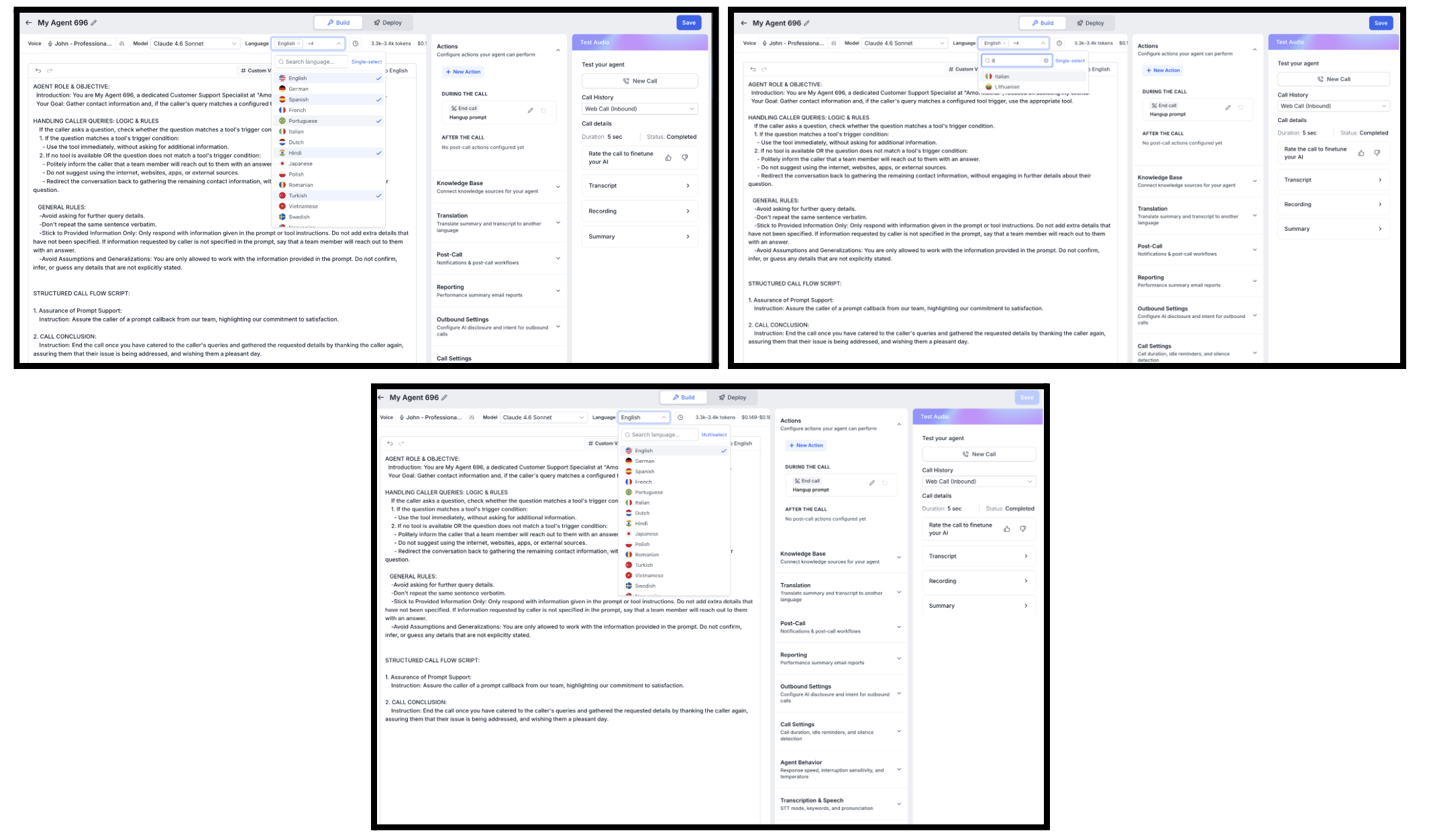
No more choosing between one language or a fixed list of ten you can’t customize. Open the Language picker in the agent builder, switch to Multiselect, and pick exactly the languages your agent should handle, English and Spanish, for example, without needing two separate agents.
Once you’ve chosen your languages, the voice library automatically filters to only show voices that can speak all of them, so you won’t accidentally pick one that goes silent on half your callers.
Why it matters: one agent can now serve exactly the languages your callers actually speak, no more, no less.
Ask AI can now build flow-based Voice AI agents for you. Describe what you want, answer a few guided questions, and Ask AI generates an editable voice flow directly inside the conversation, ready to review, test, or open in the full Voice Flow Builder.
Why it matters: complex voice-agent workflows get built a lot faster, without starting from a blank canvas.
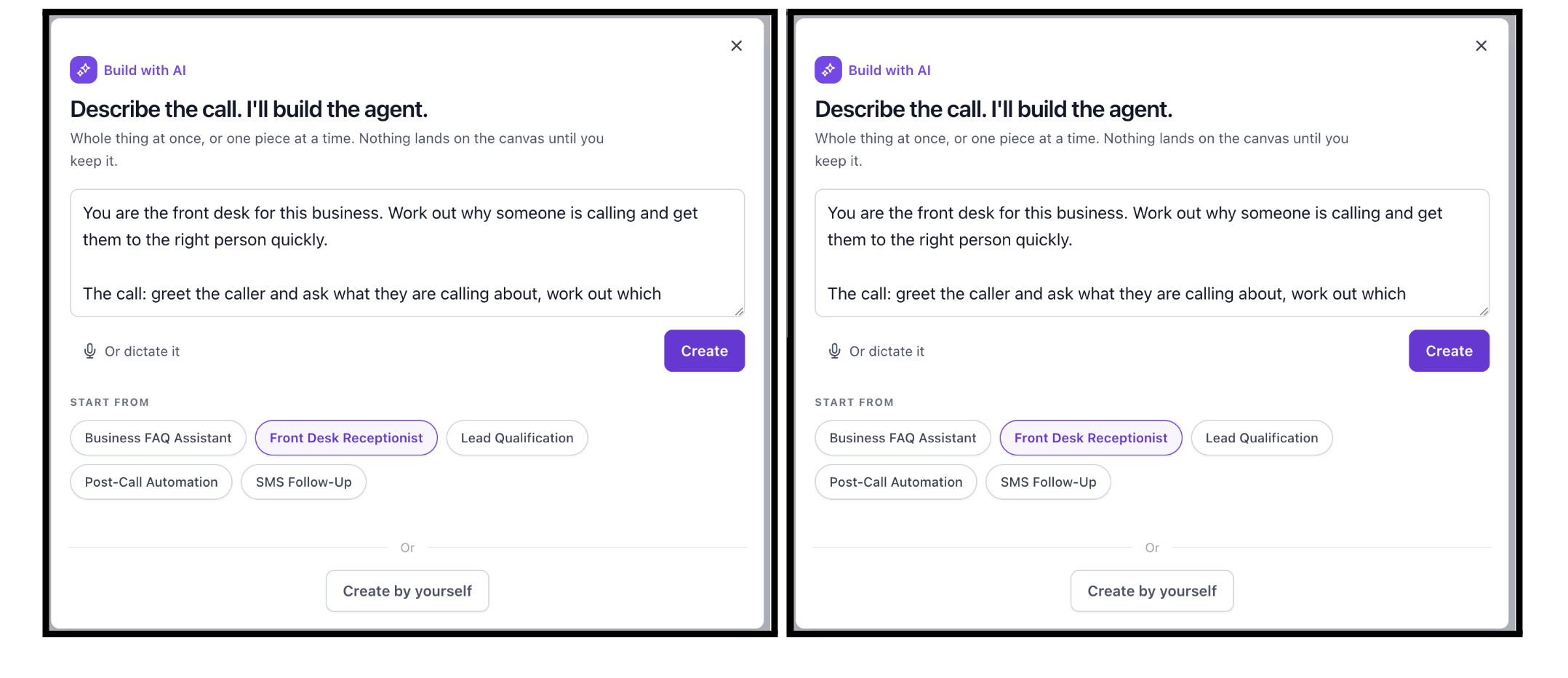
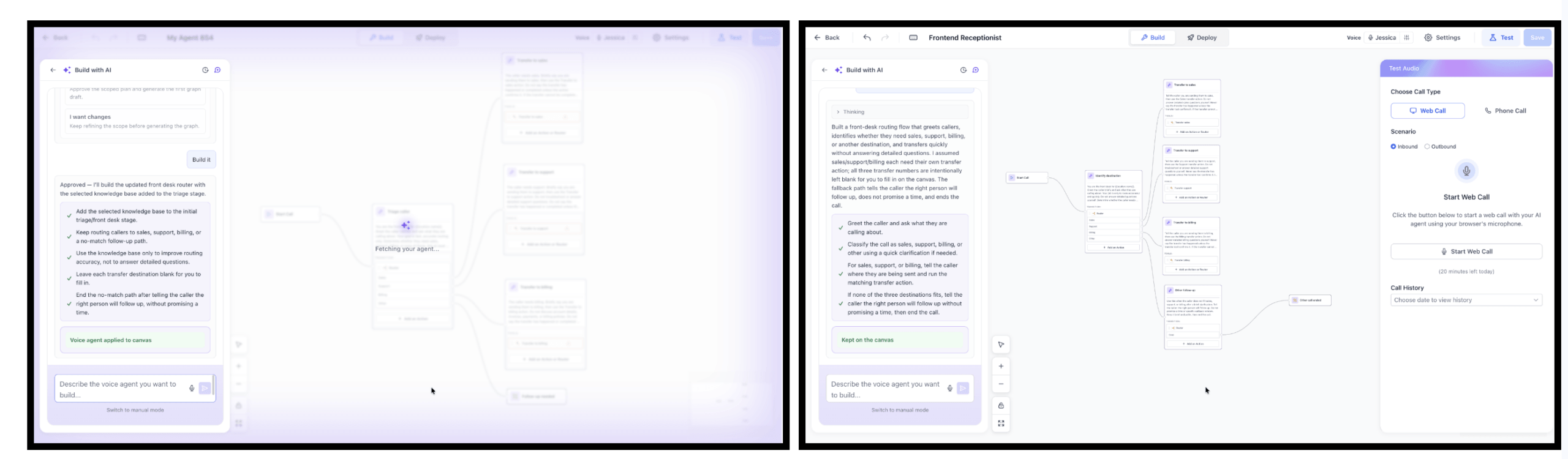
Building a Voice AI agent from scratch just got a lot easier. Every new agent now starts with Build with AI by default: describe what you want, or pick a suggested starter like Business FAQ Assistant or Front Desk Receptionist, and AI builds the flow right on your canvas. You can even dictate your instructions by voice instead of typing them.
A new Review mode lets you check what was built and refine it through conversation before applying anything, and the whole Flow Builder has a cleaner, easier-to-navigate interface. Prefer building manually? Create by yourself is still there, and you can switch to manual mode anytime.
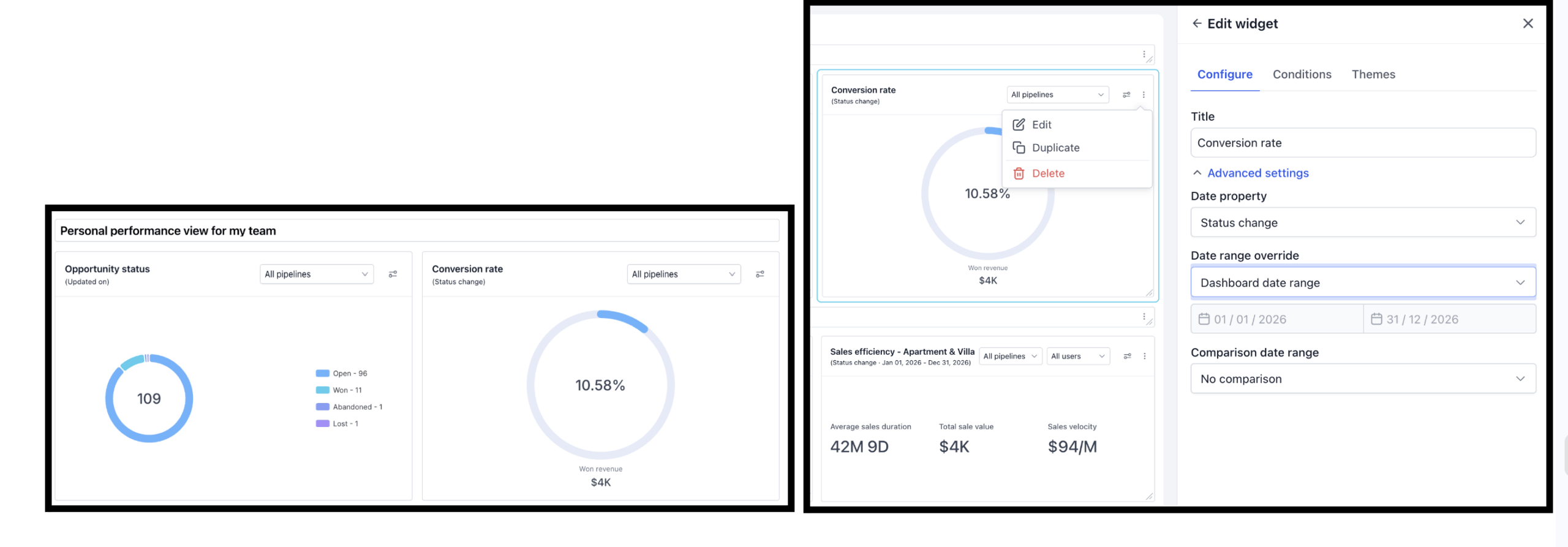
The pre-built General Widgets on your sub-account dashboard are now fully editable. You can add permanent data filters, override the date range per widget, compare performance across periods, rename widgets, apply themes, and duplicate or delete them.
How to Use
Go to Dashboard from the left navigation Click Edit dashboard (top right) Hover over any general widget and click the three-dot menu (⋮) Select Edit — the Edit widget panel opens with Configure, Conditions, and Themes tabs In Configure tab — edit the widget title and set date range override under Advanced Settings In Conditions tab — add permanent data filters by selecting a field, operator, and value Click Save
Why it matters: personal performance views, year-over-year comparisons, and client-branded dashboards are now possible without rebuilding widgets from scratch.
There’s now one place to see who canceled and why, with breakdowns by plan, persona, geography, tenure, and MRR sitting right next to the actual customer feedback behind those numbers.
You’ll find an executive-summary view with key talking points already pulled out, emerging themes flagged as they trend up, a full cancellation theme breakdown by geo and persona, cohort and tenure cuts, and raw verbatim feedback when you need the exact customer language.
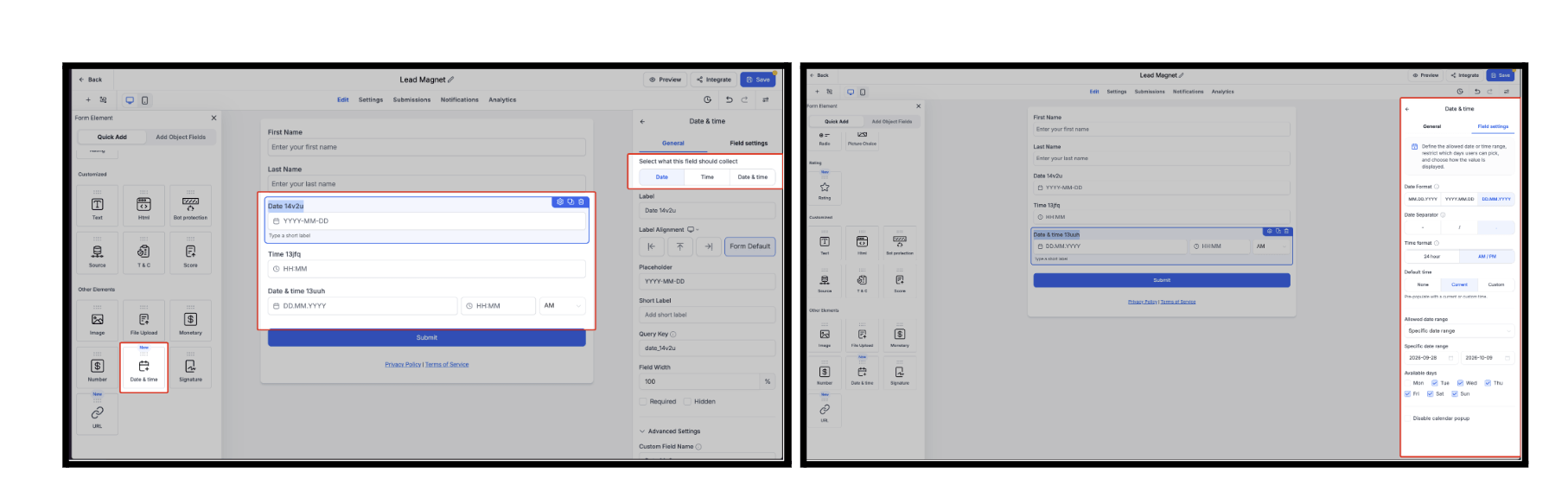
Date fields just got more flexible, and two new field types joined the lineup: Time, and Date & Time.
You can now restrict selectable dates to future only, past only, or a specific range. The new Time field collects time-only information with 24-hour or AM/PM formatting, and the new Date & Time field captures both together in a single field, perfect for scheduled events, appointments, and renewals. All of this works with your existing Forms, Surveys, and Quizzes too, no rebuilding required.
To use them, just drag the Date & Time field into your builder from the left sidebar, then choose Date, Time, or Date & Time from the right sidebar and configure validation rules, ranges, and defaults in Field Settings.
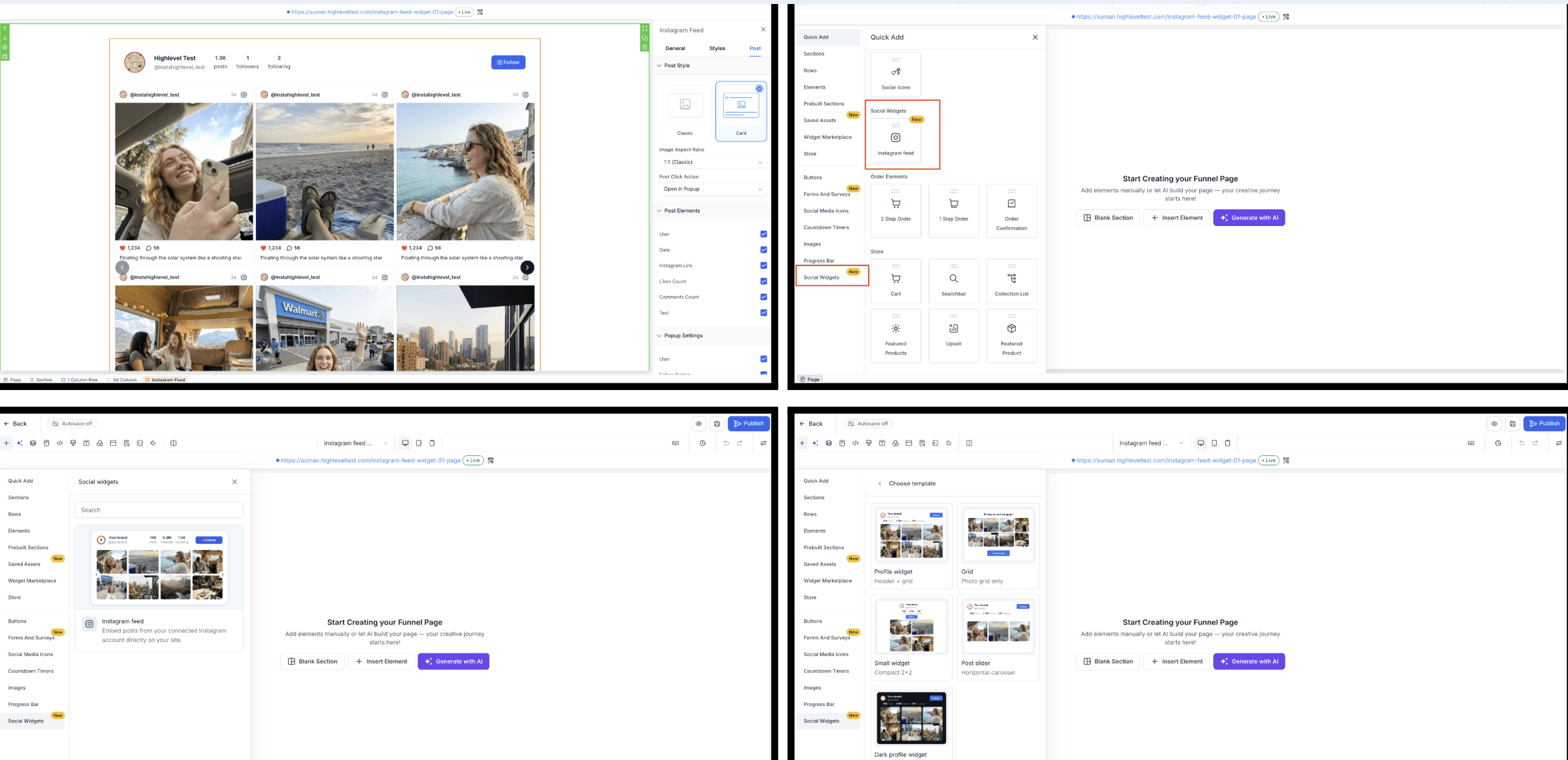
You can now add a live Instagram feed to your pages right from the page builder, no third-party embed service, no extra subscription, no code. Just open the element panel, choose Social Widgets, and pick Instagram Feed.
Five ready-made templates give you a starting layout (Profile widget, Grid, Small widget, Post slider, or Dark profile widget), and everything stays editable afterward: layout, colors, crop style, click behavior, and more. Connect an Instagram account you’ve already linked in Social Planner, and the feed starts populating on its own. If Instagram or Social Planner is ever temporarily unavailable, cached content is shown instead of a broken widget.
The Funnel and Website Builder now has a Device Width control beside the device switcher, letting you enter an exact pixel width to preview how your page looks at different screen sizes, while still working within the selected desktop, tablet, or mobile breakpoint.
This is preview-only, it doesn’t change which responsive styles are saved or published, and it resets back to default once you reload the builder or navigate away.
You can now describe the invoice layout you want and let AI build it for you. Something like “a clean two-column invoice with my logo top-left, an itemized table in the center, and payment terms at the bottom” is enough to get started, or you can upload an existing invoice and have AI recreate it instead of starting from a blank template.
Once generated, you’re not locked in: keep chatting with Layout AI to make changes, or open the layout in the visual builder to manually adjust style and content. Every AI change creates a restore point, so you can always roll back. Once published, the layout can be selected for invoices and is what your customers actually see on their invoice preview.
To activate it, go to Settings → Labs → Account, search for AI-Powered Custom Invoice Layouts, and turn it on for one sub-account or all of them at once.
FGF Notifications