
Welcome to your weekly roundup of FG Funnels updates through the week of June 25th, 2026.
From WhatsApp calling now available on mobile to a massive Ask AI expansion, Google Ads widgets in dashboards, Calendly integration in workflows, and custom fonts in emails — this week’s updates bring some seriously powerful tools to your stack. We’re also rolling out upgrades to Social Planner, Webinars, Courses, Contacts, and more — all designed to save you time and give your clients a better experience.
If you have any questions about these updates, email us at [email protected] or reach out through live chat inside the app — we’re always happy to help.
This week’s Ask AI update is a big one. You can now complete a long list of platform setup tasks directly from the Ask AI chat — no more navigating across multiple settings pages. Everything listed below is now available as a guided, conversational experience inside Ask AI:
Ask AI’s image generation has been upgraded with improved quality, accuracy, and a broader range of aspect ratio support. Generate images optimized for Instagram feed (4:5), Stories and Reels (9:16), YouTube thumbnails (16:9), square posts (1:1), portrait, landscape, and cinematic formats. Ask AI automatically selects the best format based on your prompt intent.
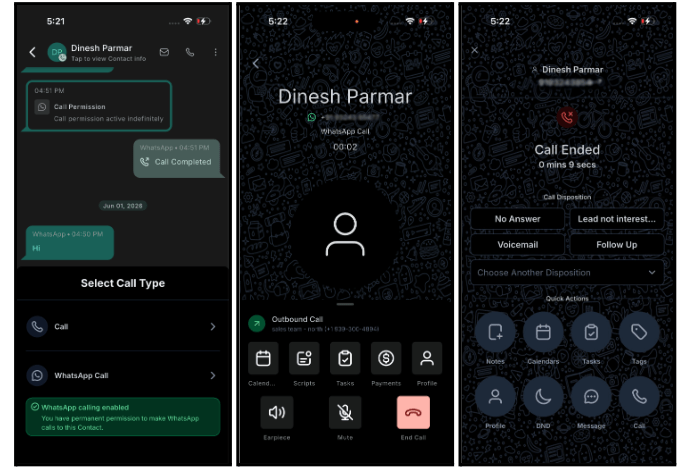
WhatsApp voice calling is now available on the mobile app. Open any WhatsApp conversation, tap the call button, select WhatsApp Call, and you’re connected — the call and its permission stay logged in the same thread. No app switching, no sharing phone numbers.
Inbound WhatsApp calls are supported across multiple sub-accounts with zero additional setup. Every call — inbound and outbound — appears in your call logs alongside your other calls.
Calendly is now natively integrated into FG Funnels Workflows with 5 triggers and 9 actions. Four triggers are instant and webhook-backed — they fire within seconds of the event in Calendly.
Triggers: Invitee created, Invitee canceled, Invitee no-show, New routing form submission, Event canceled (host-initiated, polls every 5 minutes).
Actions: Create one-off meeting, Book meeting for invitee, Find event, Cancel an event, Mark invitee as no-show, Create contact, Find contact, Update contact, Find user.
Common use cases include sending booking confirmations and syncing CRM contacts the moment someone books, cancellation recovery sequences with reschedule prompts, and no-show recovery flows with escalation after a set number of days.
Connect via Workflow Builder → add a Calendly trigger or action → Connect your account (OAuth).
Workflow Builder now loads significantly faster — up to 4x improvement on initial load times in many scenarios. The transition from the Workflow list into the builder is nearly instant. No changes to workflow execution — this is purely a builder performance improvement.
You can now select TikTok Interactive Messenger as a reply channel in the Wait → Until the contact replies action. Workflows pause and resume based on a contact’s TikTok DM reply — keeping TikTok fully integrated into your conversational automation flows.
How to use it

A new toggle in the top-left corner of the Workflow Builder lets you show or hide the FG Funnels navigation sidebar without leaving the builder. Use the keyboard shortcut Cmd+\ (Mac) or Ctrl+\ (Windows) for even faster access.
How to use it

If/Else workflow branches can now evaluate Opportunity Owners and Opportunity Followers as condition fields. Route contacts based on who owns or follows an opportunity — useful for automating team-specific follow-up, notifications, and handoff sequences.
How to use it

11 new Google Ads widgets are now available in Dashboards and Custom Reports, giving accoutns a native way to surface ad performance inside FG Funnels without logging into Google Ads separately.
Available widgets: Total Conversions, Conversions Over Time, Total Cost, Cost Over Time, Total Clicks, Clicks Over Time, Total Impressions, Impressions Over Time, Clicks by Campaign, Conversions by Campaign, and CPC (Cost Per Click).
Each widget supports filtering by Campaign, Campaign type, Zero impressions, Zero conversions, and PPC markup. Widgets connect to the -account’s linked Google Ads account and respect the dashboard date range.
Dashboards → Edit dashboard → Add widget → scroll to the Google Ads section.
Contacts widgets in dashboards and reports now support Group By → Source, bringing parity with how Opportunities widgets already work. See which channels are generating the most contacts at a glance, without any additional filtering.


The Campaigns module on mobile has been completely rebuilt from the ground up. Search and filter campaigns by name or status, open any campaign for a full performance breakdown, preview the email inline, and browse recipients by delivery status — all with the same metrics you see on web.
What’s new: Search & Quick Filters, Status at a Glance on every campaign card, an Overview tab with send metrics, Email Preview tab, and a Statistics tab with delivery, open, click, bounce, unsubscribe, and complaint rates across 11 recipient status categories.
Available on app version 4.18+.

Webinar notifications can now be configured, customized, and tracked directly inside the Webinar module. Set up Registration Confirmation, Reminder, Thank You, and Feedback emails — each independently configurable per webinar.
Notification setup is template-first: enabling a notification opens the Template Library so you pick a template before activating. Each notification has separate controls for timing (minutes, hours, or days), email content editing, and template updates — all without affecting the original template.
Built-in analytics track Open Rate, Click-Through Rate, and Delivery Rate per notification. Recurring webinars automatically apply notifications to each session occurrence.
Open a Webinar → Notifications section → enable a notification → select a template.
You can now create and manage Global Custom Fonts directly inside Brand Boards. These fonts are shared across a location and appear in the email template builder alongside system fonts. Update a font once in Brand Boards and it automatically refreshes across every template using it — no manual rework.
A warning appears before editing or deleting a font used across multiple templates. Fonts can only be edited from Brand Boards to keep updates consistent.
How to access
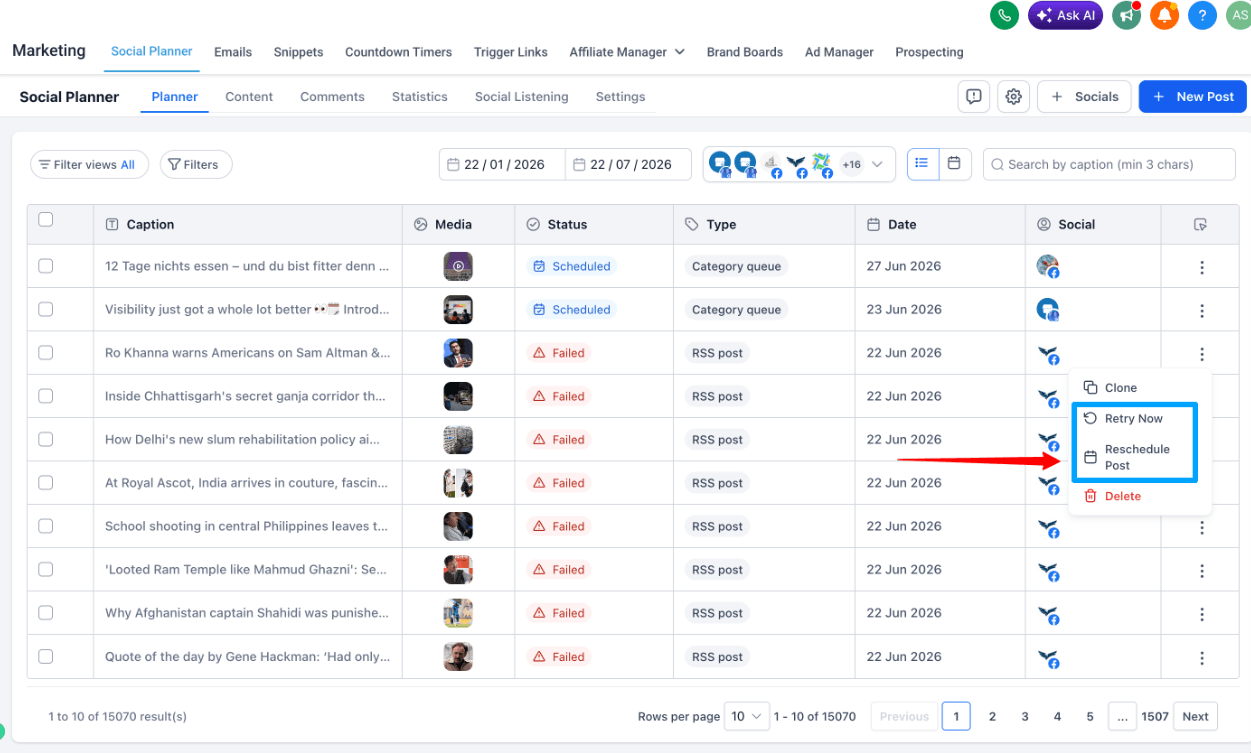
Failed posts can now be retried or rescheduled directly from Social Planner — no more cloning and recreating content just to recover from a publishing failure.
From any failed post, choose Retry Now to immediately attempt republishing with the original content and settings, or choose Reschedule Post to pick a new future date and time. The post status updates automatically based on the outcome.
How to Use
Note: Bulk retry is not included in this release.
The contact detail page customization has been updated with several new controls:


Documents in the contact record’s documents panel now support configurable sharing links with four access options: Public (anyone with the link), Private (authorized FG Funnels users only), One-Time Passcode (verified via email to the contact), and Password Protected (user-defined passcode).
Additional controls include expiration dates for shared links, allow/restrict download settings, and document access history for auditing. The default sharing behavior is private/internal unless changed.
Currently available in Labs.

Connecting Xero to FG Funnels now gives you control over which contacts sync in and where they go. Choose to sync All Contacts, Only Customers, Only Suppliers, or specific Xero contact groups. For suppliers, choose whether they land in your standard contact list or are routed to business records instead.
Both settings default to the original behavior — existing integrations are unaffected unless you opt in.
Payments → Invoices & Estimates → Accounting Sync → Manage (Xero) → configure sync settings.

Admins can now reset leaderboard points for individual members or the entire group directly from the admin panel. When removing a user from a group, an optional toggle lets you reset that member’s points as part of the removal flow — keeping your leaderboard clean without a separate cleanup step.
Point resets are irreversible. The reset-on-removal option is opt-in — points are preserved by default.
How to use it
You can now set font size on a selected portion of text within a single Text element — not just on the whole element. Select any range of text inside a heading, paragraph, or FAQ element and choose a size from the toolbar. Only that selection changes. This pairs with the existing inline font-family control, so you can mix both font and size inside one text block without splitting elements.
When editing an invoice or estimate on mobile and trying to exit with unsaved changes, a confirmation dialog now appears — letting you save your work or discard changes before leaving. If no changes were made, you can exit immediately without seeing the prompt.
How to use this feature
FGF Notifications