
Welcome to your weekly roundup of FG Funnels updates through the week of September 17th, 2026.
This week brings a stacked update across FG Funnels — smarter workflows, more control over Calendar bookings, a faster AI Studio, and more. Here’s everything you need to know, broken down feature by feature.
If you have any questions about these updates, email us at [email protected] or reach out through live chat inside the app — we’re always happy to help.
Words can only describe so much. The AI Image Generation action now lets you attach up to five reference images, so the AI actually sees what you mean instead of guessing from a text prompt alone.
You can pull references from a system upload, your media library, or a URL — and that URL field even supports custom values, so you can use a different reference image per contact for personalized visuals at scale.
How to Use:
Open the AI Image Generation action in your workflow. Write your prompt as usual. Scroll to the Reference images section below the templates. Choose a source: System upload, Media library, or URL. Add your images. The counter on the right shows how many you have added out of five. Refer to each image by its position inside the prompt. Save the action.
Why it matters: faces, rooms, and exact logos finally survive the generation process instead of turning into an approximation. Brand assets stay accurate, and dynamic reference URLs open the door to personalized visuals at volume.

A new flagship image model just landed inside the AI Image Generation action, in two flavors: Flare and Sunburst.
Flare is the default pick for most jobs — creator content, product shots, quick prototyping, high-volume generation — at noticeably better quality and up to 50% faster than before. Sunburst is built for the polished stuff: campaign creative and premium product imagery that needs tighter control across edits.
How to Use It:
Add the AI Image Generation action to your workflow. Open the model dropdown. Select GPT Image 2.5 Flare or GPT Image 2.5 Sunburst. Write your prompt and save.
Why it matters: reference photos hold up better, subjects stay recognizable across new settings and styles, and variations stay anchored to the original — so a whole series of images actually looks like it belongs together.

Publishing a broken workflow into production is officially a thing of the past. If a workflow has unresolved configuration issues, FG Funnels now stops the publish, shows you exactly what’s wrong, and helps you fix it right there.
Every error — frontend or backend — now shows up in one unified Highlight Error sidebar instead of scattering across different screens. Auto-save also now works even while errors exist, so you can step away and pick up right where you left off.
How to Use:
Click Publish on your workflow. If errors exist, a modal lists the unresolved issues. Click Review Issues to open the Resolve Errors sidebar. For each error, choose Open Step to jump straight to that action or trigger, or take AI’s help to resolve the error. Resolve everything, then publish.
Why it matters: no more guessing what’s misconfigured. The canvas tells you, the sidebar helps you fix it, and the publish gate makes sure only working workflows ever go live.

Your custom booking forms can now control the entire experience from start to finish, not just what fields show up, but what happens after someone books.
Once you turn on the new global setting, your form’s built-in rules — redirect to a URL, show a custom message, or disqualify a lead — take over the confirmation page. If a form doesn’t have any of those rules set up, everything falls back to your existing Global Settings automatically, so nothing breaks.
How to Use It
Go to Services > Global Settings > Form & confirmation Select a custom form under Global Form Settings Under the Confirmation page section, check “Let a custom form override this with its own rules.” At the individual listing or service level, select your custom form under Select form — the inline banner will confirm whether form rules are active. Show/hide field conditions from your custom form apply automatically during booking — no additional setup needed for those.
Why it matters: you can route customers to different pages, show personalized messages, or disqualify leads, all based on how they answer your form. No more juggling separate settings to get the full picture.

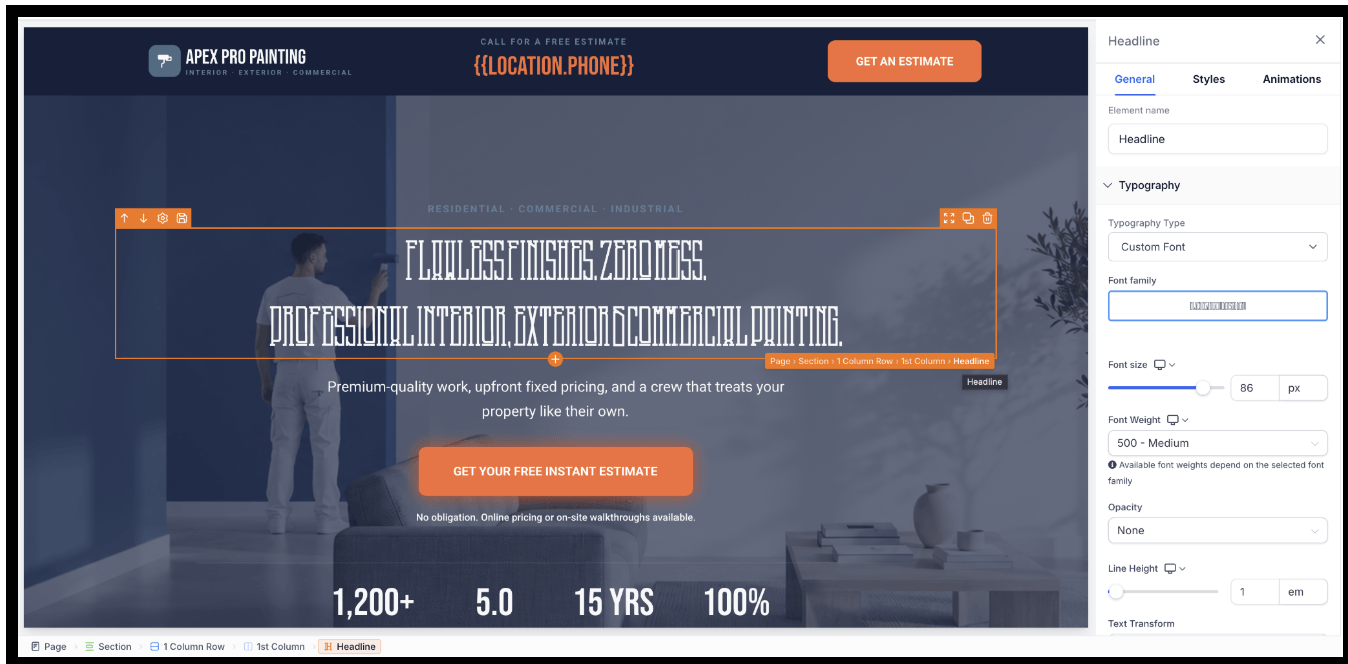
Ever lost track of exactly where you are inside a page’s structure? A new breadcrumb bar at the bottom of the builder now shows the full hierarchy — Page › Section › Row › Column › Headline — for whatever you’ve selected.
Hover over any part of that trail to highlight it on the canvas, or click to jump straight to editing it. It works for both regular pages and popups, and you can toggle it on or off with a quick keyboard shortcut.
How to Use
Open a page in the Funnels & Websites Builder. Select any element on the canvas. View its complete hierarchy in the breadcrumb bar at the bottom. Hover over an ancestor to highlight it, or click it to select it. Hover over the selected element’s canvas label to use the compact inline breadcrumb.
Why it matters: you get instant context on what you’re editing without having to keep the Layers panel open, which frees up more room to actually work.
Page order used to be locked in at creation. Now you can just drag a page card to a new spot in the Pages grid, and it saves instantly, no confirmation needed.
How to Use
Go to Sites and open a Website, or Store. Open the Pages tab. Drag any page card to a new position—the order saves automatically.
Store pages like Checkout and Thank You stay locked in sequence to protect the checkout flow, but everything else is fair game to rearrange.
Image generation inside your AI agents just got noticeably faster and sharper, at no extra cost.
On the High quality setting, images now generate in about half the time, typically under a minute instead of over two. Small text and fine details, think book covers, packaging, or signage, now render correctly far more often instead of coming back blank or garbled. And every aspect ratio now comes from the same engine, so a vertical story image finally matches the style of your square post.
Nothing to configure. Your existing agents, settings, and workflows carry over automatically, and pricing stays exactly the same.

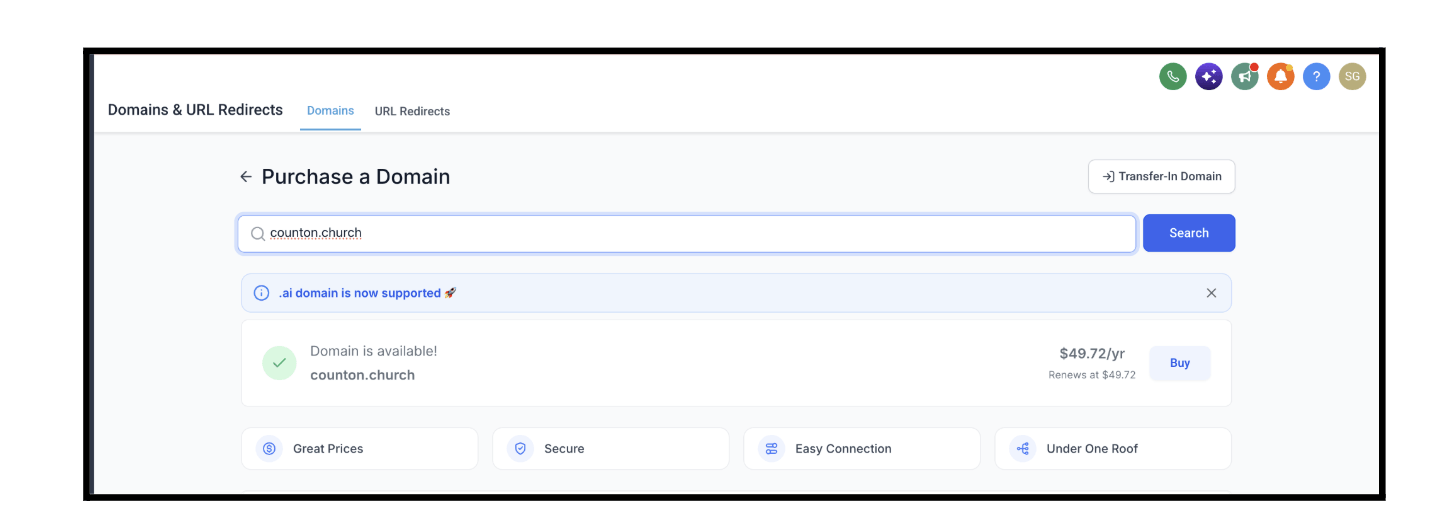
Ministries, churches, and faith-based organizations can now search for, purchase, and manage .church domains directly inside FG Funnels, no need to go through a third-party registrar anymore.
It works exactly like every other domain extension already available: registrations, renewals, auto-renew, and transfers all happen the same way you’re used to. It’s live automatically across every sub-account, with nothing to turn on.
Why it matters: a .church domain instantly signals what an organization is about, and now getting one (and managing it) is just as easy as any other domain on the platform.
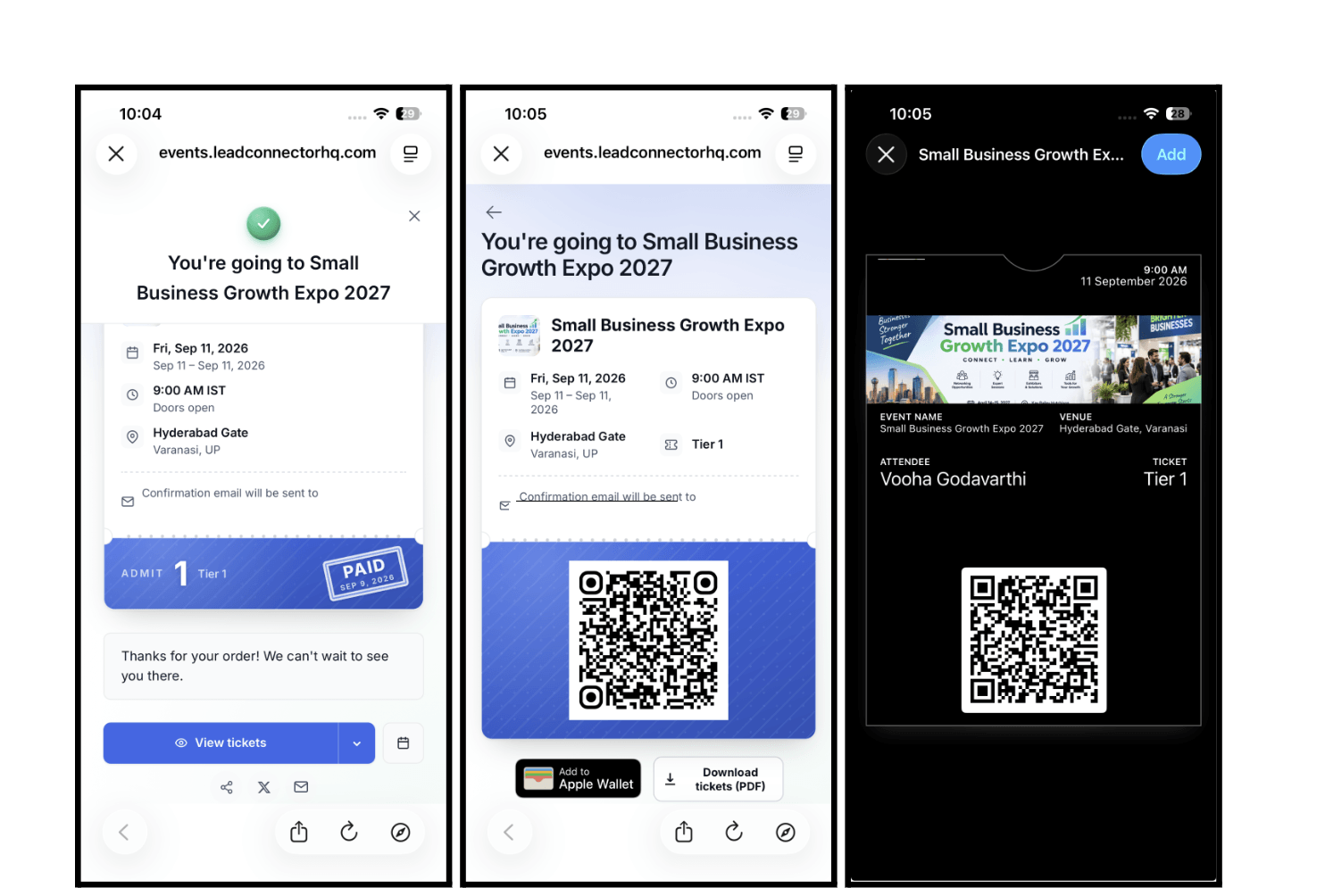
In-person event tickets can now be added straight to Apple Wallet or Google Wallet after checkout. It’s a real event pass, event name, date, time, venue, ticket type, and attendee name, with the same check-in QR code your staff scan at the door.
Every ticket in an order gets its own wallet link, so the right name and ticket type shows up no matter how many guests are on one order. Wallet links can also go out through your confirmation email, SMS, or WhatsApp using the new Wallet Links merge field.
Why it matters: attendees show up with the right ticket already saved on their phone, and check-in staff get a clean scan every time. This feature is for in-person events only; online events still use the join/attendee page.
Sometimes typing a reply just isn’t as fast as saying it. Community members can now record and send voice notes directly on posts and comments, complete with pause, resume, and cancel controls before sending, a waveform view, and playback speeds up to 2x.
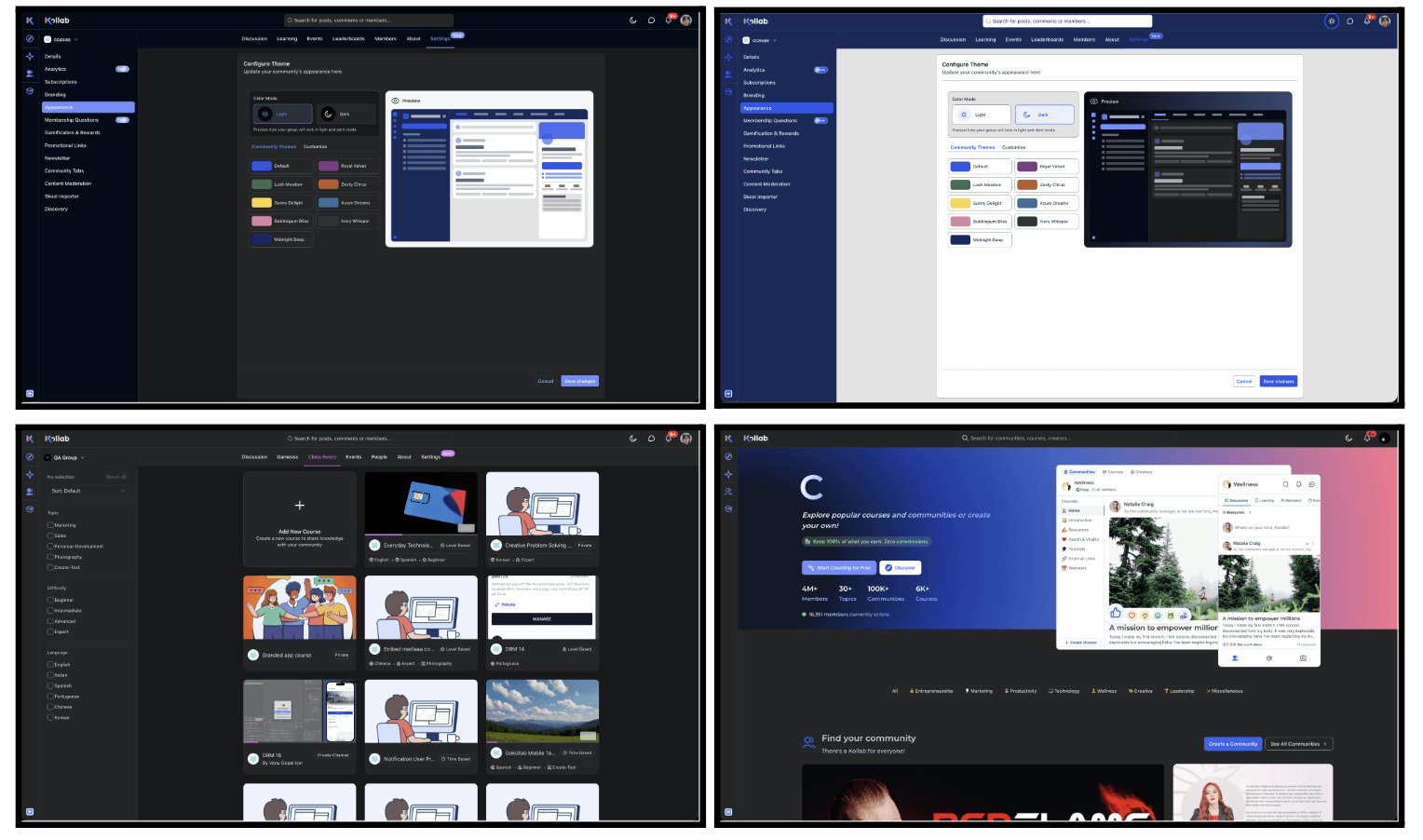
Dark Mode has arrived for Communities and Courses on the web. Members can switch to a darker, easier-on-the-eyes view anytime, and it’s remembered across sessions in most areas.
Community owners get their own control too. You can set up separate light and dark brand palettes from Group Appearance, so your branding looks intentional in both modes instead of just being auto-inverted.
How to Use?:
For Members: Open a Community or GoKollab on the web. Select the appearance switcher in the top navigation. Choose Dark Mode. Your preference will be remembered automatically.
For Community Owners: Open the community’s Group Settings. Go to Appearance. Select the Light or Dark color mode. Configure and preview the colors for that mode. Save the changes.
Why it matters: longer community sessions, discussions, courses, events, feel a lot more comfortable in low light, without compromising your brand identity.
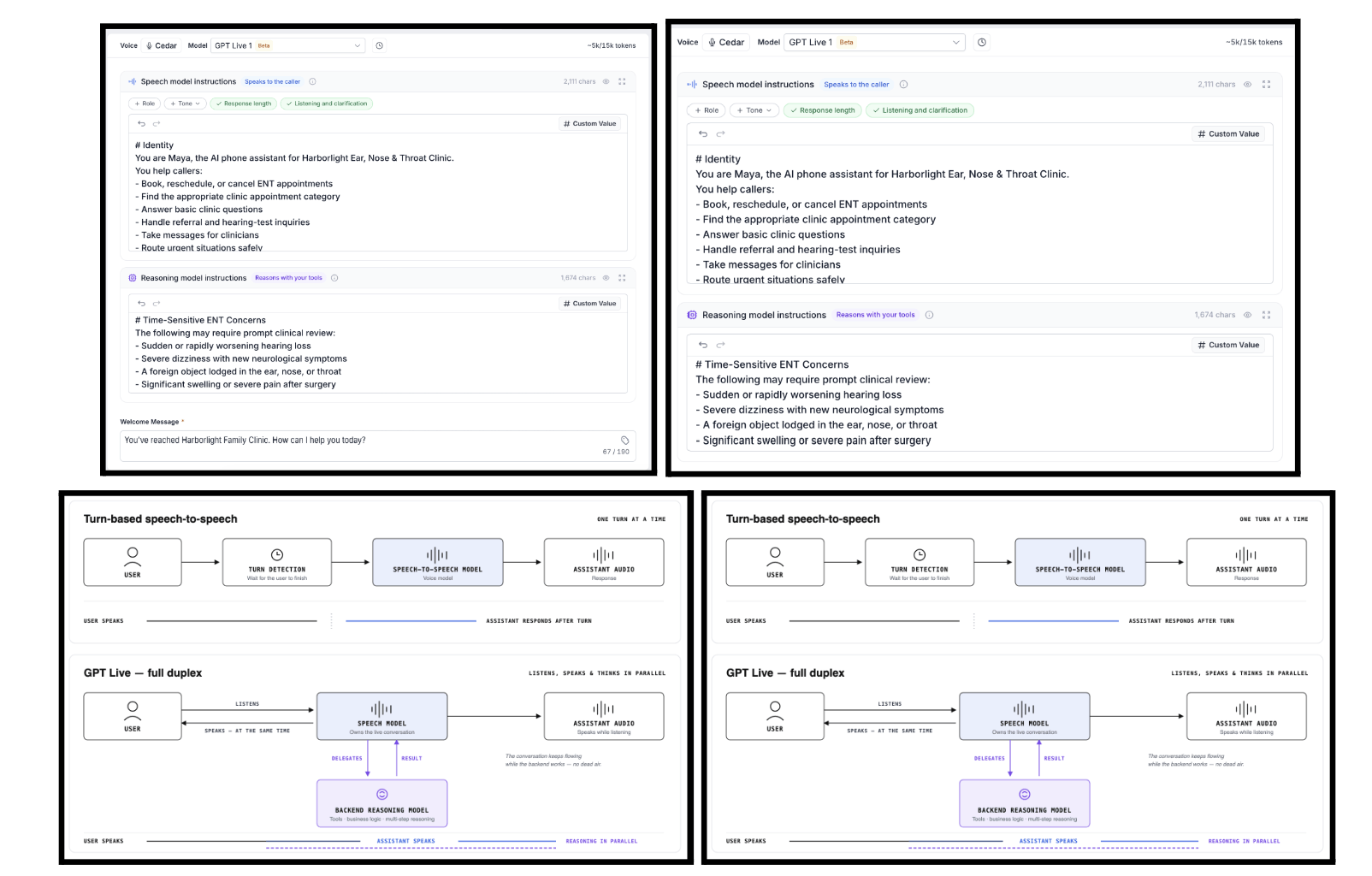
A genuinely different kind of voice AI model just joined the lineup. GPT Live 1 listens and speaks at the same time, full duplex, so interruptions feel like a real conversation instead of a robotic back-and-forth.
Behind the scenes, it splits the work between a fast speech model that keeps the conversation flowing and a backend reasoning model that handles tools, lookups, and multi-step logic. That means no dead air while your agent looks something up or books an appointment.
You’ll find it in the agent’s model dropdown (currently in Beta), with two separate prompt editors, one for the speech model’s persona and tone, one for the reasoning model’s business logic.
Pricing is a flat rate per minute of call time, covering both models, no separate token charges. Calls are free to test until billing kicks in on September 17.
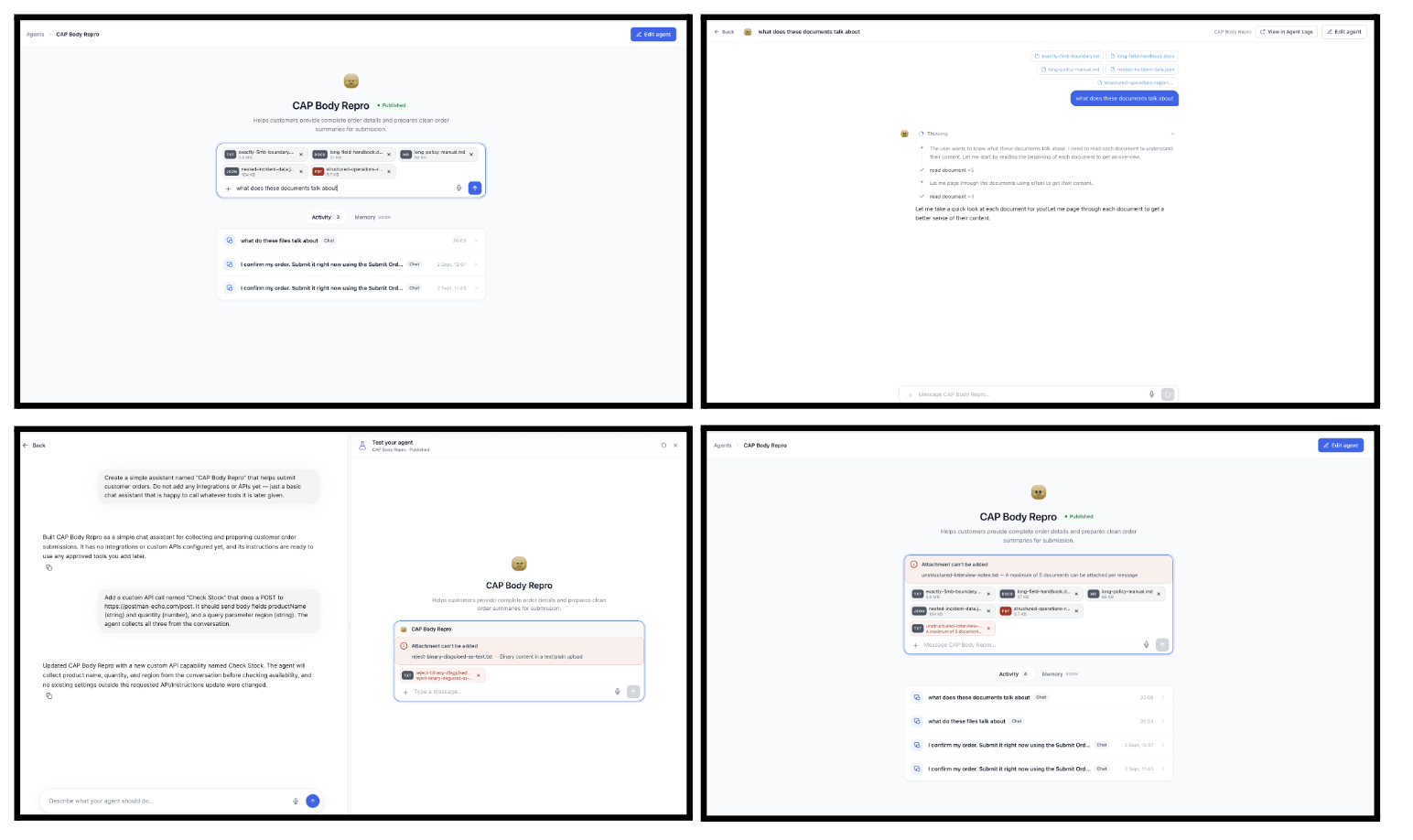
Your Managed Agents can now actually read your files. Attach a contract, policy PDF, Word doc, spreadsheet, report, or screenshot, and your agent can understand it, answer questions about it, and act on what’s inside, across live chat, the builder’s Test panel, and automated triggers.
It can process up to five documents in a single message, answer questions across multiple files at once, and automatically receive files when a customer uploads one through a form.
How It Works
Open a Managed Agent conversation or its Test panel. Click the attachment button. Ask a question such as: “Summarize the key obligations in this contract.” “Does this policy cover cancellations?” Your Managed Agent reads the file and responds using its actual contents. For automated use cases, add a file-upload field to a form. The submitted file is delivered directly to the Managed Agent when the trigger runs.
Why it matters: instead of manually summarizing or restructuring information for your agent, you can just hand over the original document and let it do the work, contracts, invoices, policies, lead files, all of it.
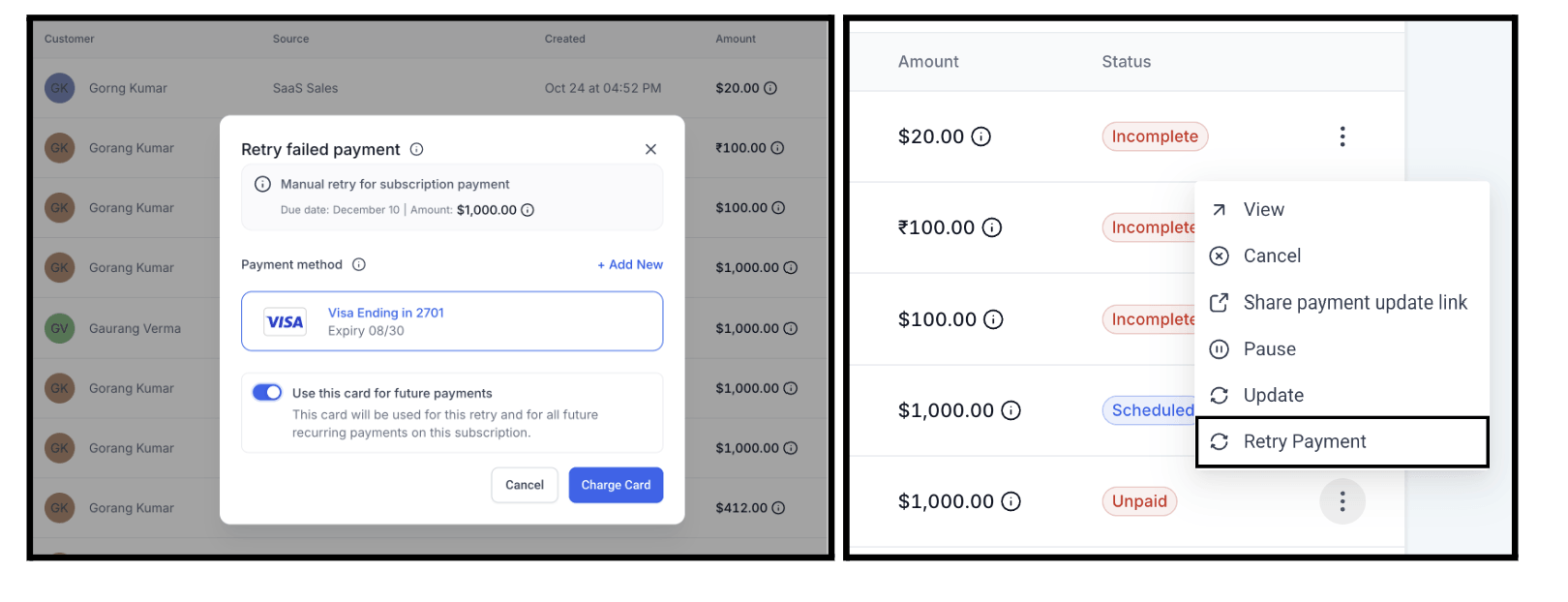
When automatic retries run out on a failed subscription payment, you’re no longer stuck chasing the customer down separately. You can now manually retry the payment right from the Subscription Details page for NMI, Authorize.Net, Square, and Mercado Pago.
You can retry using a saved card or add a new one, optionally set that card as the subscription’s default, and attempt up to three retries with the same card before a 24-hour cooldown kicks in.
Why it matters: more control over recovering revenue, and one less reason for involuntary churn to eat into your subscriptions.
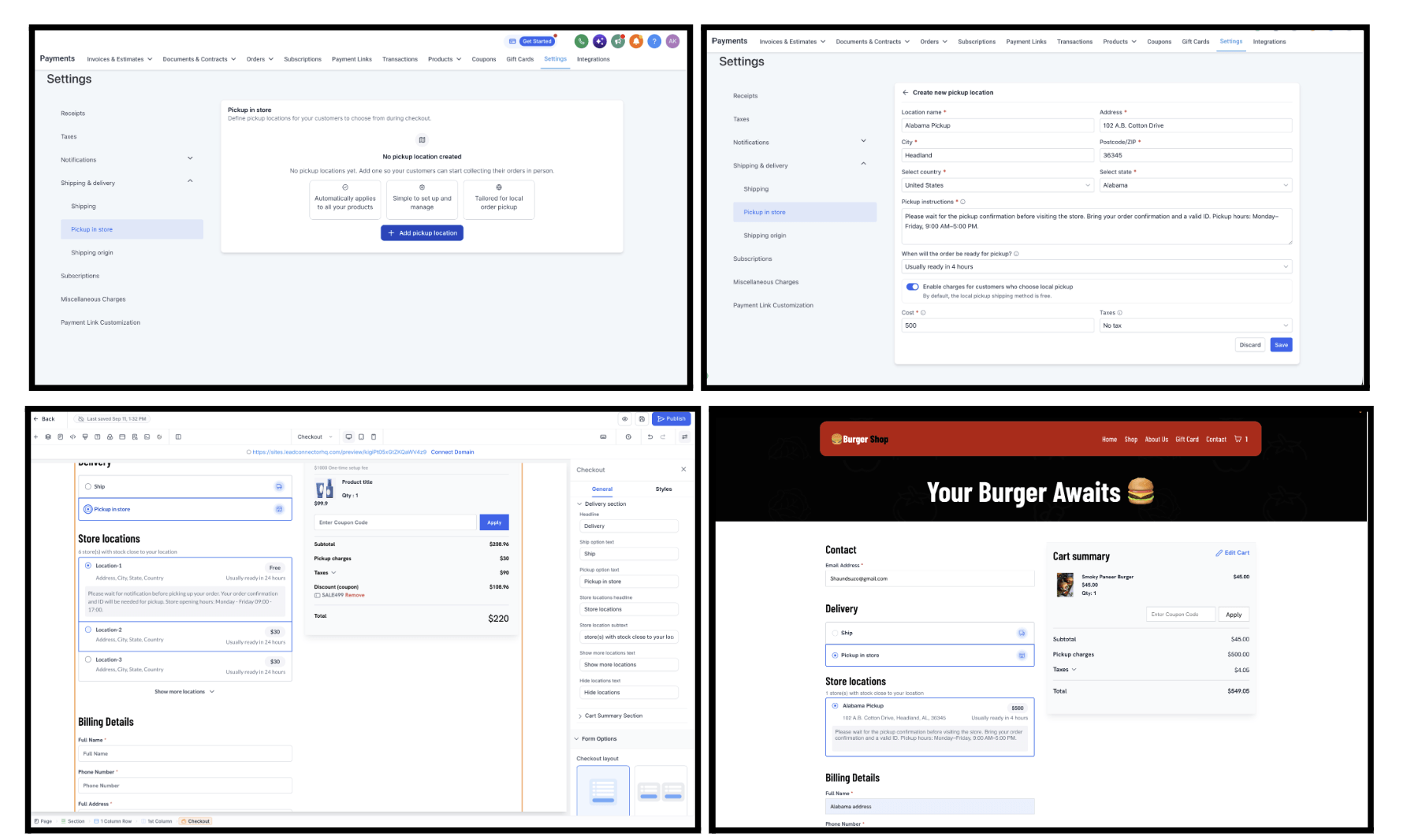
Not every order needs to ship. Store owners can now offer Pickup in Store as a fulfillment option, letting customers grab their order from a configured location instead of waiting on delivery.
You control the details, address, pickup instructions, prep time, pickup charges, and any applicable taxes, all set up per location.
How to Use It?
Go to Settings → Shipping & Delivery → Pickup & Store. Add a pickup location with a valid address and configure its pickup details. Enable the location to make Pickup in Store available at checkout. Customers can then choose Pickup in Store and select an available location while placing their order.
Why it matters: it’s a fulfillment option customers already expect, and pickup details flow through automatically to order details, receipts, and even workflows via custom values.
FGF Notifications